
Auto-Grade a Google Forms Quiz on iPad & iPhone (2026)
Can You Grade a Google Forms Quiz on iPad or iPhone?
Yes — you can set up auto-grading, mark the open-ended answers by hand, and release scores to students entirely from an iPad or iPhone, with a browser workflow you should test on your device. Google has never published a Forms app for iOS, so the editor you use is the mobile web at forms.google.com in Safari — or a third-party app such as Forms for Google Drive (by pipiform) — rather than a native Google app. (For the full background on why no official app exists, see is there a Google Forms app for iPhone.)
That one fact shapes the workflow. The Safari editor is fully capable — it offers quiz mode, answer keys, grade release, and export controls — but it was built desktop-first, so a few habits make it smoother on a tablet: an external keyboard for typing answer keys, iPad multitasking, when supported to keep a roster or rubric beside the form, and patience with the occasional layout quirk. This guide is the mobile-first grading loop from start to finish: switch on quizzes, set the key, decide when scores go out, mark the essays, and release. It’s the deep dive into the auto-grading that our Google Forms for teachers guide introduces.
Step 1 — Turn On Quiz Mode (on iPad Safari)
Nothing about grading works until you flip one switch: a form only becomes a graded quiz after you turn on quiz mode in Settings. Skip this and the answer-key and point-value controls simply don’t appear — the most common reason people say “I can’t find where to set the correct answers.”
- Open the form at
forms.google.comin Safari and tap the Settings tab. - Turn on Make this a quiz in Settings.
- While you’re there, glance at the respondent visibility options under that section — you’ll come back to them in Step 3.
That’s it: the form is now a quiz, and supported question types gain an Answer key control; other types can still receive manual points and feedback. On iPad, iPad multitasking, when supported earns its keep here — keep your source document (the questions and answers you’re transcribing) or Google Classroom open beside Safari so you’re not flipping between apps while you build. For more on the teacher side of running quizzes from a tablet, see the teachers’ iPad and iPhone playbook.
Step 2 — Set the Answer Key and Points
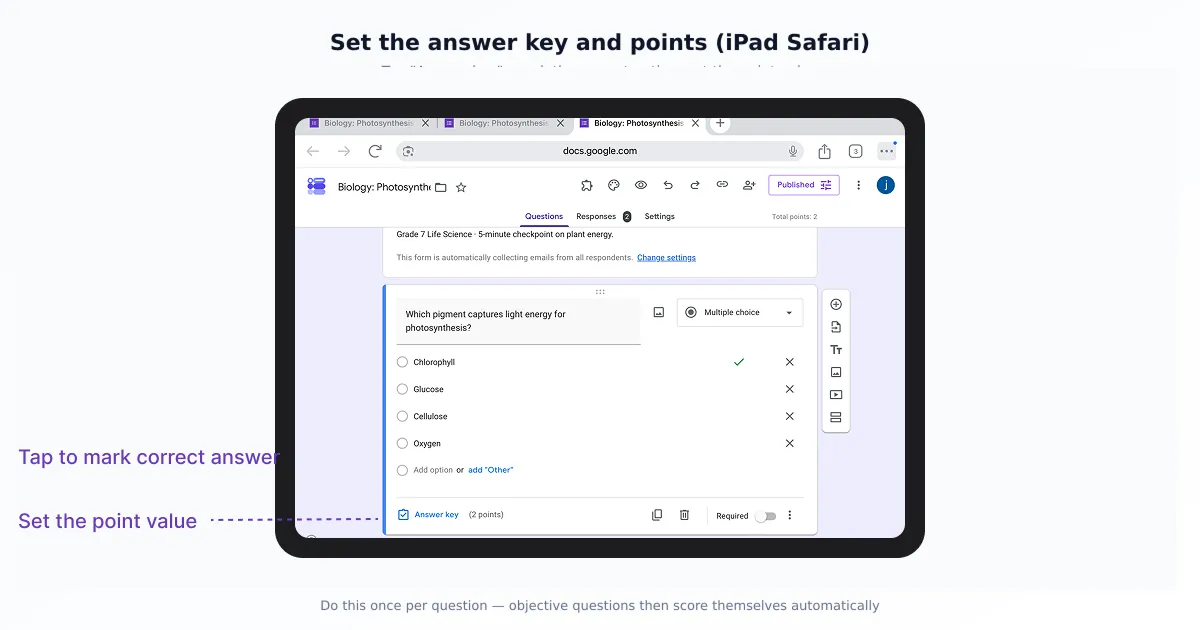
With quiz mode on, you grade a question by opening its answer key, marking the correct option, and assigning a point value. Do this per question, and Forms scores every matching response automatically the instant it’s submitted. On each question, tap Answer key, select the correct answer(s), set the points, and optionally add feedback that students see for right and wrong responses.
Be warned that this is repetitive: a 30-question exam means opening the answer key 30 times, and on a touchscreen that adds up. One time-saver is a default question point value — set it once and every new question inherits it, so you’re not assigning points one at a time. It doesn’t set the correct answer for you, but it reduces repetitive point entry.
Which question types auto-grade
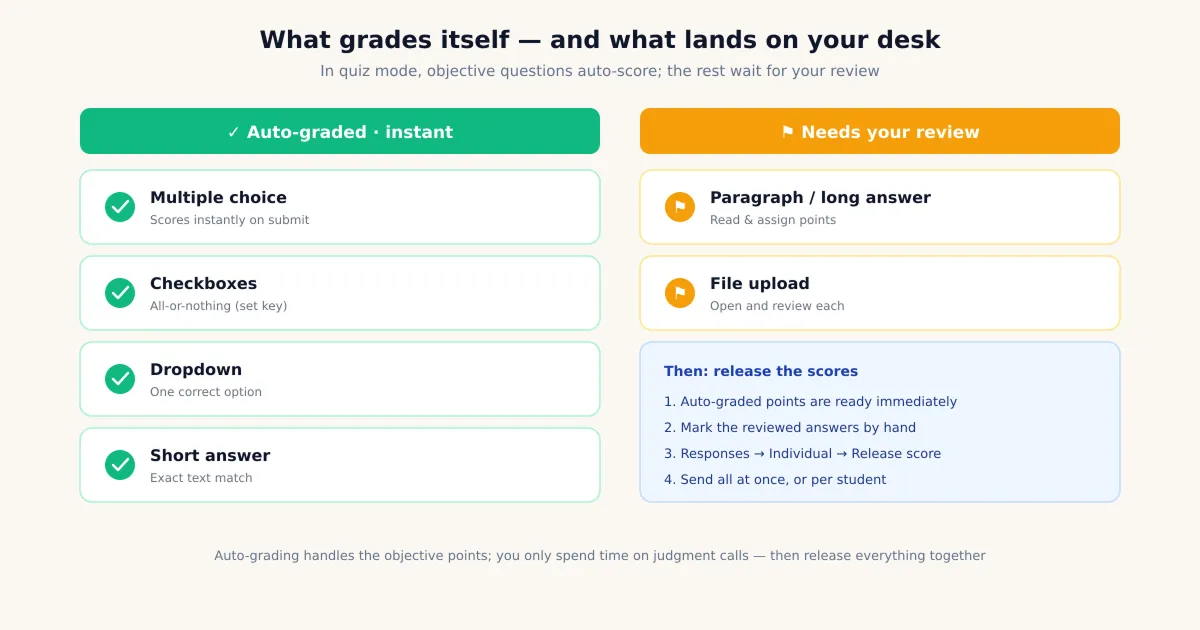
Not every question type can score itself, and knowing which is which tells you exactly how much manual grading is left after the bell. The table covers common types; short answers can use accepted-text matching, while paragraphs and uploads need review. Grid questions have answer-key options too, so test their scoring for your exact layout.
| Question type | Auto-grades? | How it’s scored |
|---|---|---|
| Multiple choice | ✅ Yes | One correct option, full points |
| Checkboxes | ✅ Yes | All-or-nothing (see gotchas) |
| Dropdown | ✅ Yes | One correct option, full points |
| Short answer | ✅ Yes (matched text) | Exact match to accepted answers |
| Paragraph (long answer) | ❌ No | Manual — grade + feedback |
| File upload | ❌ No | Manual — open and review |
The one that catches everyone is short answer. Grading matches the accepted text, not the meaning of a response. A key containing only “Paris” may reject “Paris, France” or another spelling. Test case, punctuation, and spacing with sample submissions. The fix is to list several accepted variants per question: spellings, abbreviations, with and without units. Review unexpected mismatches before releasing scores. Google’s official create and grade quizzes documentation covers the answer-key mechanics, and the Forms API setup-grading guide spells out exactly which question types accept correct answers for automatic scoring.
Step 3 — Choose When Grades Release
Forms lets you release scores two ways — immediately after each student submits, or later, after you’ve reviewed — and the choice depends on the stakes. The control lives in Settings under “Release grades.”
Immediately after submission suits low-stakes practice: a self-check quiz or an exit ticket where instant feedback is the whole point and there’s nothing sensitive about everyone seeing scores as they go. Later, after manual review is the right call for any real exam. It lets you grade the open-ended questions first and then release everyone’s score at once — which sidesteps the “my friend got their grade and I didn’t” anxiety that an immediate, rolling release creates in a class.
Under respondent settings, missed questions, correct answers, and point values are separate visibility choices. Point values governs question-level scoring information. If a student cannot see a grade, check the release setting and whether the score has been released as well as these display options; do not assume one toggle explains every missing score.
For an exam you plan to reuse, decide what students should see and test the published link as a respondent. You may show Point values while hiding Missed questions and Correct answers. This reduces direct disclosure of the key, but it does not stop students sharing questions or screenshots. Delayed release and revised questions may still be needed.
Grading Short Answers and Essays by Hand (on iPad)
Paragraph answers and file uploads are judgment work no setting can automate, so you grade them by hand in the Responses tab — and the iPad is a genuinely good surface for it. Open Responses, then either work by Question (grade everyone’s answer to item 7 in a row, which keeps your standard consistent) or by Individual (read one student’s whole quiz at a time). For each, assign full, partial, or no points and type per-question feedback.
This is where the Apple Pencil helps: scrolling long paragraph responses and tapping precisely into the score and feedback fields is more comfortable on iPad than thumbing through on a phone, and Scribble can convert handwriting to text where the device, language, and field support it. To be honest about the limits, there’s no AI essay scoring and no rubric engine inside Forms — you read each answer and assign the points yourself. For a class set, that’s the part that takes time; supported automatic scoring can reduce the remaining workload.
Releasing Scores from Your Phone
Once everything’s marked, you release scores from the Responses tab — and this part works fine on iPhone. Go to Responses → Individual, open a response with a recorded email address, tap Release score, select the recipients, then Send emails and release. Each student gets their grade.
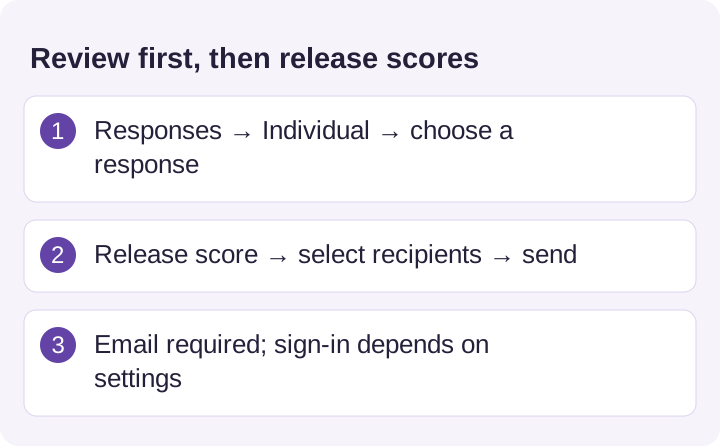
Email release requires a recorded email address for each recipient. Verified email collection requires a Google sign-in; respondent-entered email collection is a different option, and other access settings can also require sign-in. Test the actual audience and delivery before distributing the quiz. Without a collected address, Forms has no email destination for the score.
The Limits You Should Know Before Relying on Auto-Grading
Auto-grading is reliable for what it covers, but it covers less than people assume — so a few limits are worth knowing before you lean on it for a real exam.
- Checkboxes are all-or-nothing. By default a student earns the points only by selecting every correct option and nothing extra — pick three of four right answers and the score is zero. You can award partial points manually in Responses. For automatic points per option, consider separate single-answer questions with their own points and test the result.
- Short answers are exact-match. As covered above, a correct response phrased differently is marked wrong until you add it as an accepted variant.
- Weighting and partial points. Use different point values to give questions different weights. Manual grading can assign partial points; advanced rubric calculations need a separate workflow.
- No built-in timing. Forms has no native countdown or auto-submit for a timed exam; a dedicated timer add-on fills that gap if you need one — see our guide to adding a timer to a Google Form on iPhone.
- No proctoring. Google’s locked mode is for eligible managed Chromebooks, not iPhone or iPad. Ordinary iOS Forms use has no built-in camera proctoring, and a timer is not a browsing lock. Pair shuffled question order and one-response limits with the visibility settings above for what control you can get.
None of these make auto-grading unusable — they just mark where your own judgment, or a settings workaround, has to take over.
Exporting Grades for Your Records
The fastest way to turn quiz results into a gradebook is Link to Sheets in the Responses tab, which creates a connected spreadsheet with timestamps, scores, and every answer — receiving new responses while synchronization is working. From there you can sort and total on iPad, then export the sheet to PDF or Excel for your records or your school’s grade book. Our guide to converting Google Forms responses to PDF on iPhone walks through archiving a graded set as a clean PDF, which pairs well with keeping the live Sheet for ongoing analysis.
Which Setup Should You Use?
The right grading setup depends on the stakes and the question mix, and it comes down to three common patterns.
- Low-stakes practice — release scores immediately and leave missed questions, correct answers, and point values all visible. Instant feedback is the goal, and there’s no key to protect.
- High-stakes exam — release later, after review, show point values only, and hide correct answers. Grade the essays first, then release the whole class at once.
- Quiz with short answers or essays — go mixed: let Forms auto-grade the objective questions, then mark the open-ended ones by hand from the iPad and release everything together once you’re done.
Match the setup to the situation and most of a quiz grades itself, leaving you only the judgment work that genuinely needs a human. When the touch editing or exporting starts to slow you down, Forms for Google Drive smooths the rough edges of doing this on a tablet — building and editing quizzes on iPad, reviewing responses, and exporting graded sets — while quiz mode does the scoring.
Keep grading, mobile review, and timing as separate steps
On iPhone and iPad. Forms for Google Drive helps you manage quizzes and review responses from iPhone/iPad. Check answer keys, points, and score-release settings in the quiz workflow before interpreting the results.
With the Workspace add-on. Form Timer by pipiform adds an individual countdown for timed practice. It does not set the marking rubric or replace Google Forms grading. Test submission behavior first, then verify the score and the feedback participants receive.
View Form Timer and its features · Install the add-on · Get Forms for Google Drive on the App Store
The app and Workspace add-ons are separate pipiform products. Forms for Google Drive is US$59.99/year with a 3-day trial; check the App Store offer for your region. Form Timer is free on one form; its Pro plan is US$80/year or US$10/month. See current product pricing before subscribing.
Summary
A missing iOS app doesn’t keep grading off your iPad: turn on quiz mode, set an answer key and points per question, and Forms auto-grades multiple choice, checkboxes, dropdown, and exact-match short answers the moment a student submits. Decide whether scores release immediately or after review, review the separate Point values visibility setting, and grade the paragraphs and uploads by hand — comfortably, with an Apple Pencil. Release from the Responses tab on your phone, mind the checkbox all-or-nothing and exact-match gotchas, and pull everything into a Sheets gradebook when you’re done. The whole loop fits on a touchscreen.
Frequently Asked Questions
Can I grade a Google Forms quiz on my iPhone?
Yes. With quiz mode, answer keys, and points configured, supported questions can be scored automatically. In Safari, open Responses to review them. Grade paragraphs, uploads, and unmatched short answers manually, assign points, add feedback, and save. A larger iPad screen may be easier for a full class; test the controls on your device before relying on the workflow.
Which question types does Google Forms auto-grade?
Quiz mode auto-grades the objective types: multiple choice, checkboxes, dropdown, and short answer (matched against the accepted text answers you define). It cannot auto-grade paragraph (long answer) responses or file uploads — those always need manual review — and any question where you never set a correct answer stays ungraded. The rule of thumb: anything with one fixed correct answer scores itself; anything requiring judgment you mark by hand on the iPad.
Why can students see the correct answers but not their score?
Check the grade-release setting and whether scores have actually been released, then review the separate missed-question, correct-answer, and point-value visibility settings. Point values controls question-level scoring information; do not assume it alone explains a missing overall grade. Test the published quiz as a respondent.
Does Google Forms give partial credit on checkboxes?
Automatic checkbox scoring normally requires the complete correct selection. You can manually assign partial points in Responses and save the changes. If each option should earn its own points automatically, consider separate questions and test the answer key. Do not assume there is a recent automatic partial-credit feature.
How do I make short-answer questions auto-grade correctly?
Short-answer scoring matches the accepted text you enter, rather than judging meaning. Add reasonable variants such as spellings, abbreviations, and units, and test capitalization and punctuation in a sample response. A phrase like Paris, France may not match a key containing only Paris. Review unexpected mismatches before releasing grades.
How do I release grades to students from my iPad?
Open Responses → Individual, choose a response with a recorded email address, and tap Release score. Select the recipients, then Send emails and release. Email release needs a collected address. A Google sign-in requirement depends on verified-email collection and other access settings; it is not universal. Choose immediate release or release after review in Settings, and test delivery before the quiz.
Can I reuse a quiz without exposing the answer key?
You can reduce what is disclosed by hiding Correct answers and Missed questions and choosing the point-value visibility deliberately. Test what respondents actually see before reusing the quiz. Delayed release, shuffled questions, and a one-response-per-account limit can help, but do not prevent screenshots or answer sharing.
How do I export Google Forms grades to a spreadsheet?
In the Responses tab, tap Link to Sheets to create a connected Google Sheet that becomes a full gradebook — timestamps, scores, and every answer, updating as new responses arrive. From there you can sort, total, or filter on iPad, and export the sheet to PDF or Excel for your records. It's the fastest way to turn auto-graded quiz data into something you can archive or share with a grade book.