Auto-Grade a Google Forms Quiz on iPad & iPhone (2026)
Can You Grade a Google Forms Quiz on iPad or iPhone?
Yes — you can set up auto-grading, mark the open-ended answers by hand, and release scores to students entirely from an iPad or iPhone, no computer required. Google has never published a Forms app for iOS, so the editor you use is the mobile web at forms.google.com in Safari — or a third-party app such as Forms for Google Drive (by Pipiform) — rather than a native Google app. (For the full background on why no official app exists, see is there a Google Forms app for iPhone.)
That one fact shapes the workflow. The Safari editor is fully capable — quiz mode, answer keys, grade release, exports all work — but it was built desktop-first, so a few habits make it smoother on a tablet: an external keyboard for typing answer keys, Split View to keep a roster or rubric beside the form, and patience with the occasional layout quirk. This guide is the mobile-first grading loop from start to finish: switch on quizzes, set the key, decide when scores go out, mark the essays, and release. It’s the deep dive into the auto-grading that our Google Forms for teachers guide introduces.
Step 1 — Turn On Quiz Mode (on iPad Safari)
Nothing about grading works until you flip one switch: a form only becomes a graded quiz after you turn on quiz mode in Settings. Skip this and the answer-key and point-value controls simply don’t appear — the most common reason people say “I can’t find where to set the correct answers.”
- Open the form at
forms.google.comin Safari and tap the Settings tab. - Find the Quizzes section and turn on Make this a quiz.
- While you’re there, glance at the “Respondent can see” options under that section — you’ll come back to them in Step 3.
That’s it: the form is now a quiz, and every question gains an Answer key control. On iPad, Split View earns its keep here — keep your source document (the questions and answers you’re transcribing) or Google Classroom open beside Safari so you’re not flipping between apps while you build. For more on the teacher side of running quizzes from a tablet, see the teachers’ iPad and iPhone playbook.
Step 2 — Set the Answer Key and Points
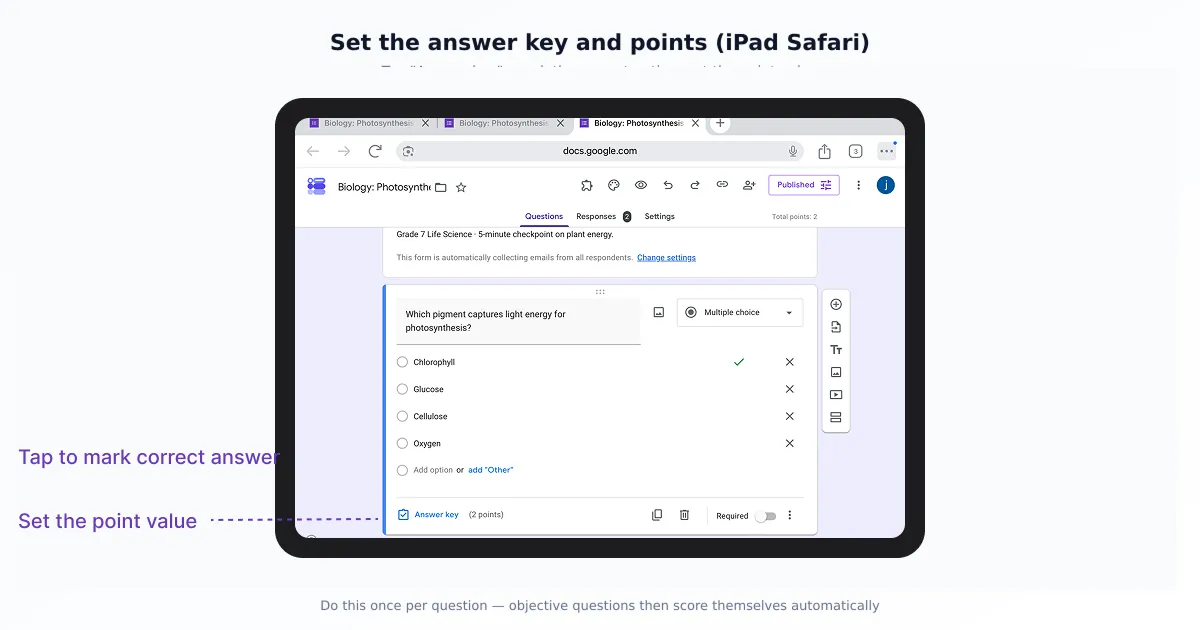
With quiz mode on, you grade a question by opening its answer key, marking the correct option, and assigning a point value. Do this per question, and Forms scores every matching response automatically the instant it’s submitted. On each question, tap Answer key, select the correct answer(s), set the points, and optionally add feedback that students see for right and wrong responses.
Be warned that this is repetitive: a 30-question exam means opening the answer key 30 times, and on a touchscreen that adds up. One time-saver that landed in 2024 is a default question point value — set it once and every new question inherits it, so you’re not assigning points one at a time. It doesn’t set the correct answer for you, but it removes half the taps.
Which question types auto-grade
Not every question type can score itself, and knowing which is which tells you exactly how much manual grading is left after the bell. The objective types auto-grade; the open-ended ones never do.
| Question type | Auto-grades? | How it’s scored |
|---|---|---|
| Multiple choice | ✅ Yes | One correct option, full points |
| Checkboxes | ✅ Yes | All-or-nothing (see gotchas) |
| Dropdown | ✅ Yes | One correct option, full points |
| Short answer | ✅ Yes (matched text) | Exact match to accepted answers |
| Paragraph (long answer) | ❌ No | Manual — grade + feedback |
| File upload | ❌ No | Manual — open and review |
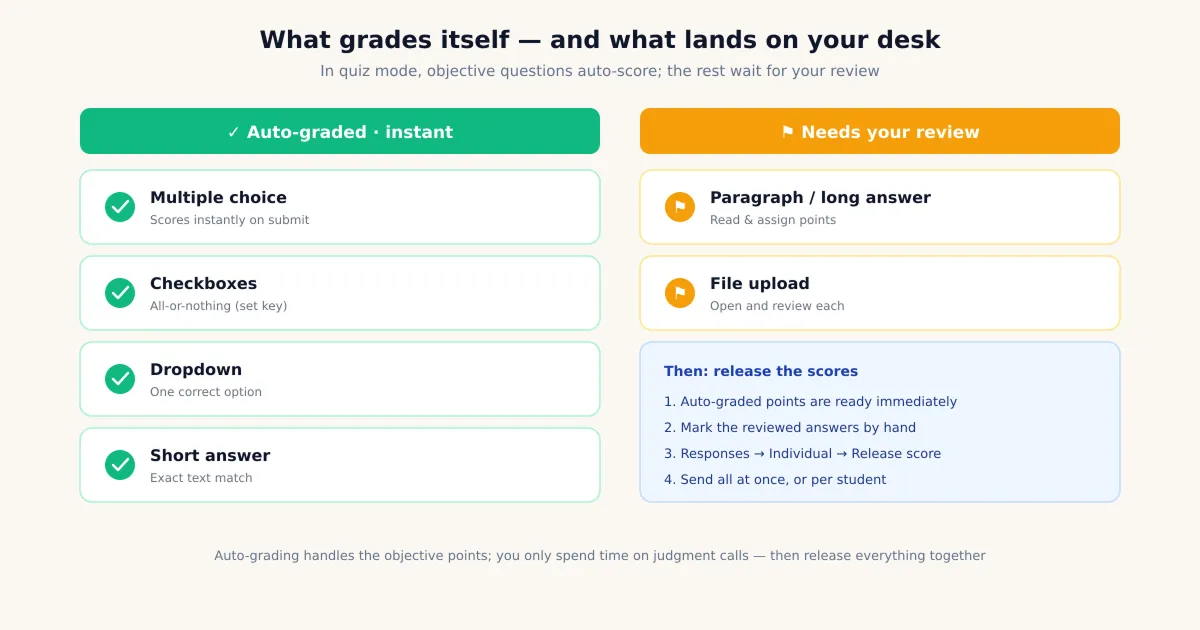
The one that catches everyone is short answer. Grading there is exact text matching — case-insensitive, but otherwise the response has to match an answer you accepted. “Paris” matches “Paris,” but “Paris, France” does not, and neither does a typo or an alternate spelling. The fix is to list several accepted variants per question: spellings, abbreviations, with and without units. Adding three to five variants up front prevents most “correct but marked wrong” disputes. Google’s official create and grade quizzes documentation covers the answer-key mechanics, and the Forms API setup-grading guide spells out exactly which question types accept correct answers for automatic scoring.
Step 3 — Choose When Grades Release
Forms lets you release scores two ways — immediately after each student submits, or later, after you’ve reviewed — and the choice depends on the stakes. The control lives in Settings → Quizzes under “Release grades.”
Immediately after submission suits low-stakes practice: a self-check quiz or an exit ticket where instant feedback is the whole point and there’s nothing sensitive about everyone seeing scores as they go. Later, after manual review is the right call for any real exam. It lets you grade the open-ended questions first and then release everyone’s score at once — which sidesteps the “my friend got their grade and I didn’t” anxiety that an immediate, rolling release creates in a class.
Then there’s the toggle that generates more confusion than any other. Under “Respondent can see” are three separate switches — missed questions, correct answers, and point values — and point values is off by default. The support question we field most about grading is “why can students see correct answers but not their score?” The answer is almost always this: point values is off. Turn it on and the number appears.
For an exam you plan to reuse, set those switches deliberately: turn Point values on, but turn Missed questions and Correct answers off. Students get their score without learning which answers were right — so the key doesn’t get passed between periods. Leave correct answers visible on a reused test and, as one teacher put it, it’s “on Reddit by Monday.”
Grading Short Answers and Essays by Hand (on iPad)
Paragraph answers and file uploads are judgment work no setting can automate, so you grade them by hand in the Responses tab — and the iPad is a genuinely good surface for it. Open Responses, then either work by Question (grade everyone’s answer to item 7 in a row, which keeps your standard consistent) or by Individual (read one student’s whole quiz at a time). For each, assign full, partial, or no points and type per-question feedback.
This is where the Apple Pencil helps: scrolling long paragraph responses and tapping precisely into the score and feedback fields is more comfortable on iPad than thumbing through on a phone, and Scribble lets you write feedback that converts to text. To be honest about the limits, there’s no AI essay scoring and no rubric engine inside Forms — you read each answer and assign the points yourself. For a class set, that’s the part that takes time; everything objective is already done.
Releasing Scores from Your Phone
Once everything’s marked, you release scores from the Responses tab — and this part works fine on iPhone. Go to Responses → Individual, open a response (or select several), and tap Release score, then Send emails and release. Each student gets their grade.
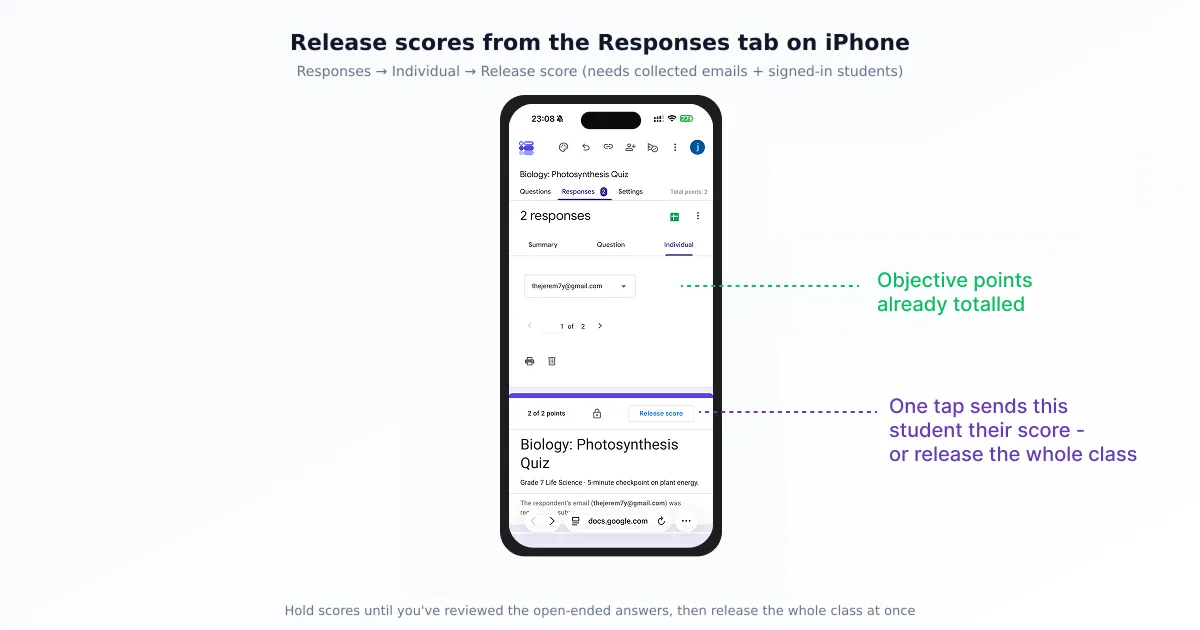
Two prerequisites make this work: the form must collect email addresses, and students must have been signed in when they submitted, so Forms knows where each score should go. If you skipped email collection, there’s no address to release to. Set both before the quiz goes out — they’re toggles in the Settings tab, reachable from the phone.
The Limits You Should Know Before Relying on Auto-Grading
Auto-grading is reliable for what it covers, but it covers less than people assume — so a few limits are worth knowing before you lean on it for a real exam.
- Checkboxes are all-or-nothing. By default a student earns the points only by selecting every correct option and nothing extra — pick three of four right answers and the score is zero. Google added limited checkbox partial credit after 2024, but the cleanest workaround when you need real partial credit is to split one checkbox question into several single-answer questions, each worth its own points.
- Short answers are exact-match. As covered above, a correct response phrased differently is marked wrong until you add it as an accepted variant.
- No weighting, no cross-type partial credit. You can’t make question 10 worth “twice the weight” of question 1 beyond assigning more points, and partial credit doesn’t span question types.
- No built-in timing. Forms has no native countdown or auto-submit for a timed exam; a dedicated timer add-on fills that gap if you need one — see our guide to adding a timer to a Google Form on iPhone.
- No proctoring. There’s no anti-cheat or camera monitoring in Forms itself. Pair shuffled question order and one-response limits with the visibility settings above for what control you can get.
None of these make auto-grading unusable — they just mark where your own judgment, or a settings workaround, has to take over.
Exporting Grades for Your Records
The fastest way to turn quiz results into a gradebook is Link to Sheets in the Responses tab, which creates a connected spreadsheet with timestamps, scores, and every answer — updating live as responses arrive. From there you can sort and total on iPad, then export the sheet to PDF or Excel for your records or your school’s grade book. Our guide to converting Google Forms responses to PDF on iPhone walks through archiving a graded set as a clean PDF, which pairs well with keeping the live Sheet for ongoing analysis.
Which Setup Should You Use?
The right grading setup depends on the stakes and the question mix, and it comes down to three common patterns.
- Low-stakes practice — release scores immediately and leave missed questions, correct answers, and point values all visible. Instant feedback is the goal, and there’s no key to protect.
- High-stakes exam — release later, after review, show point values only, and hide correct answers. Grade the essays first, then release the whole class at once.
- Quiz with short answers or essays — go mixed: let Forms auto-grade the objective questions, then mark the open-ended ones by hand from the iPad and release everything together once you’re done.
Match the setup to the situation and most of a quiz grades itself, leaving you only the judgment work that genuinely needs a human. When the touch editing or exporting starts to slow you down, Forms for Google Drive smooths the rough edges of doing this on a tablet — building and editing quizzes on iPad, reviewing responses, and exporting graded sets — while quiz mode does the scoring.
Summary
A missing iOS app doesn’t keep grading off your iPad: turn on quiz mode, set an answer key and points per question, and Forms auto-grades multiple choice, checkboxes, dropdown, and exact-match short answers the moment a student submits. Decide whether scores release immediately or after review, remember the hidden Point values toggle, and grade the paragraphs and uploads by hand — comfortably, with an Apple Pencil. Release from the Responses tab on your phone, mind the checkbox all-or-nothing and exact-match gotchas, and pull everything into a Sheets gradebook when you’re done. The whole loop fits on a touchscreen.
Frequently Asked Questions
Can I grade a Google Forms quiz on my iPhone?
Yes. Objective questions with an answer key grade themselves the moment a student submits, and the scores show up in the Responses tab, which you can open in Safari on iPhone. Short answers and paragraphs you grade by hand from the same tab — tap a question or an individual response, assign points, and add feedback. The screen is small for marking a full class set, so an iPad is more comfortable, but every part of grading and releasing scores works from the phone.
Which question types does Google Forms auto-grade?
Quiz mode auto-grades the objective types: multiple choice, checkboxes, dropdown, and short answer (matched against the accepted text answers you define). It cannot auto-grade paragraph (long answer) responses or file uploads — those always need manual review — and any question where you never set a correct answer stays ungraded. The rule of thumb: anything with one fixed correct answer scores itself; anything requiring judgment you mark by hand on the iPad.
Why can students see the correct answers but not their score?
Because the 'Point values' visibility toggle is off. In Settings → Quizzes, the section 'Respondent can see' has three separate switches — missed questions, correct answers, and point values — and point values is off by default. If you leave it off, students see which answers were right or wrong but no number. Turning on Point values is the fix, and it's the single grading question we field most often.
Does Google Forms give partial credit on checkboxes?
Mostly no. Checkbox grading is all-or-nothing by default: a student earns the points only by selecting every correct option and nothing extra. Google added a limited checkbox partial-credit capability after 2024, but there is still no weighted scoring and no partial credit across the other question types. If partial credit matters, the cleanest workaround is to split one checkbox question into several single-answer questions, each worth its own points.
How do I make short-answer questions auto-grade correctly?
Short-answer grading is exact text matching — case-insensitive, but otherwise the response has to match an accepted answer exactly. 'Paris' matches 'Paris,' but 'Paris, France' does not. So when you set the answer key, add every reasonable variant as an accepted answer: common spellings, with and without units, abbreviations. Three to five variants per question heads off most 'correct but marked wrong' complaints. Skim the short-answer column once before you trust the totals.
How do I release grades to students from my iPad?
Open the Responses tab, switch to the Individual view, pick a response, and tap Release score — or select several and choose 'Send emails and release.' Releasing grades requires that the form collects email addresses and that students were signed in when they submitted, so Forms knows where to send each score. You can release immediately per response or hold everything until you've reviewed the whole class, all from iPad Safari.
Can I reuse a quiz without exposing the answer key?
Yes — turn on 'Point values' so students see their score, but turn off both 'Missed questions' and 'Correct answers' in Settings → Quizzes → Respondent can see. That way a reused exam shows each student their number without revealing which answers were right, so the key doesn't end up shared between classes. Pair it with 'Limit to 1 response' and shuffled question order for tighter reuse.
How do I export Google Forms grades to a spreadsheet?
In the Responses tab, tap Link to Sheets to create a connected Google Sheet that becomes a full gradebook — timestamps, scores, and every answer, updating as new responses arrive. From there you can sort, total, or filter on iPad, and export the sheet to PDF or Excel for your records. It's the fastest way to turn auto-graded quiz data into something you can archive or share with a grade book.