How to Add a Timer to Google Forms on iPhone (2026)
Does Google Forms Have a Built-In Timer?
No — Google Forms has no native timer, countdown, or time limit, and it never has. There’s no setting to enable, no hidden menu, nothing to turn on inside the form itself. It’s one of the most-requested features Forms still lacks, and an independent walkthrough like Qualtir’s guide to adding a timer to Google Forms reaches the same starting point: the timing has to come from somewhere else.
That gap matters most for anything high-stakes. Run a quiz or exam in plain Google Forms and a student has unlimited time — free to leave the tab open, look things up, and submit an hour later as if they’d raced the clock. A countdown that auto-submits when time expires is what turns a form into a fair, timed assessment. The good news is that adding one no longer means sitting at a computer. There are two routes, and the rest of this guide walks both — starting with the one that runs entirely on your phone.
Add a Countdown Timer Directly on iPhone (No Computer Needed)
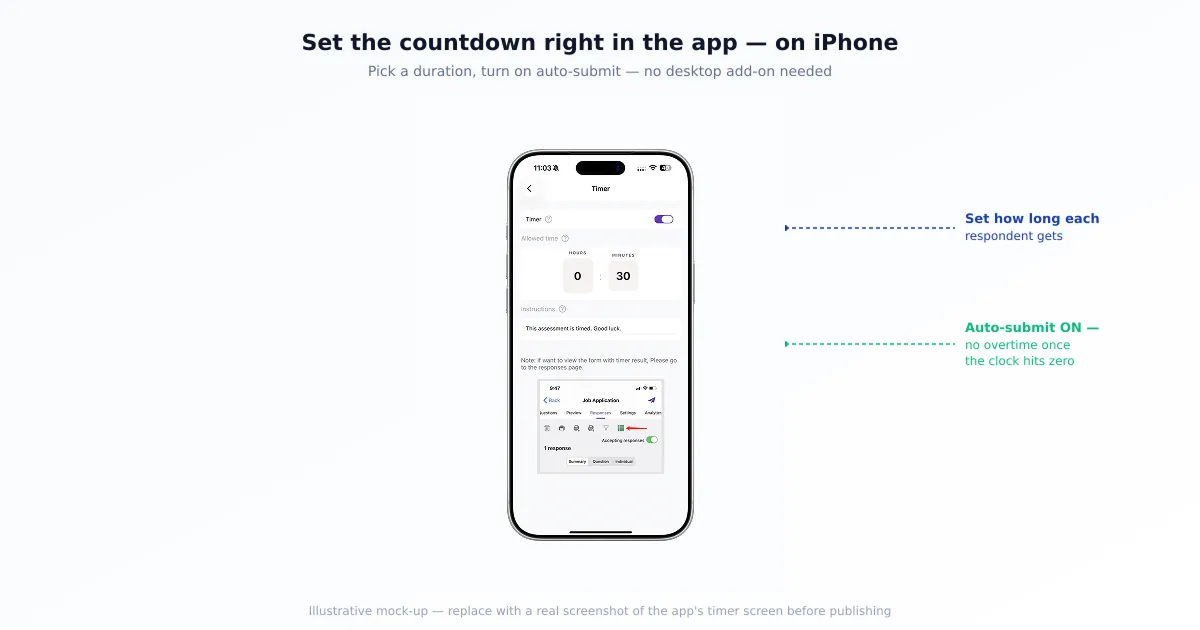
You can put a countdown on a Google Form straight from your iPhone using the Forms for Google Drive (by Pipiform) app — pick the form, set a duration, turn on auto-submit, and share it, with no desktop step anywhere in the process. This is the part that sets the mobile route apart: the traditional add-ons all live in a desktop browser, while this happens in your hand.
- Open the Forms for Google Drive app and select the form you want to time.
- Set the countdown duration — say, 45 minutes for an exam.
- Turn on auto-submit, so the form submits itself the instant the timer reaches zero.
- Share the timed form with your respondents the way you’d share any form.
- Respondents open it, see a live countdown as they answer, and the form auto-submits when time runs out.
The whole sequence happens on iPhone or iPad — no Marketplace install, no switching to a laptop to configure anything. That’s the practical difference from the desktop add-ons covered next: you can set up a timed quiz from the same device you use to build and grade it. The same app’s Time Controls also handle the other kind of timing — an end date or open/close window — so a single tool covers both needs, which we untangle further down.
If the timed form is also a graded quiz, pair this with quiz mode so the scoring is automatic too — our guide to auto-grading a Google Forms quiz on iPad and iPhone covers the answer-key side, and together they make a complete timed-and-graded online test you can run from a phone.
The Desktop Alternative — Workspace Add-Ons
The traditional way to add a timer is a Workspace Marketplace add-on installed and configured on a computer — and several good ones exist. Tools like Form Timer, Extended Forms, and Quilgo each attach a countdown to Google Forms, and some bundle extra exam features such as proctoring. Extended Forms even maintains a roundup of timer add-ons, which is a fair snapshot of how active this corner of the ecosystem is.
Installing one follows the familiar add-on path, all from a desktop browser:
- Open the form on a computer and click the ⋮ (or puzzle-piece) menu, then Get add-ons.
- Search the Marketplace for a timer add-on and install it.
- Authorize the add-on’s requested permissions.
- Open it from the puzzle-piece icon and configure the countdown.
These add-ons differ in focus — some are lightweight countdowns, others lean toward full proctored-exam suites — so the right pick depends on what you need beyond timing. The honest trade-off is the one this whole guide turns on: the add-on route is desktop-bound. It’s the better fit if you already work from a computer, or if you specifically need advanced capabilities like proctoring that a phone-first app doesn’t offer. If your day runs on an iPhone, the app route above gets you there without ever opening a laptop.
What to Look for in a Timer
Whichever route you take, a handful of criteria separate a timer you can trust for a real exam from one that just shows a clock. Use this as a buyer’s checklist before you commit a quiz to it.
| What to look for | Why it matters |
|---|---|
| Auto-submit at zero | Without it, respondents simply keep working past the limit |
| No respondent signup | Forcing a separate account adds friction and drop-off |
| Visible countdown | Respondents need to see the clock to pace themselves |
| Concurrency | It must hold up when a whole class starts at once |
| Records completion time | Time-taken data tells you who rushed or ran out |
| Where you configure it | Phone vs desktop decides whether you need a computer at all |
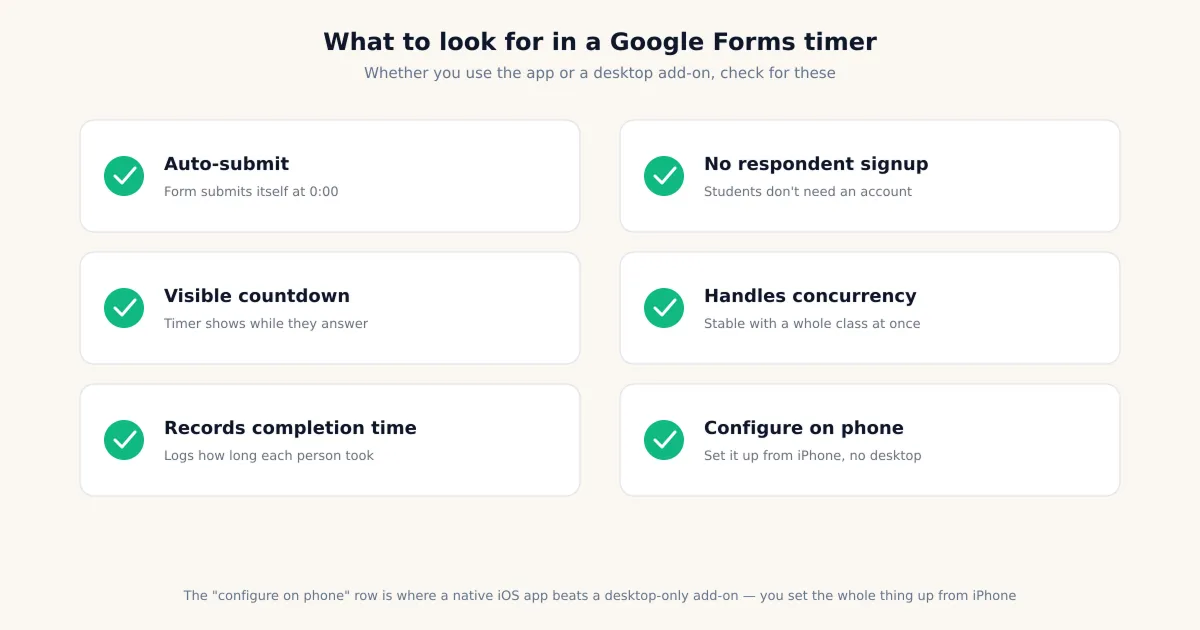
The two that people skip until it bites them are auto-submit and no respondent signup. A countdown that doesn’t auto-submit is just decoration — a determined respondent ignores it. And a timer that makes respondents register for a third-party service before they can start will cost you completions on any sizable survey or exam. The last row is the one this guide keeps returning to: where you configure it is what splits the iPhone app from the desktop add-ons.
The Required-Field Gotcha (Why Auto-Submit Sometimes Fails)
The number one reason auto-submit silently fails is a required question left blank — we see this in support constantly. Google Forms refuses to submit a form while any required field is empty, and that rule applies to automatic submissions too. So when the timer hits zero on a quiz where a student skipped a required question, the auto-submit tries to fire, runs straight into Google’s “this is a required question” block, and nothing gets recorded.
The fix is to design timed quizzes so the block can’t happen: make the questions optional rather than required, so an incomplete-but-timed-out form can still submit with whatever’s been answered. If you’d rather keep questions required, choose a timing approach that handles the empty-required case gracefully and tell students up front. This is the same underlying behavior as a submit button that appears to do nothing — our guide to Google Forms not working on iPhone digs into that failure mode and the other things that block submission. One more setup note: a respondent signed into multiple Google accounts can also hit configuration snags, so it’s worth having students confirm they’re on the right account before a timed quiz starts.
Countdown Timer vs Form Open/Close Window
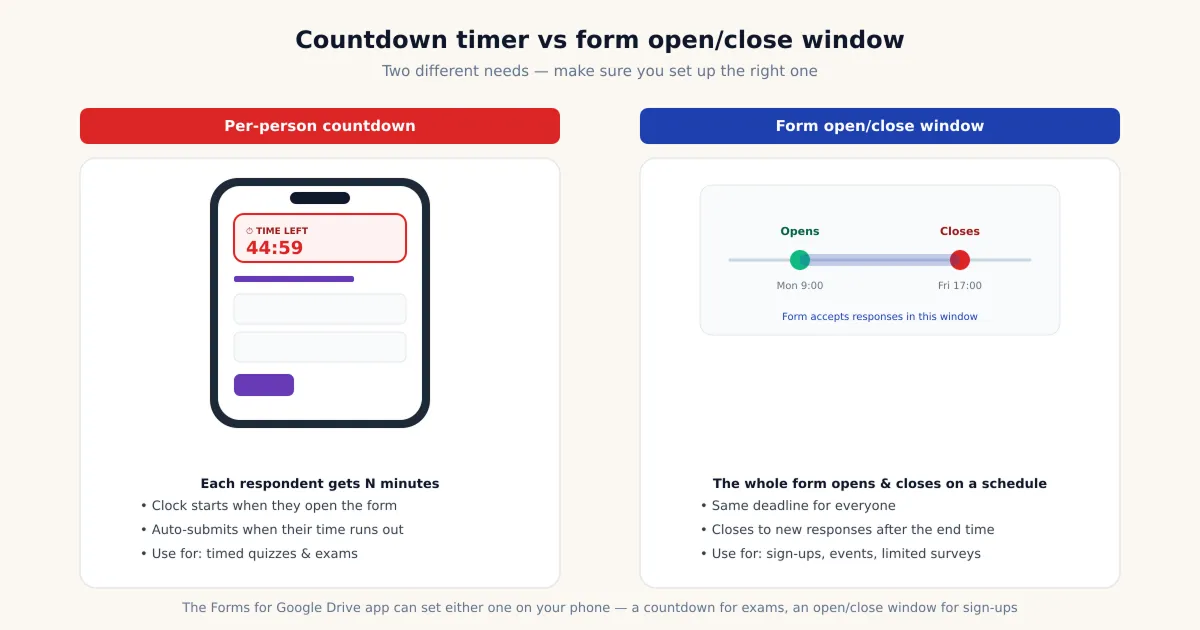
These are two different needs, and using the wrong one is a common and avoidable mistake. A countdown limits each respondent to N minutes from when they start — the right tool for a timed quiz or exam. A form open/close window (an end date or schedule) closes the entire form at a fixed moment for everyone, after which no one can submit at all — the right tool for registrations, event sign-ups, and limited-time surveys.
The distinction is easy to blur because both involve “time,” but they behave nothing alike: a countdown is per-person and starts on first load, while a close window is global and tied to the clock on the wall. The Forms for Google Drive app’s Time Controls can set either one from your phone, so you don’t have to hunt for separate tools — you just pick the behavior that matches the job. Choose a countdown when fairness within a session is the goal; choose a close window when the deadline is a calendar moment.
Settings to Pair with a Timed Quiz
A timer does its best work alongside a few of Google Forms’ own settings, which together close the gaps a countdown alone leaves open. Turn these on in the form’s Settings tab before you share it:
- Limit to 1 response — stops a respondent from retaking the quiz after time runs out (requires sign-in, independent of the timer).
- Collect email addresses — ties each timed submission to a person, essential when scores matter.
- Shuffle question order — makes it harder for adjacent test-takers to copy within the same time window.
Layered on a countdown, these turn a form into a defensible timed assessment. If you’re running this for a class, the broader workflow — building, distributing, monitoring, and grading from a tablet — is covered in our Google Forms for teachers on iPad and iPhone guide, and the auto-grading walkthrough handles the scoring half so a timed exam grades itself the moment time’s up.
Reviewing Completion-Time Data
If your timer records completion time, that data becomes a quiet diagnostic — it can sync to a connected Google Sheet so you can see, response by response, who finished fast and who ran out the clock. Reading time-taken alongside scores tells you more than either number alone: a low score with a near-zero time suggests someone gave up, while everyone clustering at the time limit suggests the quiz was too long. From the linked Sheet you can sort and analyze on the spot, then export to PDF or Excel for your records — our guide to converting Google Forms responses to PDF on iPhone covers archiving a timed quiz’s results cleanly.
Which Approach Fits Your Use Case?
The right timer comes down to where you work and what you’re timing, and it sorts cleanly into three cases.
- Phone-first, quick timed quiz — use the Forms for Google Drive app to set the countdown and auto-submit directly on iPhone, no computer required.
- Desktop-based, or need proctoring — install a Workspace add-on like Form Timer, Extended Forms, or Quilgo and configure it in a browser, choosing one whose advanced features match your needs.
- Registration or event open for a set window — skip the countdown and use an open/close window (end date) instead, which the app’s Time Controls also set from your phone.
Match the tool to the job and the timing stops being the hard part. For most people building and running quizzes on the move, the deciding factor is simply that the phone-first route never asks them to find a laptop.
Summary
Google Forms ships with no timer at all, so a timed quiz or exam needs one added — and you have two routes. The phone-first option, the Forms for Google Drive app, sets a countdown with auto-submit and a form open/close window directly on iPhone or iPad, no desktop step. The traditional option is a Workspace add-on (Form Timer, Extended Forms, Quilgo) configured in a browser, the better pick for desktop workflows or proctoring. When you choose, weigh auto-submit, no respondent signup, concurrency, and completion-time recording — and remember the required-field gotcha that silently blocks auto-submit. Pair the timer with one-response limits and email collection, and a Google Form becomes a fair, timed assessment you can run from your pocket.
Frequently Asked Questions
Does Google Forms have a built-in timer?
No. Google Forms has no native timer of any kind — no countdown, no time limit, and no auto-submit when time runs out. This is one of the most-requested features it still lacks, and it's why timed quizzes and exams need an extra tool. You add timing one of two ways: an iOS app that sets a countdown directly on your iPhone, or a Workspace add-on you install and configure on a desktop. The form itself has nothing to enable.
Can I add a countdown timer to a Google Form from my iPhone?
Yes. The Forms for Google Drive app lets you set a countdown on a Google Form directly from iPhone or iPad — pick the form, choose a duration, turn on auto-submit, and share the timed form with respondents, all without opening a computer. That mobile-first setup is the main thing it does that the traditional desktop add-on route can't: the add-ons in the Workspace Marketplace are installed and configured from a browser on a computer, not from a phone.
Does the timer auto-submit when time runs out?
It can, and you should make sure it does. Auto-submit means the form submits automatically the moment the countdown hits zero, so a respondent can't keep working past the limit. In the Forms for Google Drive app you turn auto-submit on when you set the countdown. The one thing that quietly breaks it is a required question left blank — Google Forms refuses to submit an incomplete form, so the auto-submit can't go through. Make timed-quiz questions optional to avoid that.
Why didn't my form auto-submit when the timer ended?
Almost always because a required question was left empty. Google Forms blocks any submission — manual or automatic — while a required field is blank, so when the timer fires, the auto-submit hits that wall and nothing happens. The fix is to make the questions on a timed quiz optional, or to use a timing tool that handles the empty-required case gracefully. It's the same underlying behavior behind a submit button that seems to do nothing, which our troubleshooting guide covers in depth.
Do respondents need to create an account to see the timer?
With a good timer tool, no — respondents should be able to open the timed form and see the countdown without signing up for a separate service. Forcing a registration step adds friction and drop-off, which matters for surveys and large exams alike. When you're choosing between timer options, treat 'no respondent signup' as a real selection criterion: the people answering should just open the form, see the countdown, and go. Note that other Google Forms settings, like limiting to one response, can still require a Google sign-in independently of the timer.
What's the difference between a countdown and a form closing time?
A countdown limits each respondent to N minutes once they start — the classic timed-quiz behavior. A form open/close window (an end date or schedule) closes the whole form at a fixed moment for everyone, after which no one can submit — useful for registrations, events, and limited-time surveys. They solve different problems, and picking the wrong one is a common mistake. The Forms for Google Drive app's Time Controls can set both from your phone, so you don't need separate tools for the two needs.
Can I see how long each person took?
Yes, if your timer tool records completion time. Knowing how long each respondent took is useful for spotting who ran out of time or rushed, and completion-time data can sync to a connected Google Sheet for analysis alongside the responses. When comparing timer options, check whether it records time-taken — not every method does, and it's one of the more useful signals a timed quiz can give you. From there you can export the data to PDF or Excel for your records.
Do I need a desktop to set up a timed Google Form?
Not anymore. The traditional route — installing a Workspace add-on like Form Timer, Extended Forms, or Quilgo — does require a computer, because those add-ons are installed and configured in a desktop browser. But the Forms for Google Drive app removes that requirement: you set the countdown, enable auto-submit, and share the timed form entirely from an iPhone or iPad. Which route fits depends on whether you work mostly from a phone or a desktop, and whether you need advanced features like proctoring that some desktop add-ons add.