Convert Google Forms Responses to PDF on iPhone (2026)
Can You Save Google Forms Responses as a PDF on iPhone?
Yes — you can save Google Forms responses as a PDF on iPhone, but Google doesn’t provide an “Export to PDF” button anywhere in the product; the built-in route is your browser’s print dialog with PDF as the output. Google’s official export options for response data are a linked Google Sheet and a CSV file, as its own view and manage responses documentation lays out — PDF simply isn’t on that list.
Before picking a method, it helps to know that “responses as a PDF” means two different things in Google Forms, and they live in different places:
- The summary — the Summary view of the Responses tab, with aggregate charts, percentages, and answer lists across all submissions. Print this and you get one PDF describing your overall results.
- A single response — the Individual view, which shows one respondent’s completed answer sheet at a time. Print this and you get that one submission as its own document: the format you want for a signed consent form, an order record, or an application you need to file.
Everything below builds on that distinction. Method 1 covers the free built-in route for both, Method 2 covers automated branded PDFs, and Method 3 covers exporting straight from an iOS app — including when each one stops being worth the effort. (If you’re still at the form-building stage, start with our guide to creating a Google Form on iPhone first.)
Method 1 — Print to PDF in Safari (Built-In, Free)
The built-in method is Safari’s print flow: open the Responses tab, bring up the print sheet, and save the output as a PDF — free, no installs, and entirely doable on the phone. It’s the right default when you need a PDF occasionally and don’t care about the styling.
Save the response summary as a PDF
- Open Safari, go to
forms.google.com, and sign in with the account that owns the form. - Tap the form, then tap the Responses tab at the top of the editor.
- Stay on the Summary view (the default) — this is the aggregate-charts view.
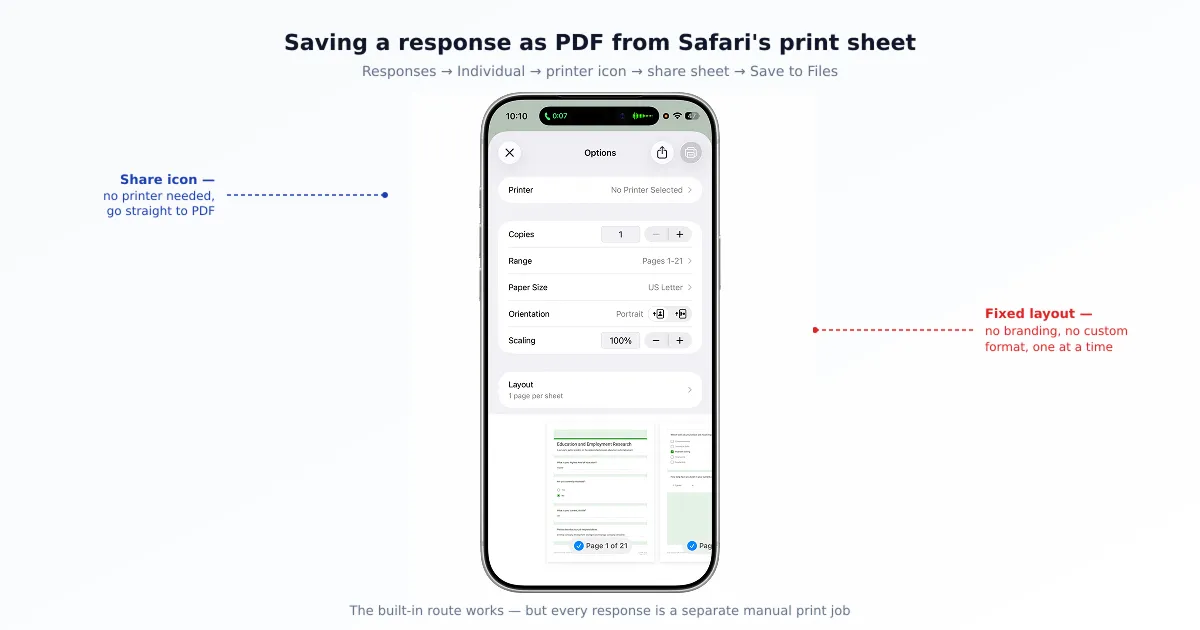
- Tap Safari’s Share icon and choose Print.
- In the print preview, pinch outward on the page thumbnail — iOS converts the preview into a full PDF — then tap the Share icon again to save it to Files, attach it to Mail, or AirDrop it.
Save a single response as a PDF
- In the Responses tab, switch to the Individual view.
- Use the arrows (or the response counter) to navigate to the submission you want.
- Tap the print icon at the top of the response.
- In the print sheet, pinch outward on the preview to generate the PDF, then save or share it from the share sheet.
The catch on iPhone
The flow works, but it was never designed as an export feature, and it shows in three ways:
- The route is roundabout. There’s no “Save as PDF” button on iOS — you’re going through the share sheet, the print preview, and a pinch gesture that most people only discover by accident. It’s a hidden path, not a designed one.
- The layout is fixed. You get Google’s standard print rendering: no logo, no letterhead, no control over fonts or field order. For an internal archive that’s fine; for a client-facing invoice or a contract it looks exactly like what it is — a printed web page.
- There is no batch option. Each individual response is its own manual trip through the print flow. Ten responses means ten rounds of tap-print-pinch-save. At fifty or a hundred responses, this stops being a method and becomes a chore.
If you only ever need the occasional PDF, stop reading here — Method 1 is genuinely enough. The next two methods exist for the moments it isn’t: when the PDF needs to look professional, or when there are too many to do by hand.
Method 2 — Auto-Generate Branded PDFs with a Workspace Add-on
A Workspace add-on turns PDF creation from a manual chore into an automatic pipeline: every new submission fills a Google Docs template you design and comes out the other end as a finished, branded PDF. This is the standard approach for invoices, contracts, consent forms, and order confirmations — anywhere the document needs your logo, your layout, and consistent formatting.
The mechanics are the same across the major add-ons. You build a template in Google Docs (or Slides) with placeholder tags like {{Full Name}} or {{Order Total}}, connect the add-on to your form, and map each tag to a form field. From then on, every submission generates a PDF with the answers merged in, saved to a Drive folder of your choice — and optionally emailed to you or the respondent automatically.
Several established add-ons compete in this space, all installable from the Google Workspace Marketplace: Form Publisher (the longest-standing and most widely used), Document Studio by Digital Inspiration, Portant, and Formfillable. They differ in templating polish and pricing, but the core merge-to-PDF workflow is the same.
How the setup works
The configuration happens on desktop — the Marketplace and the add-on panels aren’t available in mobile Safari — but it’s a one-time job:
- On a computer, open the form and install the add-on from the Workspace Marketplace (three-dot menu → Get add-ons).
- Create a Google Docs template with your branding, and insert the add-on’s placeholder tags where answers should appear.
- Configure the trigger (generate on every submission) and the output: the destination Drive folder, the file-naming pattern, and any email delivery.
- Submit a test response and check the generated PDF in Drive.
From that point on, your iPhone is fully in the loop as a consumer: each new PDF appears in the Drive folder, where the iOS Drive app can view, share, or print it. Pair the add-on with Google Forms email notifications on iPhone and you’ll know the moment each document is ready.
The limits
Three things to weigh before going this route. The setup is desktop-only — if you genuinely have no computer access, this method is out of reach. Free tiers are capped: most of these add-ons limit free accounts to a modest number of generated documents per month (Form Publisher’s free plan, for instance, caps monthly generations), so an active form will eventually hit a paywall. And it’s heavy for one-off needs — building a template and mapping fields is absolutely worth it for a recurring document pipeline, and absolutely not for the one PDF you need this afternoon.
Method 3 — Export PDF or Excel from a Native iOS App
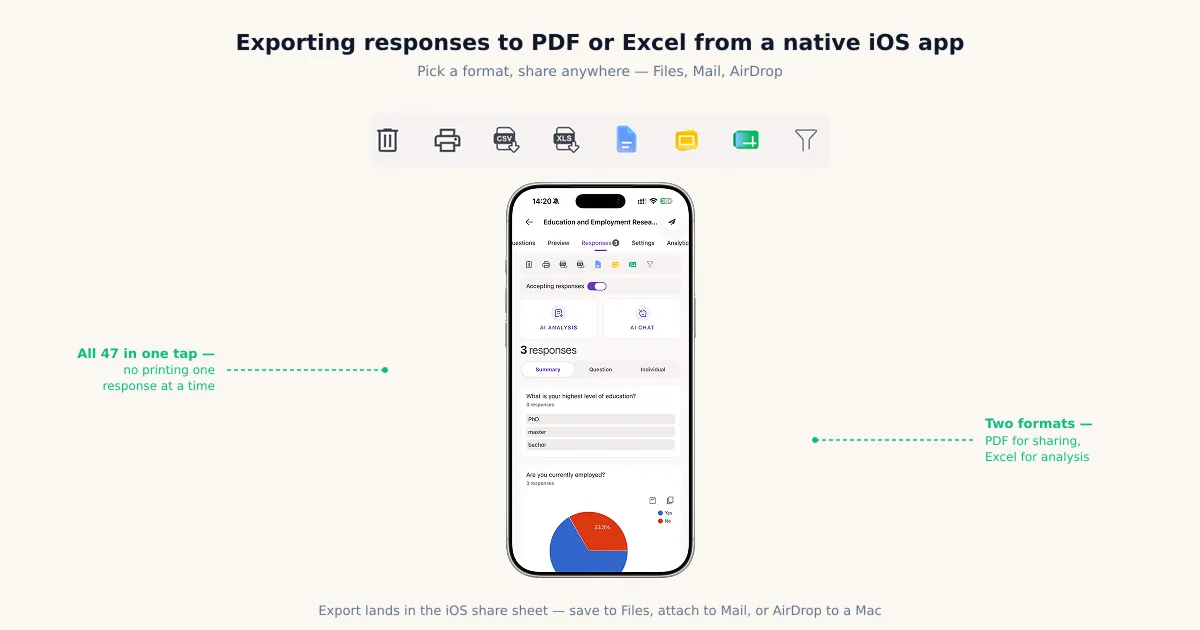
A third-party iOS app is the only way to export Google Forms responses as PDF or Excel files entirely from your phone — no print-preview gymnastics, no desktop configuration session. Because it’s a native app talking to your form’s response data, exporting becomes a normal iOS action: pick a form, pick a format, and hand the file to the share sheet.
Step-by-step using Forms for Google Drive
- Download Forms for Google Drive (by Pipiform) from the App Store. A free trial is included.
- Open the app and sign in with Google (OAuth), granting the requested form access.
- Open the form you want and go to its Responses.
- Choose the export format — PDF for archiving and sharing, or Excel for analysis.
- Use the iOS share sheet to save the file to Files, attach it to Mail, or AirDrop it to another device.
When this is the right call
This method earns its place in three situations. You work primarily from your phone, and a desktop-configured add-on or a desktop print dialog isn’t a realistic part of your week. You need to archive or forward responses quickly — a PDF into the project folder, an attachment to a client email — without needing a custom-designed template. Or you need both formats: Excel when the responses are data to analyze, PDF when they’re records to keep, from the same Responses screen.
Building Forms for Google Drive, we’ve found that users who need a PDF per submission almost always outgrow the print-one-by-one method within the first dozen responses — the pinch-and-save routine is tolerable exactly as long as the response count stays in single digits. To be equally honest in the other direction: if your form collects a handful of responses a month and nobody but you ever sees the PDFs, Safari’s free print flow is all you need.
Comparison: Print vs Add-on vs Native App
The three methods trade convenience against control: the print flow is free but manual and unstyled, add-ons are powerful but desktop-configured, and a native app is phone-first but third-party. The table lays out the dimensions that actually decide it.
| Dimension | Safari Print to PDF | Workspace Add-on | Forms for Google Drive (Pipiform) |
|---|---|---|---|
| Cost | Free | Free tier, then paid | Free trial, then paid |
| Custom layout/branding | ❌ (fixed) | ✅ (Docs template) | Standard export layout |
| Batch export | ❌ (one at a time) | ✅ (auto, per submission) | ✅ (responses in one file) |
| Other formats (Excel) | ❌ (PDF only) | ❌ (PDF/Docs only) | ✅ (PDF + Excel) |
| Works fully on iPhone | ✅ (but roundabout) | ❌ (desktop setup) | ✅ |
| Best for | Occasional single PDFs | Invoices, contracts, consent forms | Phone-first export & archiving |
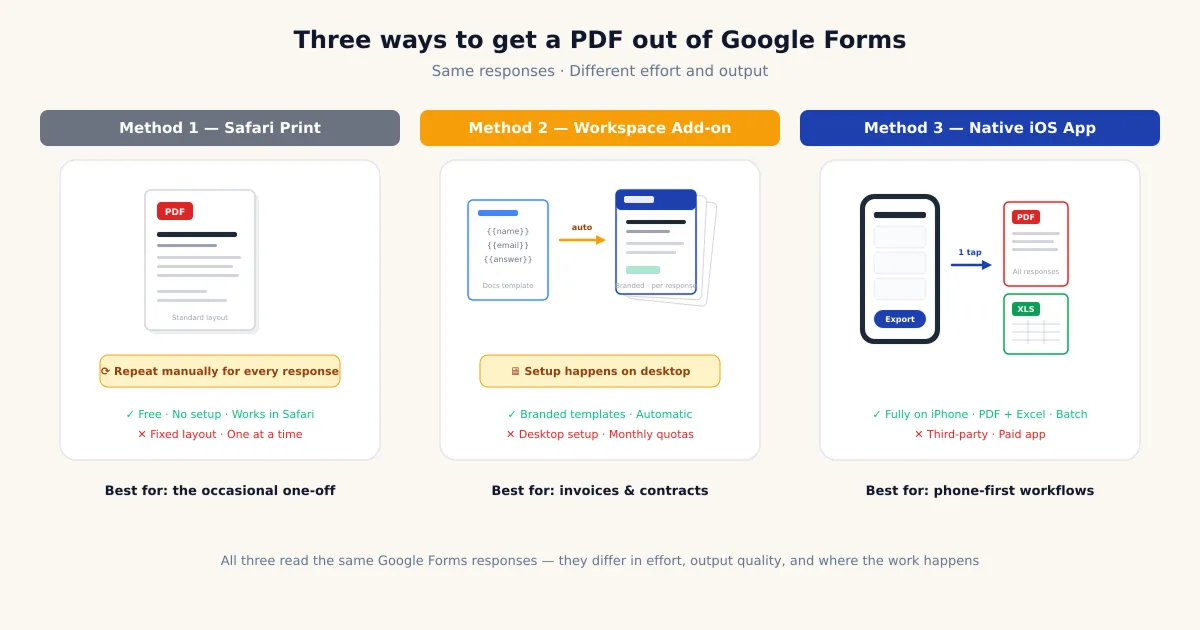
Two honest footnotes. “Works fully on iPhone” is marked roundabout for Safari because the flow exists but is hidden behind the share sheet and a pinch gesture. And the add-on column wins outright on layout control — if a designed, branded document is the requirement, a Docs-template add-on is the right answer and no app export replaces it.
Common PDF Export Problems on iPhone
Most PDF frustrations on iPhone trace back to four causes — and each has a quick fix.
The print preview is cut off or clipped. Wide answer tables and long grids can overflow the fixed page scale. Check the paper size and orientation options in the print sheet, or use the pinch-to-zoom preview, which captures the full rendered page instead of forcing pagination. For fine control over scale and margins, a desktop browser remains the fallback.
You can’t find “Save as PDF.” That’s because iOS doesn’t label it. The path is: Share icon → Print → pinch outward on the preview thumbnail → the preview becomes a PDF → Share icon again to save it. Once you’ve done it twice it’s muscle memory; the first time, nobody guesses it.
You’re looking at the wrong form (multiple accounts). If you’re signed into several Google accounts in Safari, the Responses tab can open under the wrong identity and show you a form with zero responses — or no form at all. Check the avatar in the top corner and switch to the account that owns the form.
The summary PDF is enormous and slow. A form with hundreds of responses produces a Summary view stuffed with charts, and rendering that into a PDF on a phone takes time and produces a heavyweight file. If you need the full dataset rather than the visuals, export the responses as a spreadsheet instead — or generate the summary PDF from a desktop browser.
Which Method Should You Choose?
Pick by volume and by how much the document’s appearance matters:
- One or two PDFs, occasionally → Method 1 (Safari print). Free, already on your phone, and the fixed layout doesn’t matter for personal records. Learn the pinch trick once and you’re set.
- A document per submission that has to look professional → Method 2 (Workspace add-on). Invoices, contracts, consent forms, certificates: anything with a logo and a layout justifies the one-time desktop setup and a paid tier if volume demands it.
- Phone-first, frequent exports, or both PDF and Excel → Method 3 (native iOS app). When exporting is a routine part of how you work on your iPhone, a native flow beats the print dialog every time — and the same app covers creating and editing your forms on the go.
Summary
Google Forms never got an export-to-PDF button, so on iPhone everything routes through one of three doors. Safari’s print flow is free and built-in, covering the response summary or one submission at a time — at the cost of a hidden save gesture, a fixed layout, and no batching. Workspace add-ons like Form Publisher and Document Studio automate a branded PDF for every submission from a Google Docs template, which is exactly right for invoices and consent forms and exactly wrong for a one-off — and they’re configured on desktop. A native iOS app closes the remaining gap: PDF and Excel exports straight from the phone, through the standard share sheet. Match the method to your volume and your formatting needs, and the PDF stops being the hard part.
Frequently Asked Questions
Can I save Google Forms responses as a PDF without a computer?
Yes. On iPhone, open the form at forms.google.com in Safari, go to the Responses tab, and use the browser's print flow: tap the Share icon, choose Print, then pinch outward on the print preview to turn it into a PDF you can save to Files or share. It works for the response summary and for one individual response at a time. What you can't do without a computer is configure a PDF-generating add-on — those are set up on desktop — but a third-party iOS app can export PDFs entirely from the phone.
How do I export all responses at once versus a single response?
The Responses tab has separate views for each. The Summary view shows aggregate charts and answer lists for the whole form — print that and you get one PDF of overall results. The Individual view shows one completed answer sheet at a time; tap the print icon there to save that single response as its own PDF. What Google Forms doesn't offer is a built-in batch export that produces one PDF per response in a single action — for that you need a Workspace add-on or a third-party app.
Why is there no "Export to PDF" button in Google Forms?
Google's export path for response data is Google Sheets and CSV, not PDF — the assumption is that you'll analyze responses as a spreadsheet rather than archive them as documents. PDF output was left to the browser's print dialog, which technically works everywhere but was never built out into a real export feature. That's why the layout is fixed, there's no branding, and there's no batch option: printing is a generic browser capability, not a Forms feature.
Can I automatically get one PDF per submission?
Yes, with a Workspace add-on such as Form Publisher, Document Studio, or Portant. You design a Google Docs template with placeholder tags, and the add-on fills the tags with each new submission's answers and saves a finished PDF to Drive — and can email it to you or the respondent. It's the standard setup for invoices, contracts, and consent forms. The catch: configuration happens on desktop, and free tiers cap how many PDFs you can generate per month.
Can I export Google Forms responses to Excel instead of PDF on iPhone?
Not directly from Google Forms — the built-in options are a linked Google Sheet or a CSV download, and turning either into a real .xlsx file on iPhone means a detour through the Sheets app's export menu. A third-party iOS app is the shorter path: apps like Forms for Google Drive read your form's responses and export them as an Excel file (or PDF) straight from the phone, handing the file to the iOS share sheet for Files, Mail, or AirDrop.
Why does my PDF look cut off or misaligned on iPhone?
The print preview inherits a fixed page scale, so wide tables and long answer grids can get clipped at the right edge or split awkwardly across pages. On iPhone you have fewer controls than desktop: check the paper size and orientation options in the print sheet, and try the pinch-to-zoom preview, which captures the full rendered page rather than a paginated print layout. If a summary chart still won't fit, printing from a desktop browser — where you can adjust scale and margins — is the reliable fallback.
Do PDF-generating add-ons work on iPhone?
The generation itself does — add-ons run in Google's cloud, attached to the form, so PDFs keep being created for every new submission no matter what device you're on. What doesn't work on iPhone is the setup: the Workspace Marketplace and the add-on configuration panels are desktop-only. The practical pattern is to configure the template and rules once on a computer, then live with the output on your phone — each generated PDF lands in Drive, where the iOS Drive app can view and share it.
Is it safe to give a third-party app access to my form responses?
A reputable one connects through Google OAuth with a scoped permission, so it reads the form responses it needs for the export and nothing broader, and you can revoke that access anytime from your Google Account's security settings. Your form and its data stay in Google Forms — the app reads responses to build the PDF or Excel file rather than taking ownership of anything. Before installing, check the OAuth scopes on the consent screen and the app's privacy policy on data retention.