
Export Google Forms Responses to PDF with Form to Docs
In this guide
Use Form to Docs by pipiform to turn Google Forms responses into an editable Google Doc, review the content, then download a PDF. This is useful when answers need to become a readable record for a colleague, a workshop report or an archive. Start the add-on workflow on a computer; the separate Forms for Google Drive app supports a mobile response workflow on iPhone and iPad.
Install Form to Docs · View features and plans
This guide is published by pipiform, the maker of Form to Docs and Forms for Google Drive. The screenshots below show real controls and an earlier question-export example; they are not evidence of a newly completed response export.
Choose what belongs in the PDF
| Your goal | Starting point | Result to check |
|---|---|---|
| Share a blank questionnaire | Form to Docs: Convert Form to Google Doc | Questions and blank answer lines |
| Share submitted answers | Form to Docs: Convert Form Responses to Google Doc | Response content in an editable document |
| Share only a few submissions | Form to Docs: Convert selection of responses | The selected set, without unrelated responses |
| Save the current response summary | Google Forms response view and a browser print workflow | The charts and answers actually included in the preview |
| Fill fields in an existing PDF template | A dedicated field-mapping workflow | Separate requirement; not demonstrated by these export controls |
A PDF is a reading copy. If the recipient needs to edit the text, use the same reviewed Google Doc and download Word instead.
1. Open Form to Docs from your form
On a computer, open the form in edit mode using an account with access to its responses. Open Add-ons → Form to Doc - Doc to form → Open, then choose Convert From Form → To Doc. If the add-on is not installed, use the installation link above and return to the form after setup.
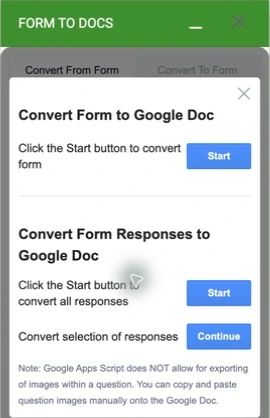
Before running an export, check the conversion allowance shown in your account. Start with a small response set if that is sufficient for the job.
2. Select answers, not just the form questions
Open the form’s Responses tab first to confirm the submissions you need are present. Return to the add-on and select the appropriate operation:
- Convert Form Responses to Google Doc → Start starts the all-response route.
- Convert selection of responses → Continue opens the selection route.
- Convert Form to Google Doc → Start exports the questionnaire itself. Choose it only when that is the intended output.
Follow the selection and output prompts, then open the generated document. If the result has blank answer lines, check whether you used the question-export operation.
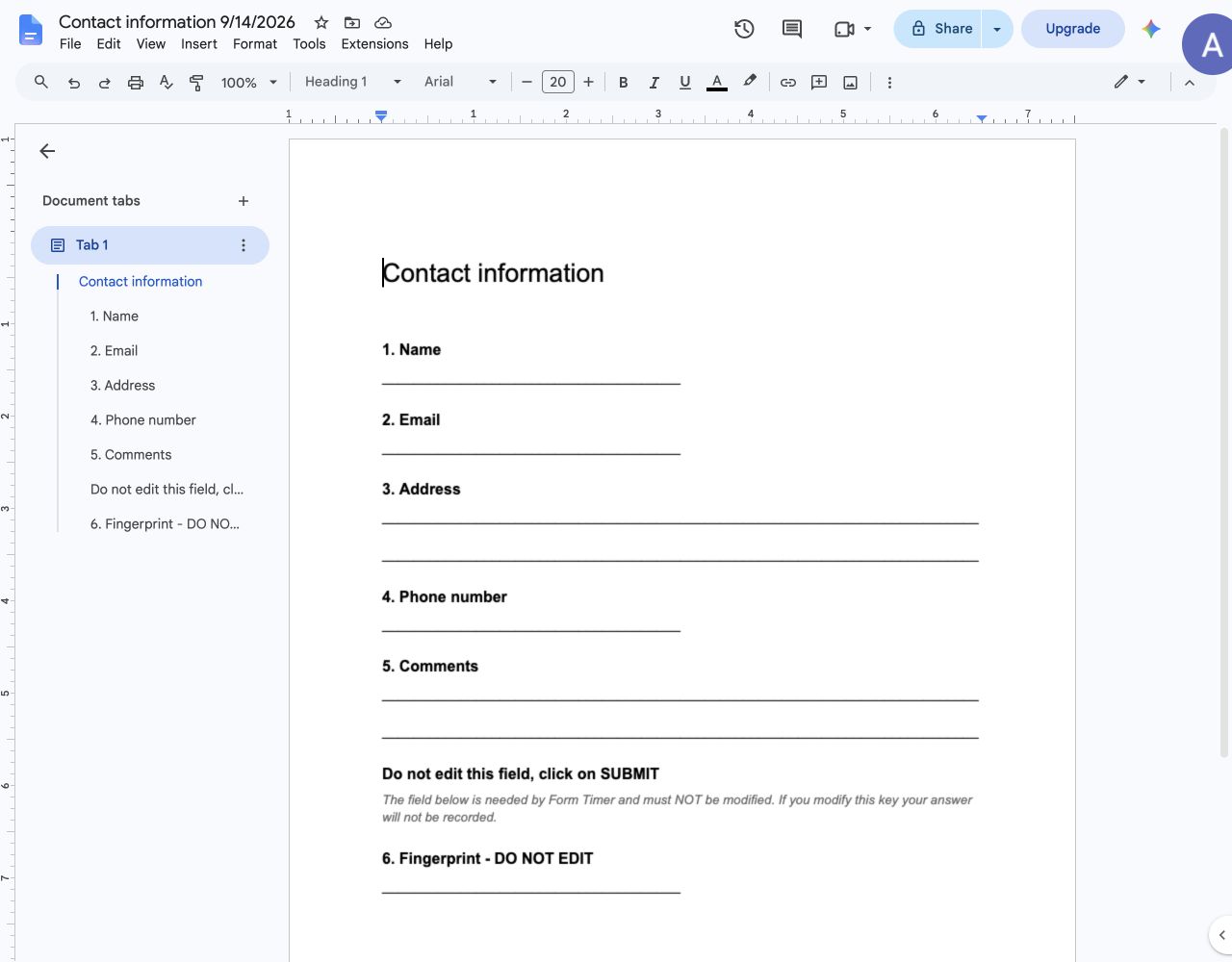
The test account used for the earlier revision had exhausted its free conversion allowance, so a new response export was not run. The screenshots establish the available controls; verify a small output in your own account before processing a larger collection.
3. Review the document before creating the PDF
For a workshop enquiry record, add a descriptive title such as “Workshop enquiries — September” and identify which submissions it contains. Review these items:
- Compare a sample with the original answers, including long text and optional fields.
- Remove unneeded operational fields from the document copy. Do not delete required helper fields from the source form.
- Check question images; the converter’s panel notes that these may require manual copying.
- Adjust headings, spacing and page breaks so answers are easy to read.
- Include only the information the recipient needs, then check who can access the source document.
For a report, add your findings after the answers have been reviewed. Exporting answers does not automatically produce an analysis; the workshop report guide shows how to add context and follow-up actions.
4. Download and check the PDF
In Google Docs, choose File → Download → PDF Document (.pdf). Open the downloaded PDF before sharing it, check the first and last pages, and look for clipped tables, missing text or unexpected blank pages. Google documents the File → Download workflow and also describes a print-to-PDF route for large documents.
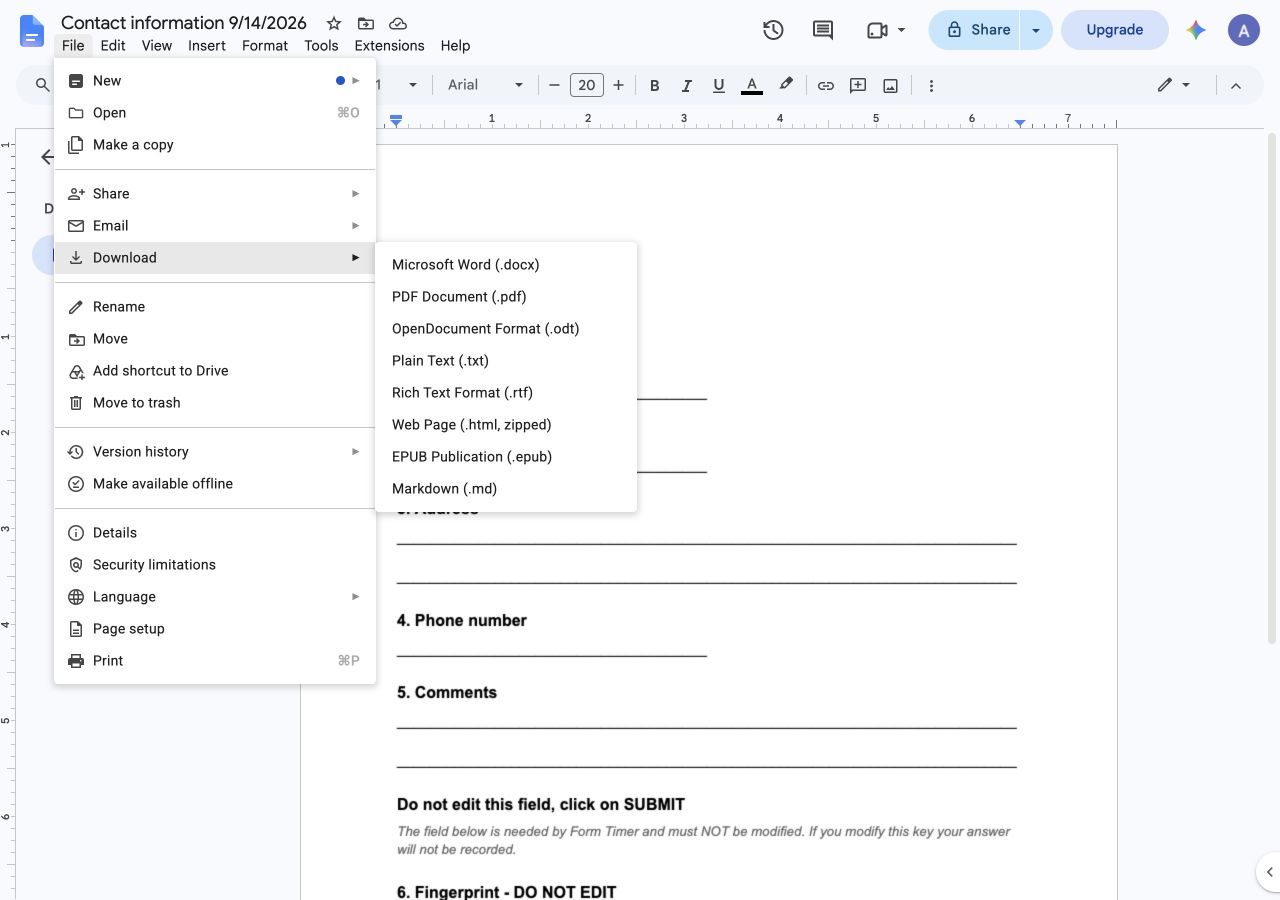
Keep the Google Doc as the working version. If you correct an answer’s presentation or change the report, download a new PDF and use a clear filename so recipients can identify the latest copy.
Install Form to Docs · Check available plans
Can Google Forms answers fill an existing PDF?
That is a different requirement from exporting a response document. An existing application form or certificate may require each answer to map to a specific PDF field or fixed position. This walkthrough does not demonstrate that capability in Form to Docs.
Likewise, a prefilled Google Forms link opens a form with starting answers; it does not create a PDF. And a one-time document export does not establish an automatic “create and email one PDF after every submission” workflow. Verify those features separately if they are essential.
What if you work on iPhone or iPad?
Forms for Google Drive is pipiform’s separate iOS app for managing forms and responses, with export options. Open your form and its responses in the app, select the available export option, and inspect the file before sharing it. Check the scope of the export rather than assuming it produces one file per respondent.
View Forms for Google Drive on the App Store
For an occasional browser-based copy, inspect Google Forms’ response view and the available print controls. On iPhone, Safari’s Share → Print workflow can provide a PDF sharing route; review the preview because it may differ from the response record you intended to save. This browser route does not use Form to Docs.
The app and the Workspace add-on are separate products. Check the current App Store offer for the app and the Form to Docs product page for add-on allowances and plans.
Common questions
Why did my export contain questions but no answers?
Check the operation you selected. Convert Form to Google Doc exports the questionnaire; choose Form Responses or the selection route for submitted answers.
Should I send PDF or Word?
Send PDF for a reading or archive copy. Send Word when the recipient needs to edit it. Review either file after downloading, because page layout can change between formats.
Does this automatically email a PDF for each new submission?
No such automation is established by the manual export workflow described here. For customized response emails, see Form Notifications; do not assume that configuring an email also configures PDF generation or attachments.
Where should I start?
Choose a small set of relevant answers, convert it with Form to Docs, and compare the document with the original responses. Once it is correct, download the PDF. That gives you a repeatable review process before larger exports.