Google Forms for Teachers on iPad and iPhone (2026)
Can Teachers Use Google Forms on iPad Without a Computer?
Google documents a browser workflow for iPad and iPhone. Open forms.google.com with an authorized account and test the required quiz controls. Some operations or school policies may require a computer. See our Google Forms iOS app guide for the distinction between Google’s browser workflow and third-party apps.
An external keyboard and supported iPad multitasking can help with lesson material and the editor. Windowing controls depend on the device and iPadOS version. Check any third-party app’s actual functions and save status before relying on it.
Building a Quiz on iPad — With and Without Gemini
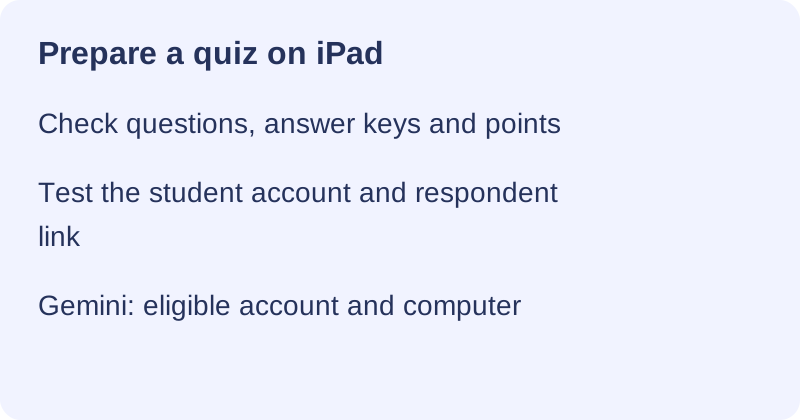
Enable quiz mode, write the questions and configure the answer keys and points. If eligible Gemini tools are available, review their draft on the supported device before using it with students.
Manual quiz setup (step-by-step on iPad Safari)
- Open the form at
forms.google.comin Safari and go to the Settings tab. - Turn on Make this a quiz. This unlocks per-question answer keys and point values.
- Add supported question types and configure their answer keys. Short answers need accepted text variants; review automatic scores before releasing grades.
- On each question, tap Answer key, mark the correct option(s), and assign points. Add optional per-question feedback for right and wrong answers.
- Preview the quiz (the eye icon) to see exactly what students will get.
A keyboard can help with longer questions. Use the multitasking mode supported by your iPad and iPadOS version to view lesson material alongside the editor.
Draft with Gemini when eligible
Google’s Gemini form-creation instructions start on a computer and require an eligible account or plan. Do not promise that Help me create is available in iPad Safari. If available, use its output as a draft and check each question.
Gemini can generate quiz content including suggested correct answers and point values where supported. Verify every key, score and grading setting; AI output can be wrong. Google’s quiz documentation explains how to configure and review answer keys.
Distributing the Form to Students (the iPad Way)
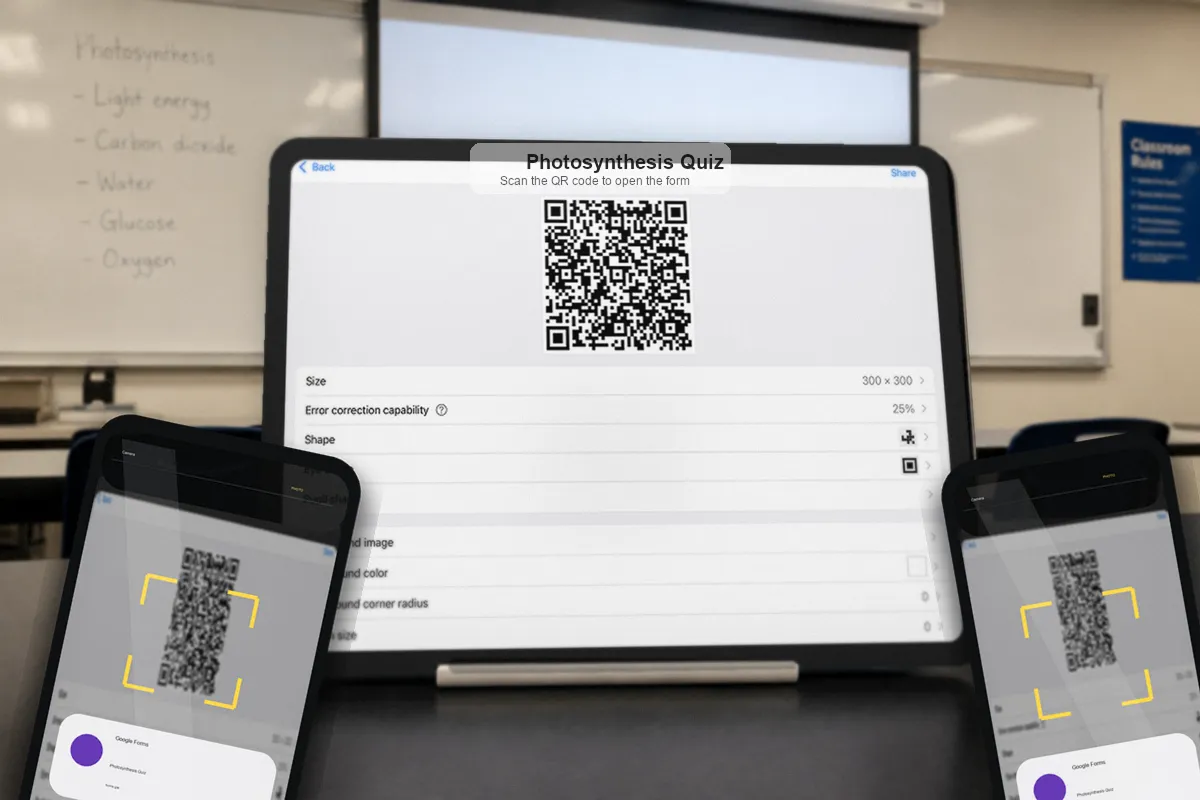
Use Classroom when you need an assignment workflow, or share a respondent link or QR code for suitable activities. Test access using a student account before distribution.
By link or Google Classroom
Google Classroom has an official iPhone and iPad app. Posting a Form does not automatically map all responses or import grades. Check Classroom’s quiz-assignment and grade-import requirements, school account settings and student identities; use a computer if the needed setup is unavailable on the tablet.
By QR code on screen or handout
For in-room, fast, or anonymous distribution, a QR code is hard to beat: display it on the projector or print it on a handout and students scan it with their cameras. Google Forms has no built-in QR generator, so you make one from the share link — our guide to making a QR code for a Google Form on iPhone walks through the one-minute method. AirDropping or messaging the plain link works too for a quick share.
Quiz Settings to Review
A few settings turn a generic form into a classroom-ready one, and all of them live in the Settings tab you can reach from iPad Safari. Configure these before you distribute:
- Limit to 1 response. This limits submissions per signed-in Google account, not necessarily per person. Check school account requirements and the response-editing setting.
- Collect email addresses. Verified collection identifies the signed-in account; a manually entered email can be inaccurate. Neither alone proves which student completed the work.
- Turn off “See correct answers” until everyone submits. Keeps the answer key hidden during the testing window so early finishers can’t tip off the rest.
- Leave “Edit after submit” off. Prevents a student from quietly reopening and changing answers after turning the quiz in.
Review the controls available to your account and test the complete student flow, including grade release. Use a computer for configuration that is unavailable on your mobile device.
Watching Responses Come In — Live, From Your Phone
The Responses tab shows received submissions and summary charts. A total does not identify who has finished; use appropriately collected identifiers and the assignment record to check individual completion.
Summary charts can help identify patterns among received responses. Refresh and check the count before interpreting them; an incomplete set may not represent the whole class. Investigate a possible misconception before deciding how to respond.
Google Forms supports response email notifications. Delivery and phone alerts depend on account and device settings; a third-party push workflow also needs testing. Our iPhone notification guide explains the options.
Auto-Grading and Releasing Feedback on iPad
Automatic scoring depends on supported question types and correctly configured answer keys. Review short-answer matches and any responses needing judgment before releasing scores; submitting a quiz does not make every answer reliably graded.
| Question type | Auto-grades? | Teacher action |
|---|---|---|
| Multiple choice | ✅ Yes | Set answer key + points |
| Checkboxes | ✅ Yes | Set answer key + points |
| Dropdown | ✅ Yes | Set answer key + points |
| Short answer | ✅ Yes (matched text) | Define accepted answers |
| Paragraph (long answer) | ❌ No | Grade manually + feedback |
| File upload | ❌ No | Review manually |
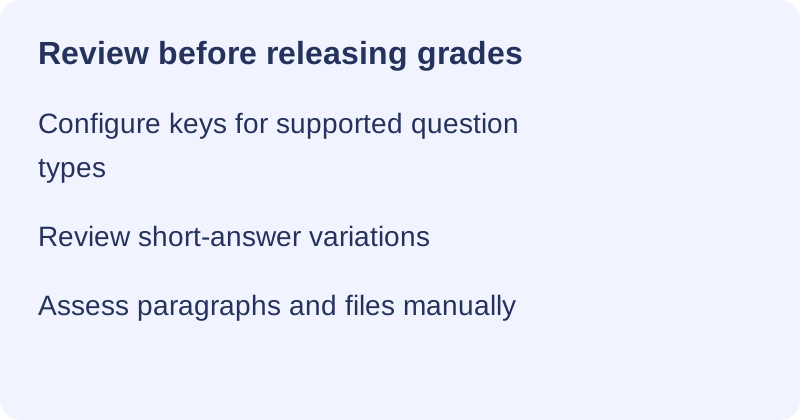
Review scores in the Responses tab. Paragraph answers and uploads need manual assessment; short-answer matching can miss valid variations. Apple Pencil and Scribble support depends on the device, language and field. Check feedback and grade-release settings before sharing results.
Common iPad/iPhone Hiccups for Teachers
Use these checks when the mobile workflow does not behave as expected; no single workaround fixes every device or account issue.
Date/time picker. Google’s iPhone/iPad instructions list this picker as unsupported. Test the published form and consider explicit text-format instructions, a suitable list of dates or another device. See our iPhone troubleshooting guide.
Multiple Google accounts collide. Teachers usually carry a personal and a school account, and Safari opening the form under the wrong one is a frequent cause of “I can’t see my form” or “this shows zero responses.” Check the avatar in the corner and switch to the account that owns the form.
Embedded browser problems. If a link opened inside another app fails, try the respondent link in Safari with the intended account and test submission again.
Slow editing. Try fewer open tabs or a shorter form and check connectivity and saving. Test a native app with your own workflow rather than assuming it always performs better.
When a Native iOS App Helps Teachers
A third-party app may be useful for repeated mobile editing or response review. Confirm its supported operations, school approval and connectivity requirements before using it with student data.
Forms for Google Drive by pipiform offers another mobile interface. Test editing, notifications and export with a disposable form. If using offline preparation, verify the online copy after reconnecting; it does not enable offline student submissions. See the guides to PDF export, creating forms and editing on iPad for the relevant workflows.
Try a typical weekly task before choosing an app: prepare questions, make a saved edit, review received responses and export a sample. Check the result in the online form instead of assuming every operation is faster or fully supported.
Classroom can organize assignments and grade workflows, but mapping and import depend on the documented requirements. Choose browser, Classroom and app tools according to the operations they actually support.
Use pipiform for mobile preparation and timed practice
On iPhone and iPad. Forms for Google Drive gives teachers an iPhone/iPad workspace for preparing forms and reviewing responses between classes. Check the published student link after changing quiz or access settings.
With the Workspace add-on. For timed practice, Form Timer by pipiform gives each learner an individual countdown. Set it up on a computer, test required questions and optional auto-submit, and distribute its timed link. Timing does not replace Google Forms answer keys, grading, or classroom access controls.
View Form Timer and its features · Install the add-on · Get Forms for Google Drive on the App Store
The app and Workspace add-ons are separate pipiform products. Forms for Google Drive is US$59.99/year with a 3-day trial; check the App Store offer for your region. Form Timer is free on one form; its Pro plan is US$80/year or US$10/month. See current product pricing before subscribing.
Summary
Prepare the quiz, verify answer keys and preview the student experience. Share the respondent link with appropriate access, distinguish Google accounts from verified student identity, and review scores before release. Use eligible Gemini tools on supported devices and check their output. Test app features and synchronization separately; Classroom linking and grade import require their own setup.
Frequently Asked Questions
Can teachers create Google Forms quizzes on an iPad?
Yes, the browser supports quiz preparation on iPad. Enable quiz mode, set answer keys and points, and test the student link. Controls and school policy may require a computer for some operations; keyboard and multitasking support vary by device.
Does Gemini in Google Forms write quiz questions for me?
For eligible accounts, Gemini can draft forms and quizzes, including suggested answer keys and points where supported. Google's creation instructions use a computer. Check availability and review every question, answer and score before assigning the quiz.
How do I share a Google Form with students from my iPad?
Share the published respondent link through Classroom, a QR code or a message, then test it with the intended student account. An editor URL does not itself grant access, but student editor permissions should not be enabled unnecessarily.
Should I send students the form link or add it to Google Classroom?
Use Classroom for an assignment workflow when it fits your school. Attaching a Form alone does not ensure response matching or grade import; check account, quiz and assignment requirements. A plain respondent link may suit a quick poll.
Why can't students pick a date in my Google Form on iPad?
Google's iPhone/iPad help lists the date and time picker as unsupported. Test the actual form and use an appropriate text format, choice list or another device if needed. Updating or changing browsers is not a guaranteed fix.
Which question types does Google Forms auto-grade?
Automatic grading requires a supported question type and an answer key. Multiple choice, checkboxes, dropdowns and short answers can use keys; short-answer variants need review. Paragraph answers and uploads require manual assessment. Review the scores before release.
How do I stop students from retaking a quiz?
Limit to 1 response applies per signed-in Google account. Check the response-editing setting and school account restrictions. Verified email collection identifies an account, not necessarily the individual doing the work, so reconcile submissions with your class records.
Can I grade Google Forms on my iPhone?
You can review received responses and use available grading controls on iPhone. Check automatic scores, manually assess answers that need judgment and verify grade-release settings. If a required control is unavailable or hard to use, continue on a larger supported device.