How to Edit Google Forms on iPad (2026 Guide)
Can You Edit Google Forms on iPad?
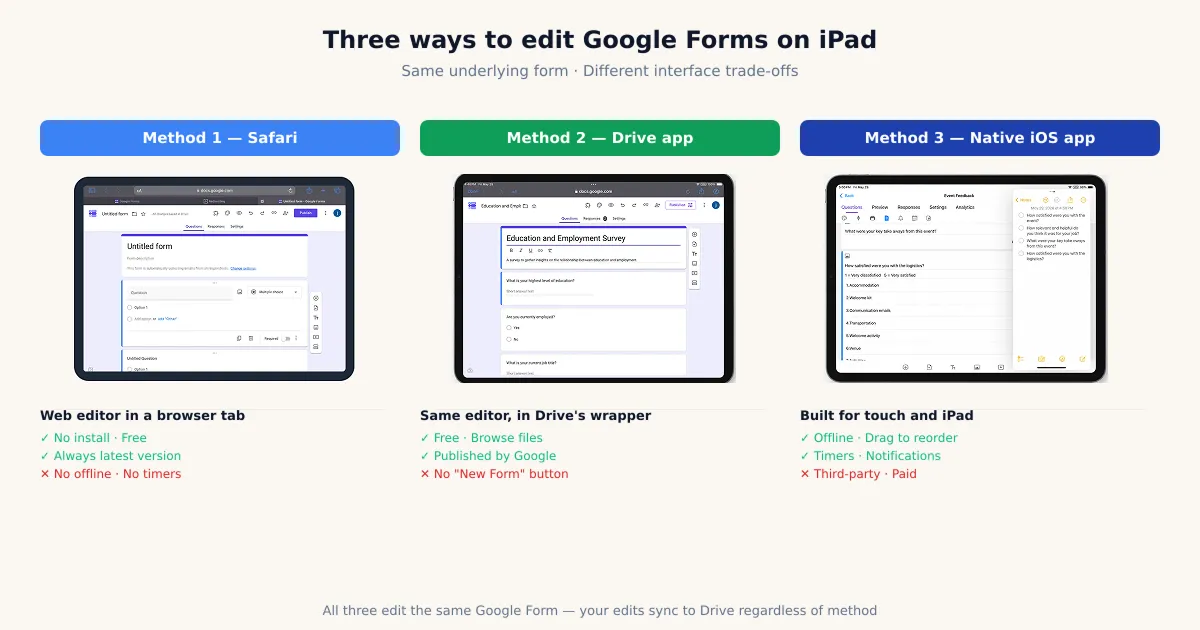
Yes — you can fully edit any Google Form on iPad through three methods, all of which work on the same underlying form your collaborators see at forms.google.com. There is no official Google Forms app for iPad, but you do not need one: the mobile web editor loads in Safari, the Google Drive iOS app opens forms in an embedded version of that same editor, and third-party iOS apps add a native interface on top.
The reason the iPad is worth a dedicated guide — rather than lumping it in with iPhone — is screen size. The forms.google.com editor is responsive, and on an iPad’s larger display it shows more of the form at once, surfaces the side toolbar without crowding, and tolerates Split View. In our own testing on an 11-inch iPad Pro with a Magic Keyboard, the web editor felt close to a cramped laptop rather than a phone — usable for real editing sessions, not just quick one-line fixes.
Throughout this guide we’ll cover all three methods, the editing limits that apply on every iPad method, and the iPad-specific troubleshooting that trips people up most.
Method 1 — Edit in Safari (forms.google.com)
Editing in Safari is the fastest method on iPad and requires no installation. Open Safari, go to forms.google.com, sign in, and tap the form you want to change — Google’s mobile web editor handles the rest.
Step-by-step
- Open Safari on your iPad.
- Type
forms.google.comin the address bar and press Go. - Sign in with the Google account that owns the form (or one with edit access).
- Your recent forms appear on the home screen. Tap the one you want to edit.
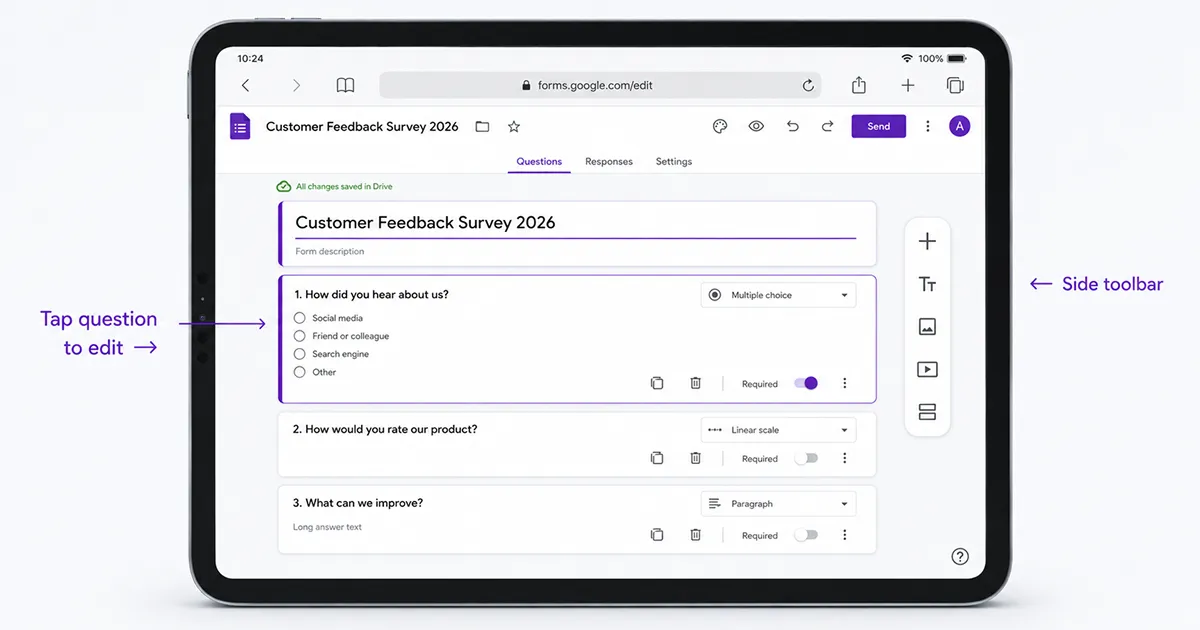
- Tap any question to change its text, options, or type. Use the + in the side toolbar to add a new question, and the section, image, or video icons to add other elements.
- Edits autosave silently. Wait for the “All changes saved in Drive” indicator before you close the tab — there is no manual save button.
iPad-specific tips
The iPad has multitasking features the iPhone doesn’t, and a few of them genuinely improve the editing experience:
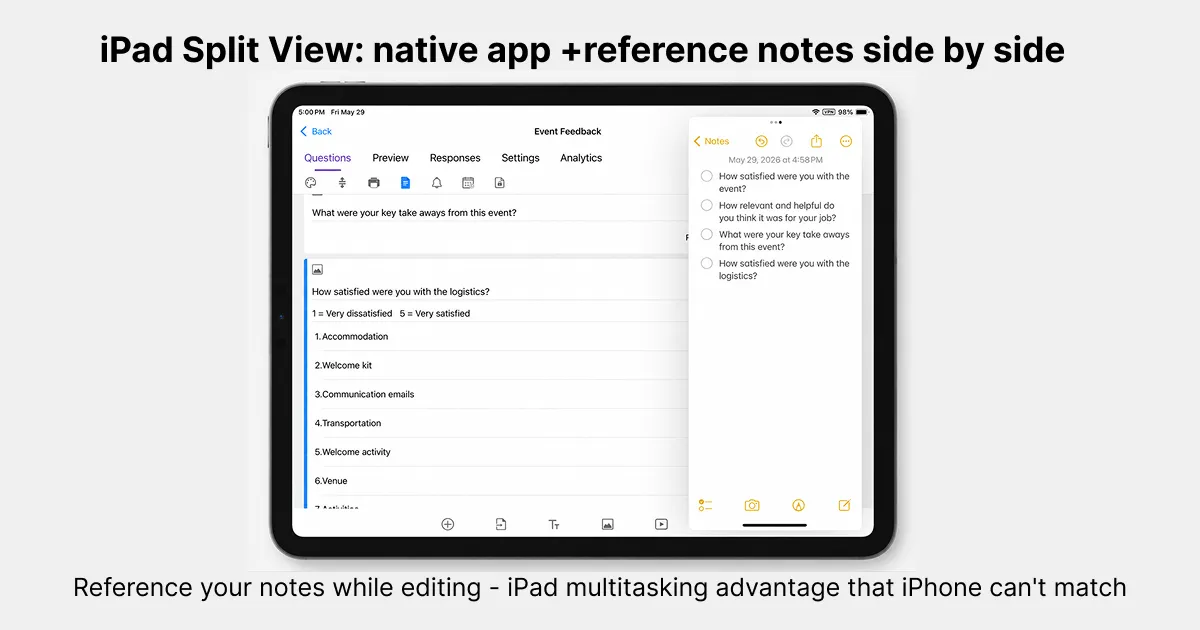
- Split View. Swipe up to the Dock, drag a second app (Notes, Sheets, Safari with your source data) to the screen edge, and edit the form on one side while referencing your content on the other. This is the single biggest advantage the iPad has over iPhone for form editing.
- Stage Manager (iPadOS 16+). On supported iPads, Stage Manager lets you float the form editor in a resizable window alongside others — useful if you’re copying questions across multiple forms.
- Hardware keyboard shortcuts. With a Magic Keyboard or any Bluetooth keyboard attached, standard text shortcuts work in the editor: ⌘C/⌘V to copy question text, ⌘Z to undo, and Tab to move between fields. The on-screen keyboard also disappears, which fixes the field-coverage problem described below.
- Pointer / trackpad. The Magic Keyboard trackpad gives you a precise cursor, which makes hitting the small drag handles and the three-dot menus far easier than tapping with a finger.
Method 2 — Edit Through the Google Drive iPad App
The Google Drive iOS app edits Google Forms by opening them in an embedded WebView — the same forms.google.com editor as Method 1, just wrapped inside Drive’s interface. It’s the right choice when Drive is already your home base for files.
Step-by-step
- Install Google Drive from the App Store and sign in.
- Navigate to where the form is stored, or sort by Last modified to find a recent one.
- Tap the Google Form file. Drive opens it in its built-in WebView editor.
- Edit exactly as you would in Safari — tap questions, use the side toolbar, and let autosave persist your changes.
How this differs from iPhone
Functionally, almost nothing differs between iPad and iPhone here — both load the identical WebView, and the editing capabilities are the same. The only practical difference is, again, screen real estate: the WebView gets more room on iPad, so the editor is less cramped. One limit carries over from iPhone: Drive has no “New Google Form” button, so this method is for editing existing forms, not creating from scratch. For creating forms on a small screen, see our guide on how to create a Google Form on iPhone, which applies to iPad too.
Method 3 — Edit With a Dedicated iOS App
A third-party iOS app gives you a native iPad interface for editing Google Forms — drag-to-reorder, swipe-to-delete, and an editor that’s built for touch rather than a web page squeezed onto a tablet. Forms for Google Drive (by Pipiform) is one such app; it connects to your Google account through OAuth, so the form data still lives in Google Forms and any edit you make appears in the web editor instantly.
Step-by-step (using Forms for Google Drive)
- Download Forms for Google Drive from the App Store. A 3-day free trial is included, then it’s a paid subscription.
- Open the app and sign in with the Google account that owns your forms.
- Tap the form you want to edit from your form list.
- Edit questions with the native iOS interface — drag to reorder, swipe to delete, long-press for options.
- Changes sync back to Google Forms automatically, so the form stays in step with what collaborators see online.
Where the iPad version shines
A native app makes better use of iPad hardware than a web page can:
- Larger editing canvas. The app lays out the question list and the editing panel side by side on iPad, instead of stacking them like on a phone.
- Split View support. Because it’s a real iOS app, it behaves correctly in Split View and Slide Over — no mobile-detection layout breakage that the web editor sometimes hits.
- Apple Pencil + Scribble. You can use the Pencil to tap into a field and handwrite question text, letting iPadOS Scribble convert it to typed text. (Note: this is iPadOS doing the conversion, not the app adding a handwriting layer — see the FAQ.)
- Offline editing. The app caches forms locally and queues your edits to sync when you reconnect, which the official web editor cannot do.
To be clear, the official Safari and Drive methods are free and fine for occasional edits. A dedicated app is worth it if you edit forms weekly, need offline access, or want features Google’s mobile web simply doesn’t offer.
Comparison: Which Method for iPad?
The three methods overlap, but they differ on the dimensions that actually matter on a tablet — screen use, multitasking, offline, and advanced features. The table below is an objective comparison, not a recommendation.
| Dimension | Safari (forms.google.com) | Google Drive iPad App | Forms for Google Drive (Pipiform) |
|---|---|---|---|
| Edit existing forms | ✅ | ✅ (WebView) | ✅ |
| Uses the full iPad screen | Partial (web layout) | Partial (WebView) | ✅ (native iPad layout) |
| Reliable in Split View | ❌ (layout can break) | Partial | ✅ |
| Offline editing | ❌ | ❌ | ✅ |
| Apple Pencil / Scribble input | Scribble only | Scribble only | Scribble only |
| Drag-to-reorder questions | Awkward | Awkward | ✅ (native) |
| Add timer / response limit | ❌ | ❌ | ✅ |
| Push notifications on submit | ❌ | ❌ | ✅ |
| Date/time picker works | ❌ (known iOS issue) | ❌ (same WebView) | Varies |
| Free to use | ✅ | ✅ | 3-day free trial, then paid |
| Published by Google | ✅ | ✅ | ❌ |
A couple of honest notes: the Drive app’s “Edit existing forms” is ✅, but it’s the same WebView as Safari underneath — convenience packaging, not a separate editor. And “Apple Pencil / Scribble” reads the same across all three because Scribble is an iPadOS-level feature, not something any of these editors implements specially.
What You Can and Can’t Edit on iPad
Every iPad method can edit the structure and settings of a form, but none can edit submitted responses in place. Knowing the boundary up front saves a frustrating search for a button that isn’t there.
What you can edit on iPad:
- Question text, help text, and question type
- Answer options (add, remove, reorder choices)
- Required toggles, validation rules, and points (for quizzes)
- Sections, section breaks, and basic branching (“go to section based on answer”)
- The form’s theme: header color, background, and font (basic theming works; full custom image headers may still prefer desktop)
- Sharing and collaborator settings, the confirmation message, and response collection settings
What’s limited or unavailable on iPad:
- Editing submitted responses — read-only on every device. Edit the linked Google Sheet instead.
- The date/time picker — known iOS Safari issue (see the warning above); affects Safari and the Drive WebView.
- Workspace add-ons — the Marketplace is desktop-only. Add-on features (Form Publisher, advanced timers) can’t be installed or configured from iPad’s web editor; a third-party iOS app replaces some of these with native equivalents.
- Deep theme customization — uploading a custom header image is more reliable on desktop.
If you’re not sure whether iPad can handle your whole workflow, the short version is: question and settings editing, yes; response editing and add-on setup, not without a workaround. For the broader question of whether any native option exists, see is there a Google Forms app for iPhone — the answer applies to iPad too.
Troubleshooting iPad Editing Issues
Most iPad editing problems trace back to four causes: silent autosave failures, multiple signed-in accounts, the keyboard covering fields, or Split View layout breakage. Here’s how to fix each.
The form won’t save. The web editor autosaves over the network with no manual save button, so a dropped connection means recent edits vanish. Check your Wi-Fi or cellular signal, wait for the “All changes saved in Drive” indicator before closing the tab, and if saving keeps failing on flaky connections, switch to a third-party app with offline queueing. (Background on why: see silent save failures on a dropped connection.)
Multiple accounts conflict (“Drive Refused Connection”). If you have several Google accounts signed into Safari, forms.google.com can load the wrong session and refuse to open the form for editing. Sign out of all but the owner account, or open the form in a Private Browsing tab. The Drive iOS app persists a single session more reliably if this recurs.
The keyboard covers the input field. On iPad, the on-screen keyboard can push up over the field you’re editing, especially in landscape. Attach a hardware keyboard (the on-screen one disappears entirely), scroll the field back into view after the keyboard opens, or rotate to portrait for more vertical room.
Split View breaks the layout. The web editor occasionally misdetects a narrow Split View column as a phone and collapses the toolbar. Widen the form’s pane past the 50/50 split, or exit Split View while editing and reopen it for reference afterward. Native iOS apps don’t have this problem because they’re built for resizable windows.
The “Edit” controls are missing. You likely opened a view or response link, not the edit URL. Open the form from forms.google.com directly, or ask the owner to grant you edit access under the form’s collaborator settings.
Summary
Editing Google Forms on iPad works through three methods: Safari at forms.google.com, the Google Drive iPad app, or a dedicated iOS app. All three edit the same form your collaborators see online, and the iPad’s larger screen plus Split View make the experience meaningfully better than editing on an iPhone. For occasional edits, Safari is free and fast. If you edit forms regularly, need offline access, or want native drag-to-reorder and a layout built for the tablet, a dedicated app like Forms for Google Drive is the more comfortable home. Whichever you pick, the data lives in Google Drive — so you can switch between methods anytime without losing anything.
Frequently Asked Questions
Can I edit Google Forms offline on iPad?
Not in Google's official editor. Both Safari and the Google Drive app need an internet connection — the editor autosaves silently over the network, so if your connection drops, recent edits never persist. Some third-party iOS apps cache forms locally and queue your edits to sync when you reconnect, which is the only way to edit reliably offline on iPad.
Does the date picker work on iPad Safari?
It is unreliable. Google's own documentation lists the date and time question picker as having known issues on iOS Safari for both iPhone and iPad. You can still add a date/time question, but tapping the picker may not open the native iPadOS date wheel. The workaround is to set up date/time questions on desktop, or use a short-answer question with a format hint instead.
Can I use Apple Pencil to edit Google Forms?
Partially. Apple Pencil works for tapping, selecting, and Scribble-to-text inside text fields on iPad, so you can handwrite question titles and have iPadOS convert them to typed text. But Google's mobile editor has no native handwriting or annotation layer, so you cannot draw on the form or sketch question logic — the Pencil acts as a pointer and a Scribble input, nothing more.
Is editing Google Forms on iPad better than on iPhone?
Yes, noticeably. The iPad loads the same forms.google.com mobile editor, but the larger screen shows more of the form at once, the side toolbar is easier to hit, and Split View lets you reference another app while you edit — none of which the iPhone screen accommodates well. The underlying feature set is identical; the iPad just makes it far more usable.
Can I edit form responses, not just questions, on iPad?
Not directly. Responses are read-only in the Google Forms editor on every device, including iPad. To fix a typo in a submission, open the linked Google Sheet (the Responses tab → green Sheets icon) and edit the cell there. Editing the response sheet works the same on iPad Safari or the Google Sheets iOS app.
Why does my keyboard cover the input field on iPad?
This is a known layout quirk when the on-screen keyboard pushes up over the field you are typing in, especially in landscape. Fixes: attach a hardware keyboard (the on-screen keyboard disappears and the field stays visible), scroll the field into view after the keyboard opens, or rotate to portrait where there is more vertical room. Split View can also reclaim space if the form column is too short.
Do I need a Google account to edit a form on iPad?
Yes. You must be signed into the Google account that owns the form, or one that has been granted edit access. If you only have a view or response link, you cannot edit the form — ask the owner to add you as an editor under the form's collaborator settings first.