
Export Google Forms to Google Docs and Word with pipiform
In this guide
Use Form to Docs by pipiform when a Google Form needs to become an editable document. Choose whether to export the questions, all submitted answers or selected responses. Open the resulting Google Doc, review it, and download a Word copy when a colleague needs a .docx file.
This tutorial is published by pipiform, the maker of Form to Docs and Forms for Google Drive.
Install Form to Docs · View features and plans
A spreadsheet is useful for sorting and calculations. A document is useful for reading a questionnaire, reviewing a case or editing a record with colleagues. The key is choosing the correct export rather than clicking the first Start button.
1. Decide what your document should contain
| Request from your colleague | Export to choose |
|---|---|
| “Send me a blank questionnaire” | Convert Form to Google Doc |
| “Send me the submitted answers” | Convert Form Responses to Google Doc |
| “I only need these particular submissions” | Convert selection of responses |
| “I need to edit it in Word” | Review the Google Doc, then download .docx |
The first option exports the form itself, so blank answer lines are expected. It is not the right operation when you want respondent data.
2. Open the conversion options
On a computer, open your form in edit mode and choose Add-ons → Form to Doc - Doc to form → Open. In Convert From Form, select To Doc.
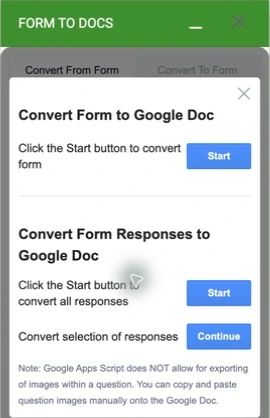
- Convert Form to Google Doc → Start creates the question document.
- Convert Form Responses to Google Doc → Start starts the all-response route.
- Convert selection of responses → Continue opens the route for choosing responses.
Check your current conversion allowance before running the operation. If you only need a few submissions, use the selection route rather than exporting an entire response collection.
3. Export the appropriate content
For a blank questionnaire, use the first operation. For answers, first verify that submissions exist in the form’s Responses tab, then use the response operation. Follow any selection or output prompts shown by the add-on and open the resulting document when it is ready.
Our earlier blank-form export produced a real Google Doc containing question labels and blank answer lines:
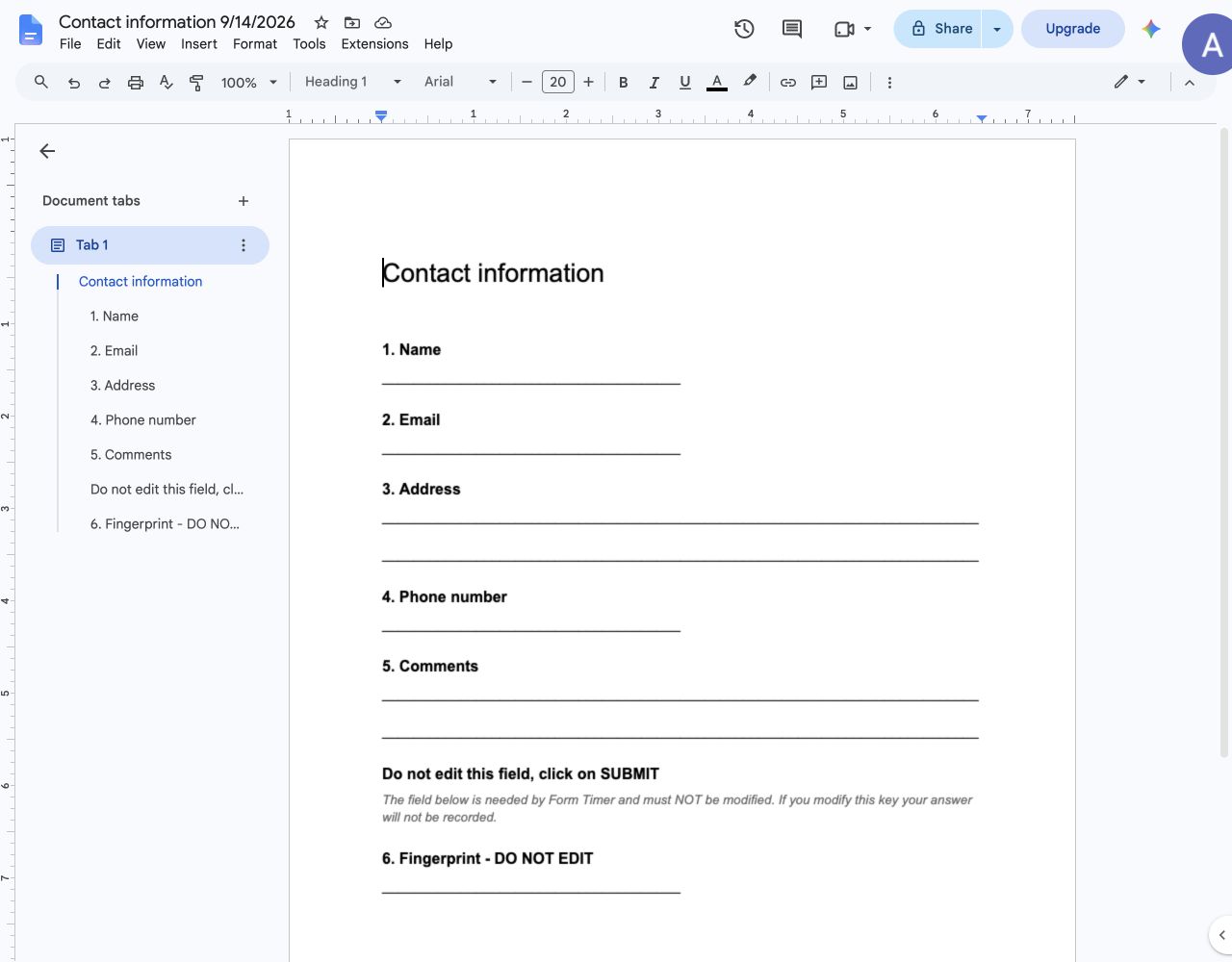
Actual output from the question-export operation. It demonstrates an editable document, not a completed response export.
The current test account has no free conversions remaining, so we did not run a new response export for this revision. The controls above are fresh captures of the response-export route. Check a small output in your own account before processing a larger set.
4. Make the document useful to its reader
Give it a meaningful title, such as “Workshop enquiry responses — September,” and add a short explanation of the scope. If it contains selected submissions, say which set was selected.
Compare a sample against the original response, particularly long text and optional fields. Remove operational helper fields from the document copy when they do not belong in the report; do not delete a timer’s required helper from the source form. Our earlier blank-form export included such a helper, which needed editorial cleanup in the document.
The converter’s panel notes that question images may need to be copied manually. Review images and formatting rather than assuming a perfect visual copy of the form.
5. Download an editable Word copy
In the reviewed Google Doc, choose File → Download → Microsoft Word (.docx). Open the downloaded file in Word and check headings, tables and page breaks before sharing it.
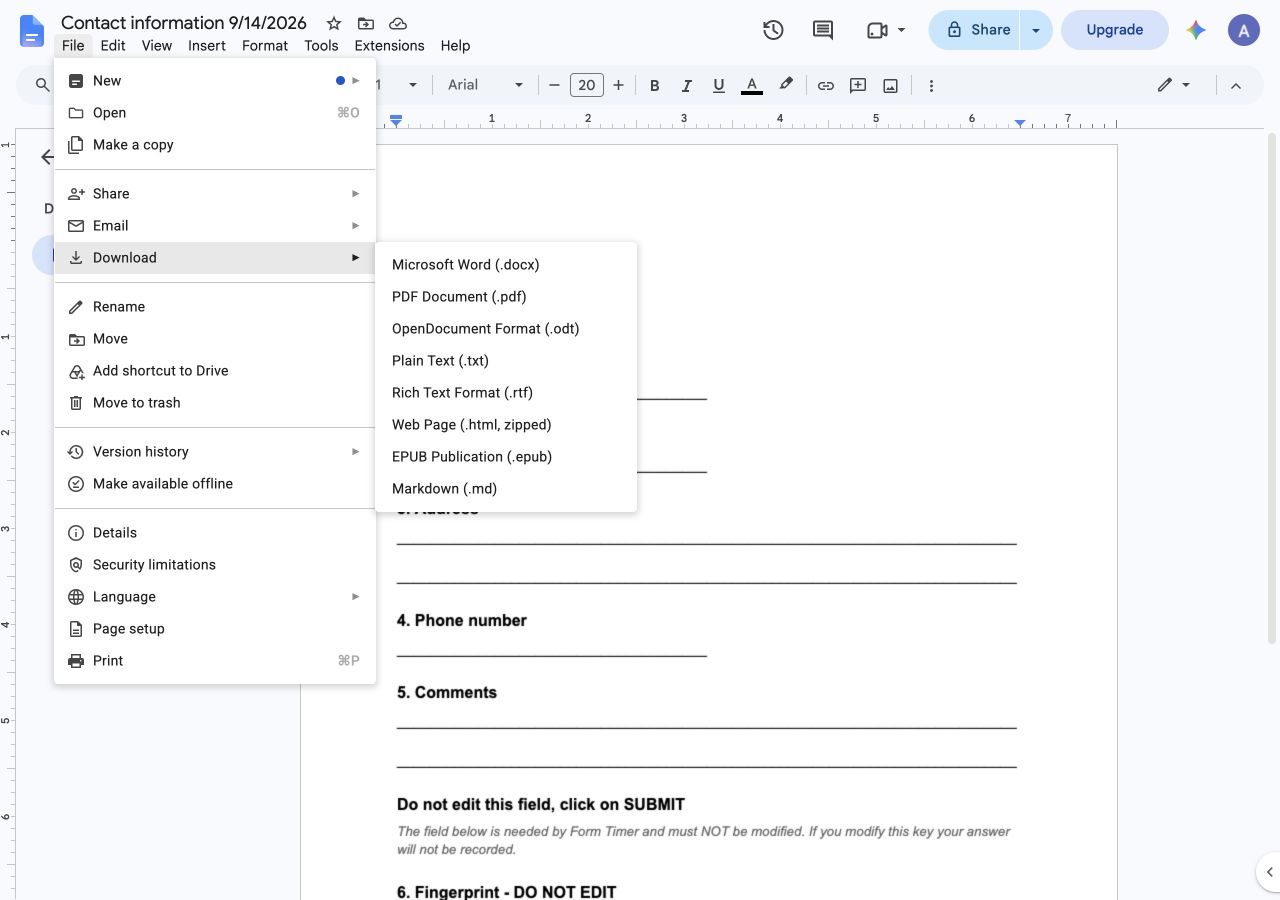
Actual Google Docs download menu on the earlier generated question document.
If the recipient needs a fixed reading copy, choose File → Download → PDF Document (.pdf). Keep the editable Doc as your working version. Follow the PDF export walkthrough for a review checklist and the separate iPhone workflow.
Word, PDF, or a prefilled template: choose the right output
| What you need | Workflow | What to verify |
|---|---|---|
| A questionnaire that a colleague can edit | Export the form to Docs, then download Word | Question order, blank answer lines, images |
| A readable record of submitted answers | Choose the response export, review in Docs, then download Word or PDF | Correct submissions, complete answers, page breaks |
| A polished workshop report | Add a title, scope and findings to the exported Doc | Separate the original answers from your conclusions |
| Answers inserted into an existing PDF’s fields | A PDF field-mapping workflow | This is not demonstrated by the Form to Docs export controls |
| A new document emailed automatically for every submission | A document-generation and delivery workflow | Do not assume manual export enables this automation |
Exporting answers to a document is different from filling an existing PDF template. A prefilled Google Forms link is also different: it supplies starting answers in a form, rather than creating a PDF. If a fixed template is essential, verify that exact workflow before choosing a product.
For a useful first test, select a small response set containing a long answer and an optional field. Compare the output with the source, then ask the recipient whether they need an editable Word file or a PDF reading copy. This avoids exporting a large collection in the wrong format.
Use the export as a starting point for a report
A document of answers is a record, not automatically an analysis. For workshop feedback, add a summary of themes, examples and follow-up actions after reviewing the answers. The workshop report tutorial gives a structure for that next step.
For numbers that need sorting, filtering or calculations, Google Forms’ linked spreadsheet or CSV route may be the better native option. pipiform is useful when the destination is a document that someone needs to read or edit.
Why did I get questions instead of answers?
You selected the form-export operation. Return to To Doc and choose the heading explicitly labeled Form Responses.
Can I send this automatically after every submission?
This guide covers the export controls shown in the add-on. It does not describe an automatic per-response document-and-email workflow.
Does exporting to Word preserve every layout detail?
Review the downloaded file. Different document formats can change pagination and spacing, and question images may require manual handling.
Try it with your own form
Choose one useful output—a blank questionnaire or a small response set—and review it in Google Docs before downloading Word. That establishes a reusable export process for your team.
Install Form to Docs · Review the product and pricing
Check the available conversion allowance in your account and the current Form to Docs plans before starting a larger export.
For managing forms and reviewing responses on iPhone or iPad, use the separate Forms for Google Drive app. It complements the desktop add-on workflow; an app subscription does not unlock the add-on. Check the current price and trial offer in your App Store region. View the app on the App Store.