
Google Forms Emails Not Working? Fix the Workflow
In this guide
First confirm that Google Forms saved the response, then check the email workflow attached to it. A missing phone alert, a saved response without an email, and an email sent to the wrong address are different problems. This guide helps you find the failing step without rebuilding the whole form.
This tutorial is published by pipiform, the maker of Form Notifications and Forms for Google Drive.
Install Form Notifications by pipiform · View features and plans
If you use Form Notifications, the two most useful places to inspect are the saved notification’s message and its recipient settings. If you only use Google’s native alerts, skip to the native-alert section below.
Identify the symptom
| What you can see | Start here |
|---|---|
| No response in the Forms Responses tab | Submit a complete test and confirm it was saved |
| Response exists, no email anywhere | Saved workflow, recipients, conditions and allowance |
| Someone else receives the email | Fixed addresses and respondent-field mapping |
| Email arrives with unexpected content | Subject, message body and markers |
| Email is in the inbox, but no iPhone alert | Mail/Gmail notifications and iOS Focus |
| Two messages arrive | Overlapping workflows and native alerts |
Use one distinctive fictional submission, such as “Workshop test — 10:30,” so you can match the form response with any delivered message.
1. Verify the submission exists
Open Responses in the form editor and find the test. A preview opened without a completed submission does not create a new-response event. Required questions or an unsuccessful submit may leave the response unsaved.
Once the response is present, keep its approximate submission time and the Email answer for the next steps. You do not need to repeat the same test repeatedly while inspecting the configuration.
2. Reopen the saved pipiform workflow
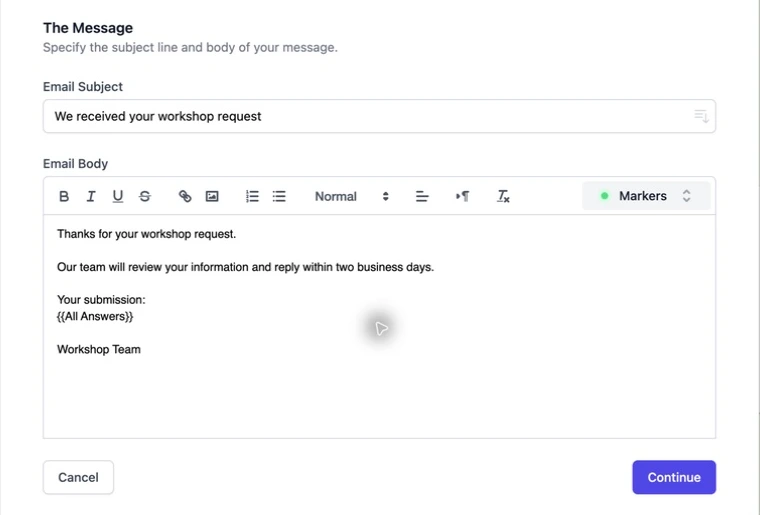
Choose Add-ons → Form Notifications for Google Forms™ → Open App. Find the intended notification and open Actions → Edit. Make sure it is the workflow for this form and that your settings were saved rather than left in an unfinished draft.
An informative internal name—such as “Workshop acknowledgement”—makes this easier when several workflows exist. Review the subject so you know what to search for in the inbox.
3. Check where the email is addressed
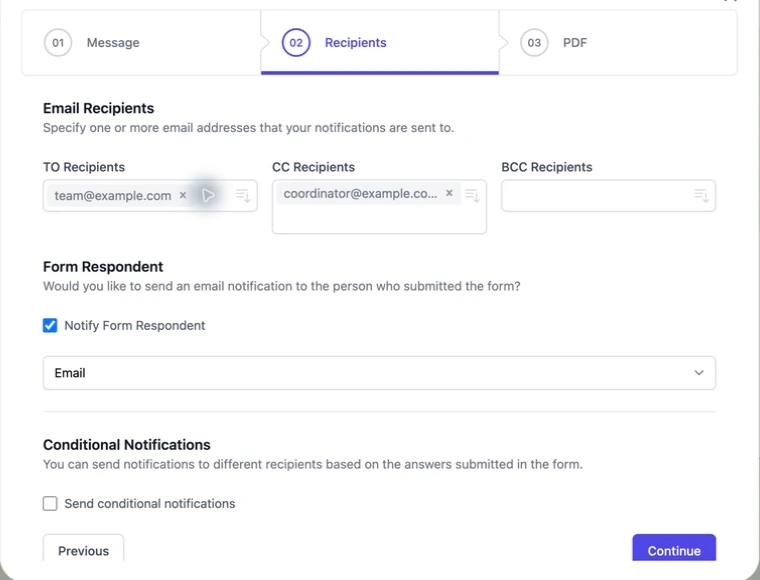
Review To, CC and BCC. Remove stale test addresses. For a respondent email, confirm Notify Form Respondent is enabled and the selected field is the actual Email question.
4. Inspect conditions and fallback recipients
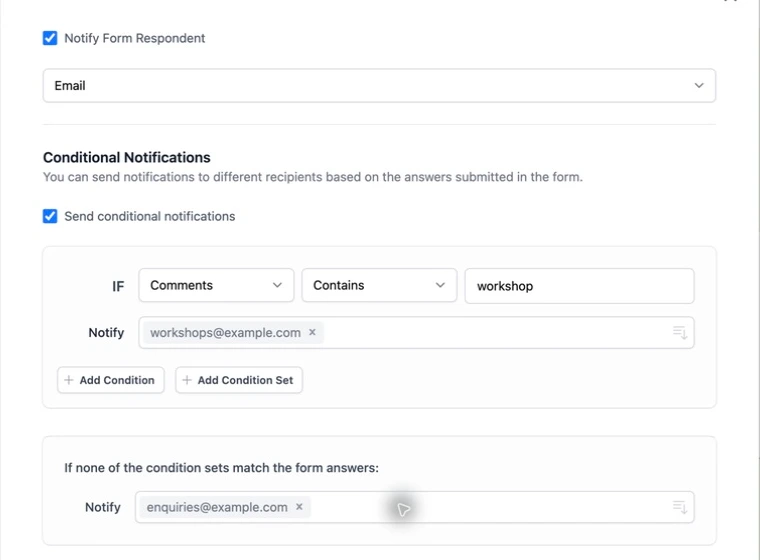
If conditional notifications are enabled, compare the test answer with the saved operator and value. “Comments contains workshop” will not necessarily match a request worded only as “training.” Check whether an unmatched response has a fallback recipient.
5. Check allowance and delivery
Review the add-on’s current sending allowance and any account authorization or error message it displays. Form Notifications’ limited free mode is 20 emails per day; the current plan and sending account can impose additional constraints. Do not assume a successful response submission means an email allowance remains.
Search the intended inbox by the exact subject and check spam or junk. If you use a shared or forwarded mailbox, check the original destination as well. Avoid changing sender, recipients and rules all at once: change one suspected cause, save and submit one new test.
If you use the native Google Forms alert
Open Responses → More and check Get email notifications for new responses for the correct Google account. This native alert is different from a pipiform workflow and from a respondent’s response receipt.
If your actual goal is a custom respondent acknowledgement or a configured team recipient list, use pipiform’s notification setup instead of expecting a basic owner alert to provide those features.
Email received, but no phone notification?
Open Mail or Gmail directly. If the email is there, the delivery worked. Check that app’s notification settings and iOS Focus settings. For reviewing the original submission on mobile, use the separate Forms for Google Drive app.
When to contact support
If a new test is saved in Forms but still produces no expected email after these checks, contact pipiform support. Include the notification name, approximate test time, the step that failed and the error text. Use fictional test data and redact unrelated addresses or answers from screenshots.
Should I reinstall the add-on first?
No. Inspect the existing saved settings first so you do not lose the information needed to diagnose the problem. Account or installation issues have their own troubleshooting steps.
Does an email prove every routing rule works?
It confirms that particular delivery. Test each route you intend to use, including the fallback, before depending on a larger workflow.
Try it with your own form
For a new setup, begin with one fixed recipient and a clear subject. Once a test arrives, add respondent mapping or conditions one at a time.
Install Form Notifications · Review the product and pricing
Form Notifications has a limited free mode of 20 emails per day. Check the current plan for recipient limits and paid options before using a large mailing workflow.
For managing forms and reviewing responses on iPhone or iPad, use the separate Forms for Google Drive app. It complements the desktop add-on workflow; an app subscription does not unlock the add-on. The app is US$59.99/year with a 3-day trial, subject to the offer in your App Store region. View the app on the App Store.