Google Forms Email Notifications on iPhone (2026 Guide)
Can You Get Push Notifications from Google Forms on iPhone?
No — Google Forms does not send native push notifications to iPhone; its only built-in alert channel is email. There is no official Google Forms iOS app to receive a push, so when someone submits your form, Google sends an email rather than lighting up a notification on your lock screen. Whether that email becomes a visible alert on your iPhone then depends entirely on how Mail or the Gmail app is configured.
The reason traces back to a fact we’ve covered before: Google publishes no first-party Google Forms app for iOS, so there’s nothing installed on your phone that could receive a push from Google’s servers. (For the full picture, see is there a Google Forms app for iPhone.) The editor lives at forms.google.com in Safari, and a web page in a browser tab can’t register for system-level push the way a native app can.
That leaves two realistic paths to an actual notification on your iPhone. The first is indirect: let Google send its email and configure Mail or Gmail to push that email to you, accepting some delay and the spam-folder risk that comes with it. The second is direct: use a third-party iOS app that connects to your form and fires its own push the instant a response lands. The three methods below cover the email-based options first — from simplest to most capable — and then the push option.
Method 1 — Built-in Email Notifications (Form Owner Only)
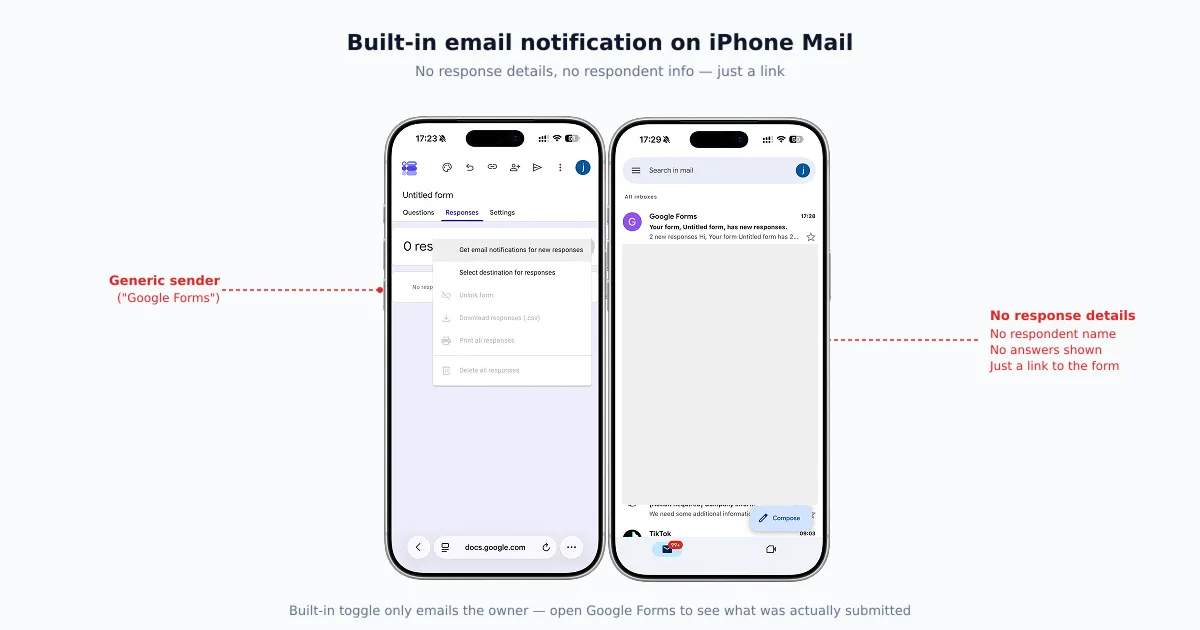
The built-in toggle is the simplest option and is completely free, but it’s also the most limited: it emails only the form owner, and the email contains no response details. It’s a single checkbox inside the form’s Responses tab, with nothing to configure and no add-on to install.
Step-by-step on iPhone (Safari)
- Open Safari and go to
forms.google.com. Sign in with the Google account that owns the form. - Tap the form you want alerts for to open it.
- Tap the Responses tab at the top of the editor.
- Tap the three-dot menu (⋮) and tap “Get email notifications for new responses” so it shows a checkmark.
- That’s it — new submissions now email the owner account. Send one test response and confirm the email arrives in Mail or the Gmail app.
What you actually get
The email itself is deliberately minimal. You receive a message with a subject along the lines of “1 new response” and a button linking back to the form — and that’s nearly the whole message. Specifically:
- No response details. The email does not include the answers. To see what someone submitted, you have to tap through to the form and open the response. For triage on a phone, that round-trip is the feature’s biggest weakness.
- Owner-only delivery. The notification goes to the account that owns the form and nowhere else. There’s no field to add a colleague, a shared inbox, or a team list.
- All-or-nothing. It fires on every single response. You can’t limit it to a particular answer, a threshold, or a daily digest.
To be honest about where this fits: the built-in toggle is genuinely fine for a personal project — a wedding RSVP, a small sign-up sheet, a one-off survey where you just want a nudge to go check. It is not enough for a real workflow where a team needs the details fast. For that, you need one of the next two methods.
Method 2 — Google Workspace Add-ons (More Flexibility, Still Email)
A Workspace add-on adds the flexibility the built-in toggle lacks — multiple recipients, response details in the body, and conditional rules — but it is still email, not push, and free tiers come with daily caps. Two add-ons dominate this space, and both install straight from inside the form’s editor.
- Form Notifications — maintained by Google as an official Apps Script sample/add-on. It’s the closest thing to a first-party upgrade and sends through your own Gmail, so it inherits the Gmail sending quota rather than a separate cap. Google documents the setup in its Form Notifications quickstart, and the add-on is listed on the Google Workspace Marketplace.
- Email Notifications for Google Forms — by Digital Inspiration, one of the most-installed notification add-ons in the Marketplace. It has the richer templating UI of the two, and a free tier that caps notifications at 20 emails per day, with paid plans lifting that limit.
Step-by-step (using Form Notifications)
- On desktop (the Marketplace is desktop-only), open the form at
forms.google.comand click the three-dot menu → Get add-ons. - Search for “Form Notifications” and click Install, then grant the requested permissions.
- Open the add-on from the puzzle-piece menu and choose a trigger — notify on every submission, or only after a response threshold is reached.
- Add the recipient email addresses you want alerted, including teammates or a distribution list.
- Save, then submit a test response to confirm the configured recipients all receive it.
Capabilities and limits
Add-ons exist to solve exactly the things the built-in toggle can’t:
- Multiple recipients. Notify a whole team, a shared inbox, or a mailing list at once.
- Response details in the body. The email can include the actual answers, so you can triage from the notification without opening the form.
- Conditional routing. Rules like “if the answer to ‘Priority’ is Urgent, email the on-call address” are possible, so the right person hears about the right submission.
The trade-offs are real, though. Everything here is still email, not a push — the alert is only as fast and as visible as your Mail or Gmail settings allow. Free tiers are capped (the 20/day limit above is easy to exceed on an active form). And you’re depending on a third-party add-on to keep working: even the Google-maintained option isn’t immune, and users have reported intermittent delivery failures with these add-ons in the past year, so a test after any Google Apps Script change is wise.
Method 3 — Third-Party iOS App (True Push Notifications)
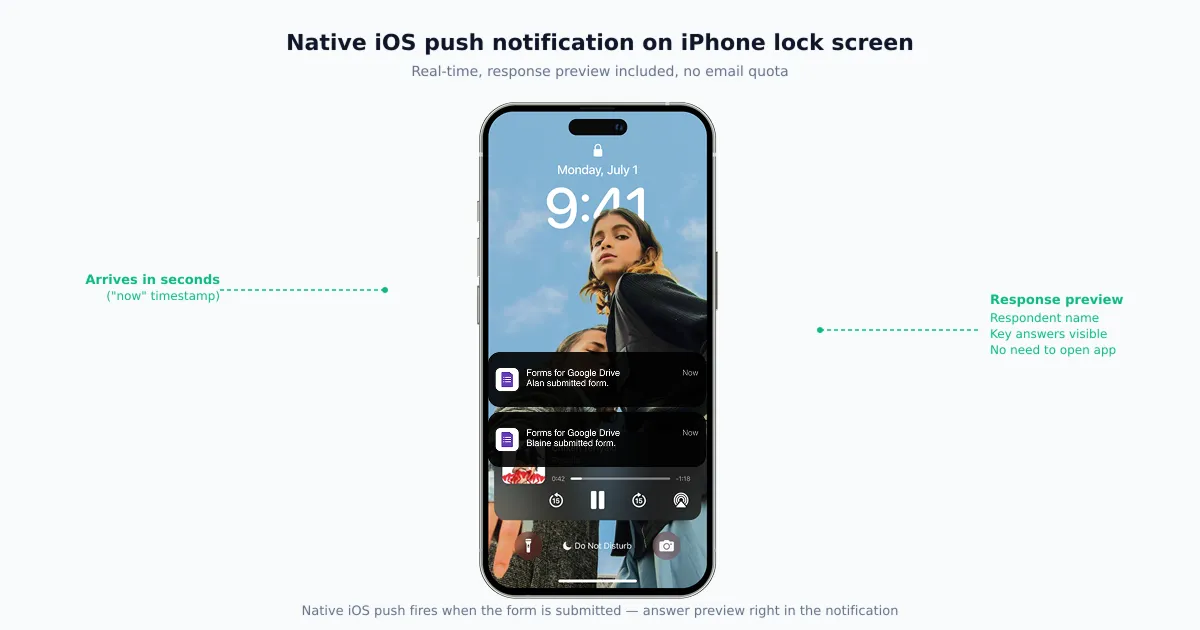
A third-party iOS app is the only way to get a real push notification from Google Forms on iPhone — a system alert the moment someone submits, instead of an email you have to wait for and dig out of your inbox. Because it’s a native app installed on your phone, it can register for push and surface the response right on your lock screen.
How it works
The mechanics are straightforward:
- The app connects to your Google account through OAuth, with a scoped permission to read the form responses it needs to alert you about.
- Its backend watches for new responses on the forms you’ve chosen.
- When one lands, it fires an iOS system push to every device where you’re signed in — no email round-trip involved.
Step-by-step using Forms for Google Drive
- Download Forms for Google Drive (by Pipiform) from the App Store. A 3-day free trial is included, then it’s a paid subscription.
- Open the app and sign in with Google (OAuth), granting the requested form access.
- Select the form you want to monitor from your form list.
- Turn on the Push Notifications toggle for that form.
- When iOS asks, allow notifications for the app.
- Submit one test response and confirm the push arrives within a few seconds.
What makes push different
Push isn’t just “email but faster” — it changes a few things that matter on a phone:
- Truly real-time. The push lands within seconds of submission, where an email can sit on a Mail fetch schedule for many minutes.
- Response preview in the notification. Key answers can appear right in the push, so you can read the gist without opening anything.
- No email quota. Because it doesn’t send email, it isn’t bound by Gmail’s daily limit or a free add-on’s 20-per-day cap.
- Multi-device sync. The same push reaches your iPhone and iPad together, so you’re covered wherever you are.
Building Forms for Google Drive, we’ve watched users hit the 20-email/day ceiling on free add-ons within a week of running an active form — a sign-up that takes off, an event that fills up — and that ceiling is exactly the wall push-based notifications are built to avoid. To be fair, if your form gets a handful of responses a month, the free built-in toggle is all you need; the app earns its keep when volume, speed, or team visibility start to matter.
Comparison: Built-in vs Add-on vs Native iOS App
The three methods trade off cost against speed, reach, and detail. The table below lays out the dimensions that actually decide which one fits — it’s an objective comparison, not a sales pitch.
| Dimension | Built-in Toggle | Workspace Add-on | Forms for Google Drive (Pipiform) |
|---|---|---|---|
| Cost | Free | Free tier, then paid | 3-day free trial, then paid |
| Delivery channel | Email only | Email only | Push (+ optional email) |
| Real-time on iPhone | Depends on Mail fetch | Depends on Mail fetch | ✅ (seconds) |
| Notify multiple recipients | ❌ (owner only) | ✅ | ✅ (multi-device) |
| Response details in alert | ❌ (link only) | ✅ (in email body) | ✅ (in push preview) |
| Conditional rules | ❌ | ✅ | ✅ (per-form) |
| Daily limit | Gmail quota (~100) | 20/day free tier | No email quota |
| Setup location | iPhone (Safari) | Desktop only | iPhone (the app) |
| Published by Google | ✅ | Partial (one option) | ❌ |
A couple of honest notes. The built-in and add-on “real-time” entries say depends on Mail fetch because email speed is out of Google’s hands once it leaves their servers — it’s your iPhone’s Mail or Gmail settings that decide. And “Published by Google” is partial for add-ons because Form Notifications is Google-maintained while Email Notifications for Google Forms is third-party — both are legitimate, but only one is first-party.
Common Notification Pitfalls on iPhone
Most “my Google Forms notifications aren’t working” complaints on iPhone come down to four causes — and all four are about the email never becoming a visible alert, not about Google failing to send it. Here’s how to clear each.
Notifications land in Junk or Promotions. Spam filters frequently flag Google’s automated notification sender, so the message arrives but is hidden in Junk with no alert. Open it once, mark it Not Junk / Not spam, and add the sender to your contacts so future ones get through.
Focus mode or Do Not Disturb is silencing them. If a Focus is on, Mail and Gmail alerts can be suppressed entirely. Check Settings → Focus, and either allow the relevant mail app or turn the Focus off while you’re expecting responses.
The Gmail app’s notifications are muted. In the Gmail iOS app, notifications can be set to None or High priority only per account. Open Gmail → menu → Settings → [your account] → Notifications and set it to All new mail for the account that owns the form.
Apple Mail is on a slow fetch schedule. If you added Gmail to Apple Mail and it’s on the default Fetch schedule, new-response emails can lag well behind the submission. Go to Settings → Mail → Accounts → Fetch New Data and set the account to Push, or fetch every 15 minutes.
If you’ve ruled out all four and still get nothing, send a test submission and confirm the built-in toggle (or add-on) is actually enabled — it’s surprisingly common for it to have been switched off, or never turned on in the first place.
Which Method Should You Choose?
Pick by volume and who needs to know. The right method scales with how busy your form is and whether anyone besides you needs the alert:
- 1–3 responses a month, just for you → Built-in toggle. It’s free, takes ten seconds to enable on your iPhone, and a link-only email is plenty when you’re only nudged occasionally.
- 5–50 responses a day, team needs to know → Workspace add-on. When you need multiple recipients, answers in the email body, or conditional routing, an add-on delivers it — just plan around the free tier’s daily cap and the desktop-only setup.
- High-frequency or time-sensitive (sales leads, event sign-ups, support intake) → Native iOS app push. When a slow or missed alert costs you something, the seconds-fast push, response preview, and freedom from email quota are worth it. Tools like Forms for Google Drive are built for exactly this case, and you can also create and edit the form itself from the same app.
Summary
Google Forms gives you email notifications, not push — and on iPhone that distinction is the whole story. The built-in toggle is free and instant to set up but only emails the owner a detail-free link; a Workspace add-on adds recipients, response data, and rules while staying email-bound and capped on free tiers; and a third-party iOS app is the only route to a true, seconds-fast push with the answer right in the notification. Match the method to your form’s volume and your team’s needs, run one test submission to confirm it actually reaches your phone, and you’ll never wonder again whether a response slipped by unseen.
For desktop answer-based routing, see Google Forms Conditional Email Notifications: A Setup Guide.
Frequently Asked Questions
Why doesn't Google Forms send push notifications to iPhone?
Because Google does not publish a Google Forms iOS app, and a push notification requires a native app on the device to receive it. The web editor at forms.google.com runs in Safari, which can't deliver a system-level push. So Google's only built-in alert channel is email. The only way to get a true push on iPhone is to route the email into Mail or Gmail and rely on those apps' notifications, or to use a third-party iOS app that connects to your form and fires its own push. See our breakdown of whether a Google Forms iPhone app exists for the full background.
How many notification emails can Google Forms send per day?
It depends on the method. The built-in toggle and Apps Script send through your Google account, so they share the Gmail sending quota — roughly 100 emails per day on a personal Gmail account and about 1,500 per day on Google Workspace. Free add-on tiers are usually stricter: Email Notifications for Google Forms, one of the most popular Marketplace add-ons, caps free accounts at 20 notification emails per day. If you run an active form, that cap is easy to hit, which is the main reason people upgrade or move to a push-based app that doesn't use email quota at all.
Can I notify someone other than the form owner?
Not with the built-in toggle — it only ever emails the form owner's account, with no option to add a recipient. To notify a teammate, a shared inbox, or a distribution list, you need a Workspace add-on or an Apps Script that sends to addresses you specify. A third-party iOS app can also push the alert to multiple signed-in devices, which is the closest thing to notifying a small team instantly.
Do Google Forms notifications work in Apple Mail vs the Gmail app?
Both work, but the notification timing differs. The Gmail app on iOS supports push for the account it's signed into, so new-response emails usually arrive within seconds. Apple Mail's timing depends on its fetch settings: with Push enabled for a Gmail account added via IMAP it's fast, but on the default Fetch schedule it can lag 15 minutes or more. If notifications feel slow, check Settings → Mail → Accounts → Fetch New Data and set the account to Push or Fetch every 15 minutes.
Why are my Google Forms notifications going to Junk on iPhone?
Spam filters often flag the automated sender address Google uses for form receipts and notifications. When that happens on iPhone, the message lands in Junk and never triggers a visible alert. Fix it by opening the Junk message, marking it Not Junk (Apple Mail) or Not spam (Gmail), and adding the sender to your contacts so future notifications skip the filter. It's worth sending one test submission and checking Junk specifically the first time you set notifications up.
Can I get a notification only when a specific answer is submitted?
Not with the built-in toggle, which fires on every response without exception. Conditional notifications — for example, only emailing you when a respondent selects 'Urgent' or chooses a specific product — require an add-on with rule support or a short Apps Script using the onFormSubmit trigger to check the answer before sending. Some third-party iOS apps expose the same per-form rules in their settings so you can configure them without touching code.
Do third-party form notification apps see my form data?
A reputable one connects through Google OAuth with a scoped permission, so it reads the form responses it needs to notify you about and nothing broader, and you can revoke that access anytime from your Google Account's security settings. The form data itself stays in Google Forms — the app reads responses to build the notification rather than taking ownership of your form. Before installing any app, check what OAuth scopes it requests on the consent screen and read its privacy policy on how long it retains response data.