
Google Forms Add-ons Not Showing or Loading? Try This
First check that you are in the form editor on a computer, signed into the account that has the add-on. A respondent page and an editor page expose different controls. If the add-on is listed but its window will not load, move on to account, browser, and permission checks.
Work through one change at a time. Reinstalling immediately can leave you with the same underlying problem and less information about what caused it.
Identify where the problem starts
| Symptom | First check |
|---|---|
| No creator controls at all | Are you opening the respondent link? |
| No installed add-on in the menu | Are you using the account where it was installed? |
| Add-on name appears, but no panel opens | Did you select its Open or Open App command? |
| Blank panel or repeated login prompts | Test the account session, then browser restrictions |
| Installation or authorization is blocked | Read the exact message and ask the Workspace administrator if required |
| Panel opens but an operation fails | Inspect that operation’s permissions, inputs, or plan allowance |
This table separates an installation problem from an operation problem. A converter showing an exhausted allowance is already loading; repeatedly reinstalling it does not establish a new allowance.
1. Open the editor on a computer
Open the form from your Google Forms home page or request edit access from its owner. The editor shows Questions, Responses, and Settings. A participant page is designed for answering the form and will not provide the same management workflow.
Do not try to gain edit access by manually changing a respondent URL. Use a form you own or a valid editor invitation. Google’s add-on instructions describe the computer workflow and distinguish installation from opening installed add-ons.
If you are working on a phone, use a computer for this check. Requesting a desktop-looking page on a phone does not establish that the add-on is supported or working correctly there.
2. Check the installed add-ons menu
Look for the puzzle-piece Add-ons button at the top of the editor. In our English desktop test, it listed these installed products:
- Form Notifications for Google Forms™
- Form Timer for Google Forms™
- Form to Doc - Doc to form
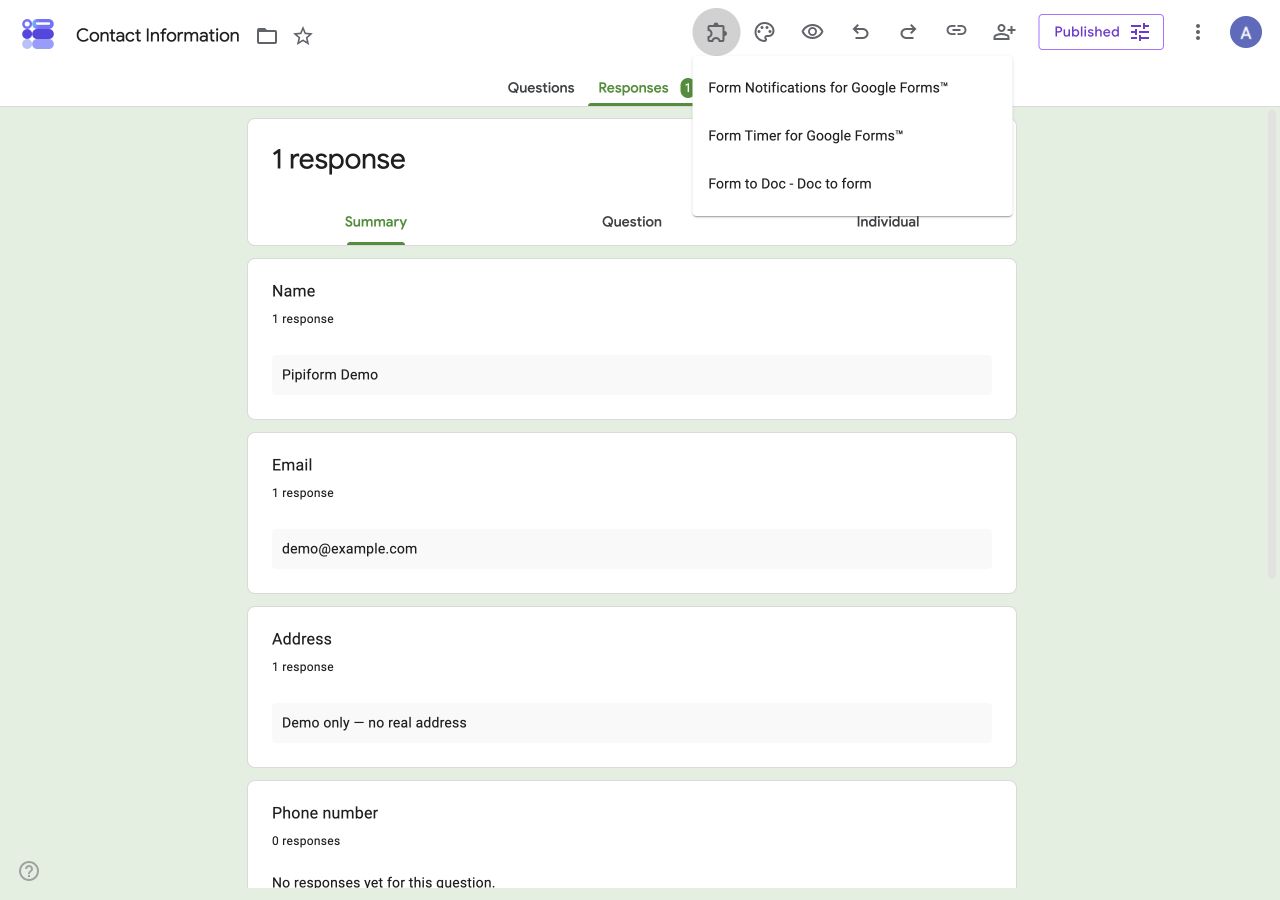
Actual menu from the authorized demonstration form. Product names may differ from the shorter names used on a marketing page.
Selecting a product may open a small launcher first. We observed Open App for Notifications and Open for Timer and Form to Doc. Choose that command, then allow the panel to load. The launcher itself is not the complete settings screen.
If a product is missing, verify its Marketplace listing and the Google account used for installation. Refresh the editor after a completed installation before concluding that it failed.
3. Test with one Google account
An add-on can have trouble when several Google accounts are signed in together. Google explicitly documents multi-account limitations for Apps Script, add-ons, and web apps, and suggests testing in a private window signed into the intended account. See Google’s account troubleshooting guidance.
Use an account that can edit this form and has access to the add-on. If the single-account test works, you have a useful clue about the original browser session. You do not need to delete form data or change ownership to perform this check.
A private window is a diagnostic step, not a universal fix: browser restrictions may still affect embedded content. Keep track of the account and browser used in each attempt.
4. Check browser restrictions when the panel is blank
Google warns that some add-ons need third-party-cookie support. If the browser is blocking embedded content, review the relevant site controls and, where appropriate, test a temporary site-specific exception. Follow the linked browser instructions rather than disabling protections for every website.
Also note whether a browser extension reports blocking the page. A clean browser profile can help separate an extension conflict from a product failure. Change one condition, reopen the same add-on, and record whether the result changed.
If the add-on opens in another supported desktop browser, include both browser versions when contacting support. “Works in browser A, blank in browser B” is more actionable than “the plugin is broken.”
5. Read authorization and operation errors separately
If a work or school account shows an administrator restriction, share the exact app name and error with the administrator. Do not switch to a personal account to bypass your organization’s rules or move organizational response data.
If authorization asks for access, check that the request belongs to the expected add-on and that the requested capabilities fit your task. A denied authorization and a blank panel can look similar, but they need different fixes.
If the panel loads and only a specific action fails, record that action. For example, exporting questions, exporting responses, and sending a notification involve different inputs. Check the available conversion or sending allowance in the product’s current account view; do not assume a limit advertised for another add-on applies here.
Send a useful support report
Include the product name, failure stage, approximate time and time zone, browser and operating system, and the exact error text. Say whether the form editor opens normally and whether a single-account test changed anything.
Attach a screenshot of the failing panel with private response content and account details removed. Start with the minimum information needed; a public form link or a complete response export is usually unnecessary for an initial UI-loading report.
Frequently asked questions
Why is there no Extensions menu in Google Forms?
Do not follow a Google Docs or Sheets menu path blindly. In the Forms editor we inspected, installed add-ons appeared under the puzzle-piece button.
Why does an installed add-on show only an Open button?
That can be its launcher. Click the product’s Open or Open App command to reach the full interface.
Should I uninstall and reinstall first?
Check the editor, account, launcher, and error stage first. Those checks may identify a cause that reinstalling would not solve.
Will clearing cookies fix every blank panel?
No. Account conflicts, browser restrictions, authorization, and product failures can present similar symptoms. Use a controlled test instead of clearing every session immediately.
Where do I go after the add-on opens?
Continue with the relevant task: timer auto-submit checks, conditional email notifications, or Docs and Word export.