
How to Add Branching Logic to Google Forms on iPhone (2026)
Does Google Forms Have Conditional Logic?
Yes — Google Forms has one form of conditional logic, called “Go to section based on answer,” and it routes respondents to different sections based on how they answer a multiple-choice or dropdown question. It’s free, it’s native, it’s available on every Google account, and it’s documented in Google’s own Show questions based on answers help page.
What it is not is a rules engine. There’s no way to show or hide an individual question, no “if answer contains” conditions, no logic that reads two answers together, and no visual builder that draws your flow. Google Forms branches pages, not questions. Once that model clicks, the feature is straightforward to build and easy to reason about — and the rest of this guide is mostly about the places where the model bites.
How Branching Works — Sections + One Question
Branching in Google Forms is two ingredients: sections act as pages, and one single-answer question decides which page comes next. Everything you build is a combination of those two things, so it helps to hold the model in your head before you start tapping.
Think of it as a flow with two separate decisions. First, the routing question — a multiple choice or dropdown — sends each respondent into one branch based on their answer. Second, and independently, each section decides where it goes when it ends: continue to whatever section follows, jump to a specific section, or submit the form. The first decision is the one everybody sets up. The second is the one everybody forgets, and it’s why branched forms misbehave.
A practical consequence of the page model: if you want a question to appear only for certain people, that question needs a section of its own. There’s no inline reveal. One conditional follow-up question means one extra section, which is fine for two or three of them and unwieldy for twenty.
It’s also worth knowing what the model does not remember. Branching reads the answer to the question the rule is attached to, and nothing else — it can’t look back at what someone chose two sections ago, can’t combine “answered A here and B there,” and can’t feed an earlier answer into later question text. Each branch point is an isolated decision. In practice that means the routing question has to be the one that actually determines the path, asked at the moment the path splits, rather than something you hope to act on later in the form.
Set Up Branching on iPhone (Step-by-Step)
Building a branching form on an iPhone follows the same order every time: create the sections first, then attach the routing rule to the question, then fix up how each section ends. Doing it in that order avoids the frustration of trying to point a rule at a section that doesn’t exist yet.
- Open your form in the Google Forms editor in Safari on your iPhone.
- Use Add section in the editor toolbar to create a section for each path (for example, “New customer” and “Returning customer”), and name each one clearly.
- Move or add the questions that belong in each section.
- Open the multiple-choice or dropdown question that should do the routing, tap its three-dot menu, and choose Go to section based on answer.
- For each answer option, pick a destination — a specific section, or Submit form to end there.
- Scroll to the end of every section and set its after-section behaviour deliberately.
- Preview the form once per branch and confirm each path lands where you intended.
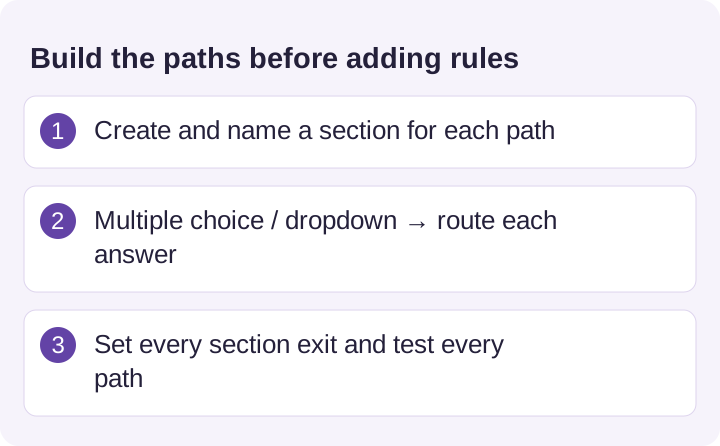
The iPhone-specific advice is simple: sketch the paths before you build them. On a laptop you can scroll a long branched form and see its shape; on a 6-inch screen you’re working through a keyhole, and it’s easy to lose track of which section you’re editing. Two minutes with a pen — question → branch A → shared closing section, branch B → submit — saves ten minutes of scrolling. Name sections after their path rather than “Section 3,” because the destination dropdown shows those names and generic ones make routing errors nearly invisible. If you’re building the form itself from scratch first, our how to create a Google Form on iPhone guide covers that groundwork.
The Limits You’ll Hit
Google Forms’ branching is deliberately minimal, and knowing its four hard limits up front tells you whether it fits your form or whether you’re about to fight it. Most frustration with the feature comes from expecting a rules engine and finding a page router.
| What you might want | Google Forms |
|---|---|
| Route to a different section by answer | ✅ Yes — “Go to section based on answer” |
| Branch from multiple choice / dropdown | ✅ Yes |
| Branch from checkbox | ❌ No — multiple answers, no single path |
| Branch from short answer, scale, or grid | ❌ No |
| Show or hide a single question | ❌ No — section level only |
| Combine two answers in one rule | ❌ No |
| Carry an earlier answer into a later rule | ❌ No |
| Branch on a quiz score | ❌ No |
| End the form early on a given answer | ✅ Yes — choose “Submit form” |
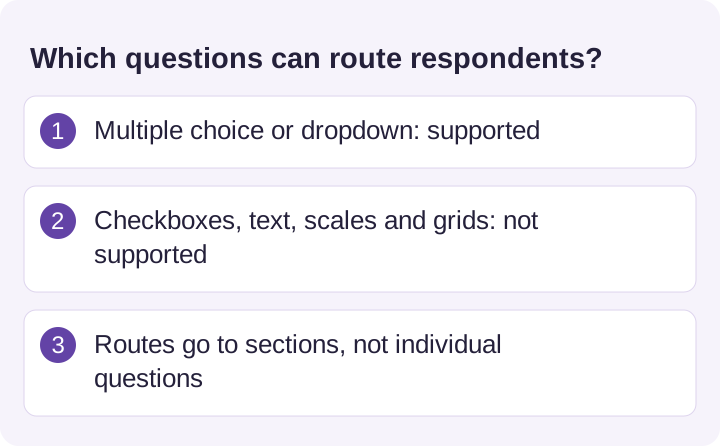
The checkbox restriction is the one people argue with, and it’s structural rather than arbitrary: a respondent can tick three boxes at once, and three boxes pointing at three sections gives the form no single destination to choose. The section-level restriction is the one that costs the most work, because every conditional question needs its own section. And the absence of score-based branching surprises teachers most often — Forms can grade a quiz, but it can’t route on the result. Independent guides covering the same ground, such as Formswrite’s 2026 write-up on Google Forms conditional logic, land on the same list.
If you need genuine question-level conditions, a visual rules editor, or logic that reads several answers at once, that’s a different class of tool — Jotform, Typeform, and Cognito Forms all do it. Worth saying plainly even though it points away from Google Forms: if your flow needs that, no amount of section juggling will get you there comfortably.
The Mistake That Sends Everyone Down the Wrong Path
The single most common branching bug isn’t in the routing question at all — it’s a section whose ending was left on “Continue to next section.” That’s the default for every section, and it means a branch, once finished, flows into whatever section happens to come next in the form rather than to where you intended.
Picture the classic setup: Section 1 asks “New or returning customer?” and routes to Section 2 (New) or Section 3 (Returning). Someone answers “New,” works through Section 2, reaches the end — and because Section 2 still says continue to next section, they slide straight into Section 3, the returning-customer branch, and answer questions written for somebody else. The routing rule was correct; the exit was never set.
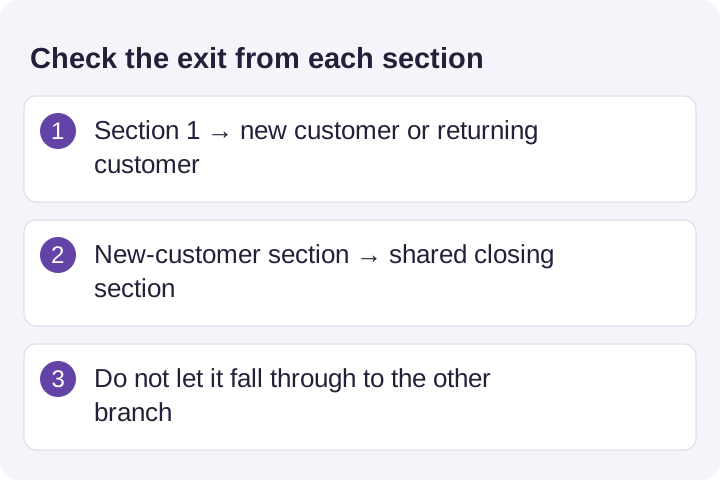
The fix is mechanical: go through every section, bottom to top, and set its ending on purpose — jump to a shared closing section (“Thanks, one last question…”), or submit the form. Then preview each path end to end, one branch at a time. Two more things worth knowing while you’re in there: keep one routing question per section, because when a section contains several, only the last one’s rule actually applies; and remember that respondents can go back and change an answer, which reroutes them and can leave answers in sections they no longer pass through.
When to Use Branching (and When to Skip It)
Branching earns its keep when different people genuinely need different questions — and adds pure overhead when they don’t. The useful cases share a shape: one early question splits your audience into groups whose remaining questions barely overlap.
- Registration triage — new versus returning attendees, or ticket types with different follow-up questions.
- Skipping irrelevant questions — “Did you use the service?” routing non-users past ten questions they can’t answer.
- Quiz or feedback paths — sending people to a different explanation section depending on which answer they chose.
- Screening forms — an early disqualifying answer routes straight to Submit form instead of wasting someone’s time.
Skip it when the form is short, when the “conditional” question is harmless for everyone to see, or when a single well-worded optional question would do the job. Branching multiplies what you have to test: three paths mean three previews after every edit, and on a phone that’s real time. Teachers in particular tend to reach for branching before they need it — our Google Forms for teachers on iPad and iPhone guide covers the classroom patterns that are worth the sections, and for grading flows the grade a Google Forms quiz on iPad and iPhone guide explains why score-based routing has to happen after the fact rather than inside the form.
Managing Branched Forms on iPhone
Branching is a native Google Forms feature, available free on any account — no app adds it, and ours is no exception. What a good iOS editor changes is how painful it is to manage a branched form on a small screen, where the real difficulty lives.
Forms for Google Drive (by pipiform) is a native iOS app for building and editing Google Forms on iPhone and iPad, and its value here is structural clarity: moving between sections, keeping track of which questions sit in which section, and editing a multi-path form without the constant scroll-and-hunt of the mobile web editor. To be exact about the boundary — the app surfaces Google’s section-level branching; it does not add question-level conditional logic or a visual rules editor, because Google Forms itself has neither.
If you’re doing heavier restructuring — reordering questions, splitting an existing long form into sections after the fact — a bigger screen still helps, and our editing Google Forms on iPad guide covers that workflow, Split View and all.
Route the form and route the follow-up separately
On iPhone and iPad. Forms for Google Drive provides a mobile workspace for your forms. After editing a branched form, test every intended path through the responder link instead of assuming an editor preview covers all combinations.
With the Workspace add-on. Use Form Notifications by pipiform when different answers should notify different people. Its answer-based email conditions are separate from Google Forms section branching. Test both a matching and non-matching submission so hidden questions or blank answers do not route an email incorrectly.
View Form Notifications and its features · Install the add-on · Get Forms for Google Drive on the App Store
The app and Workspace add-ons are separate pipiform products. Forms for Google Drive is US$59.99/year with a 3-day trial; check the App Store offer for your region. Form Notifications’ limited free mode allows 20 emails/day; paid features and recipient options depend on the plan. See current product pricing before subscribing.
Summary
Google Forms gives you one conditional logic tool — “Go to section based on answer” — and it routes at the section level from multiple-choice and dropdown questions only. Checkboxes can’t branch (multiple answers, no single destination), single questions can’t be shown or hidden without giving them their own section, answers don’t carry forward, and quiz scores can’t drive routing. You can build all of it from an iPhone in Safari; the trick is to create and name your sections first, attach the rule second, and then set every section’s ending on purpose — that default “Continue to next section” is what quietly merges branches and sends people down paths meant for someone else. Sketch the flow before you build, preview each branch once, and Google’s minimal logic will carry a surprising amount of weight. When you need real rules instead of pages, that’s the moment to look at a different tool.
Frequently Asked Questions
Does Google Forms have conditional logic?
Yes, but only one kind of it: 'Go to section based on answer'. You split your form into sections, and a multiple-choice or dropdown question sends each respondent to a different section depending on which option they pick — or straight to submission. That's the whole feature. There is no rules editor, no 'if answer contains', no logic that combines two answers, and no way to reveal a single extra question in place. If you've used a dedicated form platform with a visual logic builder, Google's version will feel bare; if you just need to route people down two or three paths, it does the job and it's free on every account.
How do I make a Google Form go to a section based on the answer?
First split the form into sections, because branching can only send people to a section that already exists — use 'Add section' in the editor toolbar and give each one a clear name. Then open the multiple-choice or dropdown question that should do the routing, tap the three-dot menu at the bottom right of that question, and choose 'Go to section based on answer'. A dropdown appears next to each answer option, and you pick the destination for that option — a specific section, or 'Submit form' to end the form there. Finally, set what happens at the end of each section, which is the step most people miss.
Can I show or hide a single question based on an answer?
No. Google Forms works at the section level only — there is no way to reveal one extra question in place when someone picks a particular answer. The standard workaround is to give that question a section of its own: create a section containing just the follow-up question, then branch to it from the controlling question so only the people who need it ever see it. It works, but it means a page turn instead of a question appearing inline, and a form with many optional follow-ups turns into a long list of one-question sections. That trade-off is the main reason people outgrow Google Forms' logic.
Which question types support branching?
Only multiple choice and dropdown. Those are the two types that offer 'Go to section based on answer', because each gives exactly one answer that maps cleanly to one destination. Short answer, paragraph, linear scale, multiple-choice grid, checkbox grid, date, time, and file upload questions cannot branch at all. If you need to route on something a respondent types or rates, you have to restructure the question into a multiple-choice one — for example, replacing a 1–10 scale with three grouped options — or accept that everyone follows the same path and filter afterwards in your responses.
Why does my branching skip to the wrong section?
Nearly always because a section's 'after section' setting was left on its default of 'Continue to next section'. Branching gets people into the right section, but each section separately decides where it goes when it ends — and unless you change it, it flows into whatever section physically follows it in the form. So someone routed into the 'Returning customer' branch finishes it and slides straight into the 'New customer' branch that comes next. Walk every section top to bottom and set its ending explicitly: either jump to your shared closing section or submit the form. This one setting causes most branching bugs.
Can checkbox questions branch in Google Forms?
No, and the reason is structural rather than an oversight. A checkbox question lets respondents tick several options at once, so if each option pointed at a different section the form would have no way to decide which one to send that person to. Google therefore offers 'Go to section based on answer' only on question types that produce a single answer — multiple choice and dropdown. If you need branching from a question that currently uses checkboxes, convert it to multiple choice (one answer only), or add a separate single-answer question such as 'Which of these matters most?' and branch on that instead.
Can I set up branching from my iPhone?
Yes. The Google Forms editor in Safari on an iPhone includes both 'Add section' and the per-question 'Go to section based on answer' option, so you can build and edit a full branching form on a phone. The honest caveat is that it's cramped: the routing controls live behind a three-dot menu, section endings live at the bottom of each section, and verifying a multi-path form means a lot of scrolling. Sketch the paths before you build, name every section clearly, and preview the form once per branch. Our iOS app, Forms for Google Drive (by pipiform), gives you a native editor that makes managing sections on a small screen easier to keep straight.
Can I branch based on a quiz score?
No. Google Forms can only branch on the answer to a single multiple-choice or dropdown question — it has no logic that reads a running score, so it cannot send high scorers one way and low scorers another. Answers don't carry forward either: you can't branch on something answered three sections earlier, and you can't pipe an earlier answer into later text. For quizzes, the practical approach is to grade with an answer key and follow up manually or by email once you can see the scores, or to branch on a self-reported question such as 'Which topic did you find hardest?' rather than on performance.