
How to Create a Google Form on iPhone (2026 Guide)
Method 1: Create a Google Form in Safari (Fastest)
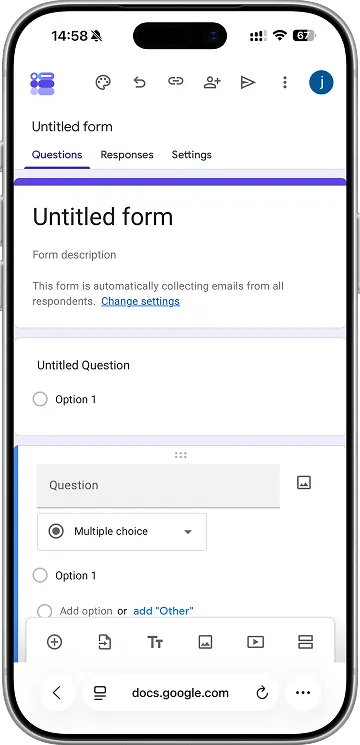
The fastest way to create a Google Form on iPhone is through Safari at forms.google.com. Google does not publish a native Forms app for iOS, but their mobile web editor is fully functional and free.
Step-by-step
- Open Safari on your iPhone or iPad.
- Type
forms.google.comin the address bar and press Go. - Sign in with your Google account if prompted.
- A blank form opens automatically — tap the title to rename it.
- Tap the + icon to add questions. Supported question types include short answer, paragraph, multiple choice, checkboxes, dropdown, linear scale, rating, date, time, and file upload.
- Tap Send in the top right when you’re done to share via email, link, or QR code.
Limitations of the Safari method
- The date/time picker has known issues on iOS Safari — Google’s own documentation confirms this is unsupported on iPhone and iPad.
- No offline support — you need an internet connection to save changes.
- No way to add timers, response limits, or email notifications without installing desktop add-ons first.
- The interface is cramped on smaller iPhone screens.
Method 2: Use the Google Drive iOS App
The Google Drive iOS app does not directly edit Google Forms, but it can launch them in the web editor. This method is useful when you want to access existing forms quickly.
Step-by-step
- Install Google Drive from the App Store if you haven’t already.
- Open the Drive app and sign in.
- Navigate to where your form is stored (or tap + → Folder to organize first).
- Tap the existing Google Form file. Drive will open it in the same web editor as Method 1, just inside the Drive app’s WebView.
- To create a new form: there is no “New Form” option in the Drive app itself — you’ll need to go back to Method 1 or use Method 3.
When to use this method
Use Method 2 when you already have forms in Drive and want to access them quickly without opening Safari separately. It’s convenient for editing, not for creating from scratch.
Method 3: Use a Third-Party iOS App (Most Powerful)
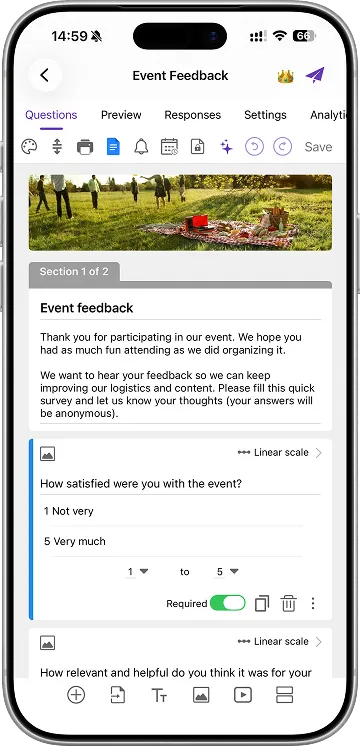
Third-party iOS apps connect directly to your Google account and provide a native iPhone interface for creating and managing Google Forms. They add features Google’s web editor doesn’t have on mobile.
What third-party apps add over Safari
| Feature | Safari (forms.google.com) | Forms for Google Drive (iOS app) |
|---|---|---|
| Create new forms | ✅ | ✅ |
| Edit existing forms | ✅ | ✅ |
| All question types | ✅ | ✅ |
| Native iPhone UI | ❌ | ✅ |
| Add timer to forms | ❌ | ✅ |
| Email notifications | ❌ (desktop add-on) | ✅ |
| Response limit / deadline | ❌ | ✅ |
| Offline form editing | ❌ | ✅ |
| Export responses to PDF/Excel | Limited | ✅ |
| AI form generation (ChatGPT) | ❌ | ✅ |
| QR code generator | ❌ | ✅ |
| Scan questions from photos | ❌ | ✅ |
Step-by-step (using Forms for Google Drive)
- Download Forms for Google Drive from the App Store. A 3-day free trial is included, then it’s a paid subscription.
- Open the app and sign in with the Google account you want to manage forms for.
- Tap Create New Form or + to start a blank form, or pick from 100+ templates (surveys, registrations, quizzes, feedback).
- Add questions using the native iOS interface — drag to reorder, swipe to delete, long-press for options.
- Use the timer feature if your form is a quiz or has a deadline.
- Set up email notifications to get notified instantly when someone submits.
- Share via link, email, or QR code directly from the app.
Which Method Should You Choose?
Use Method 1 (Safari) if:
- You only create forms occasionally.
- You don’t need advanced features like timers or email notifications.
- You’re on someone else’s phone and just need to make one quick form.
Use Method 2 (Drive app) if:
- You’re already a heavy Google Drive user.
- You mostly need to access and edit existing forms, not create new ones.
Use Method 3 (third-party iOS app) if:
- You build forms regularly from your phone.
- You need features the web editor doesn’t have (timers, email notifications, offline, AI).
- You want a faster, native iOS experience instead of a mobile web page.
Common Issues and Fixes
”Drive Refused Connection” error
This happens when multiple Google accounts are signed into the same browser session. Fix: sign out of all but one account, or open the form in a Private Browsing tab.
Form not saving on iPhone
Almost always a network issue. The web editor saves silently in the background — if your connection drops, changes are lost. Use a third-party app with offline support if this is a recurring problem.
Can’t add file upload questions
The file upload question type requires a Google Workspace account (school or business). Personal Gmail accounts cannot create forms with file upload fields. This limitation exists on all platforms, not just iPhone.
Cannot find the form I just created
New forms are saved to the root of your Google Drive. Open the Drive app, sort by “Last modified,” and your form will be at the top.
Summary
Creating a Google Form on iPhone is possible through three methods: Safari, the Google Drive app, or a third-party iOS app. The right choice depends on how often you build forms and how many features you need beyond the basics. For casual use, Safari is enough. For regular form building with advanced features like timers, notifications, and offline editing, a dedicated iOS app like Forms for Google Drive is significantly faster and more capable.
Frequently Asked Questions
Is there an official Google Forms app for iPhone?
No. Google does not publish a dedicated Google Forms app for iPhone or iPad as of 2026. You can access Google Forms through Safari at forms.google.com, through the Google Drive iOS app, or through third-party iOS apps like Forms for Google Drive by Pipiform.
Can I create a Google Form without a computer?
Yes. You can create a full Google Form using only your iPhone or iPad. The fastest method is to open forms.google.com in Safari, which loads a mobile-optimized editor. For more advanced features like timers, response limits, and email notifications, third-party iOS apps offer a native experience.
Why is Google Forms not working on my iPhone Safari?
The most common cause is having multiple Google accounts signed in simultaneously, which confuses the forms.google.com session. Sign out of all accounts, sign back into only the one you need, and reload the page. Clearing Safari's website data for google.com also resolves most cases.
Can I edit existing Google Forms on iPhone?
Yes. Any Google Form in your Drive can be edited from iPhone using the same three methods: Safari at forms.google.com, the Google Drive app (tap the form to open it in the web editor), or a third-party iOS app that connects to your Google account.
Does Google Forms work offline on iPhone?
The official Google Forms web editor requires an internet connection. Some third-party iOS apps support offline form creation and queue changes to sync once you reconnect. If offline work matters to you, choose an app that explicitly lists offline support.
How do I add a timer to a Google Form on iPhone?
The official Google Forms editor does not include a built-in timer. To add a timer, install a Google Forms add-on like Form Timer on the desktop, or use a third-party iOS app that supports timer configuration directly from your phone.