
How to Create a Google Form on iPhone: Registration Guide
You can create a Google Form in Safari on an iPhone. Start with a small form, check who can respond, and send yourself the responder link before distributing it. A paid companion app is optional for this basic workflow.
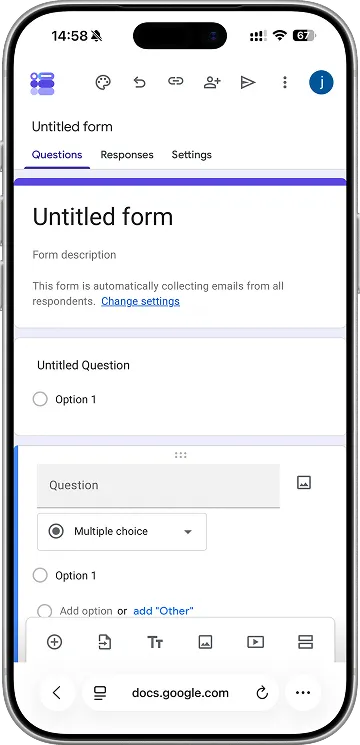 Reused from the original article: a mobile-browser editor reference, not the completed registration example below. Toolbar and publishing controls may differ from the current interface.
Start with a form people can finish
For a workshop registration, four questions are usually enough to test the entire process. This example uses invented event details; adapt the questions to your own event.
| Question | Suggested format | Why include it? |
|---|---|---|
| Name | Short answer | Identify the booking |
| Contact email | Short answer | Arrange follow-up |
| Preferred session | Multiple choice: Morning / Afternoon | Avoid inconsistent session names |
| What would you like to learn? | Paragraph, optional | Gather useful context without blocking registration |
Keep the introduction practical: explain the event, say what happens after registration, and state whether the submission reserves a place or is only a request. A registration form should not imply that a place is confirmed unless your process actually confirms it.
Create the form in Safari
Open forms.google.com in Safari, sign in to the account that should own the form, and choose a blank form. Name it, then add the questions above. These starting steps follow Google’s iPhone and iPad instructions.
Use clear labels instead of instructions embedded in placeholder text. “Contact email” is more useful than “Answer here.” Put the session choices in the question itself so respondents do not have to return to an invitation to find them.
Set required questions deliberately. If you can process a booking without the optional comment, leave that field optional. Review the form on the phone you expect people to use; a long description that looks harmless on a laptop can push the first question far down a phone screen.
Check access before sharing
Publish the form and choose the intended responder audience. Then copy its responder link, rather than the editor’s address. Google distinguishes responder access from editing access; use its publishing and sharing instructions if the audience settings are unfamiliar.
For a public workshop, test with an account representative of an outside attendee. An owner being able to open a form does not prove that invitees can open it.
Send one test registration
Use a fictional name such as “Demo Attendee” and an email address you control. Choose one session and submit. Confirm all three things:
- The respondent sees a completion message.
- The response is visible to the form owner.
- The recorded session and comment match the test answers.
Only then distribute the link. If something goes wrong, first distinguish an access problem from a missing required answer; they need different fixes. See Google Forms not working on iPhone.
When a companion app is worth considering
If you frequently manage forms from a phone, compare your daily tasks with Forms for Google Drive. It is pipiform’s independent iPhone/iPad app, separate from the Workspace add-ons. Its published subscription is $59.99/year with a three-day trial; review the terms presented when subscribing. Creating the browser-based form above does not require that subscription.
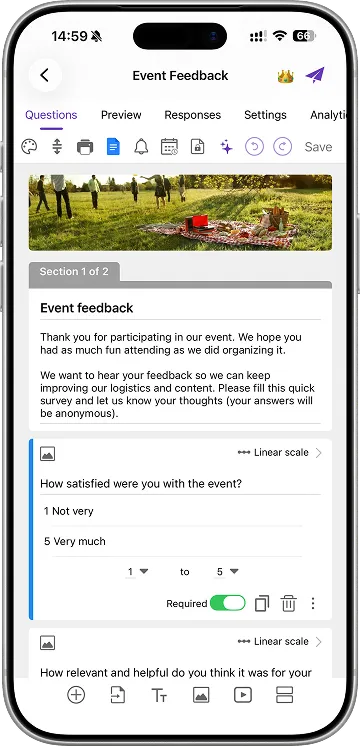 Reused original pipiform iOS app screenshot showing a separate event-feedback form. This illustrates the companion app, not the Safari registration workflow above.
Create with pipiform on your phone or draft on desktop
On iPhone and iPad. Forms for Google Drive is our native iPhone/iPad option for building and managing the registration form. Try creating a short form and reviewing a test response to compare the app workflow with Safari.
With the Workspace add-on. GPT for Google Forms by pipiform is useful when you start from an event brief on a computer. Generate a draft of the questions, remove unnecessary fields, and check access before publishing. The add-on and iOS app are separate products.
View GPT for Google Forms and its features · Install the add-on · Get Forms for Google Drive on the App Store
The app and Workspace add-ons are separate pipiform products. Forms for Google Drive is US$59.99/year with a 3-day trial; check the App Store offer for your region. Check the current add-on allowance and plan before generating a larger set of forms. See current product pricing before subscribing.
Common questions
Do respondents need the same app as the creator? This example uses a Google Forms responder link. Test the link in a browser; it is not an invitation to install pipiform.
Should I collect every possible detail at registration? Ask for what you need to act on the booking. Additional information can be requested later when its purpose is clear.
Can I reuse the structure? Yes. Keep the fields, replace the event text and session choices, and repeat the access and submission checks for the new event.