Google Forms Not Working on iPhone? 9 Fixes (2026)
Why Google Forms Acts Up on iPhone in the First Place
Google Forms has no official iOS app, so everything — building, editing, filling, submitting — runs as a web app inside a browser, and that makes it hostage to the browser environment in a way native apps aren’t. Your signed-in accounts, Safari’s cached data, any content blockers you’ve installed, which browser actually opened the link, and the stability of your connection all sit between you and a working form. (For the full background on why there’s no first-party app, see is there a Google Forms app for iPhone.)
That’s actually good news for troubleshooting: because the failures come from the environment, they’re fixable from the environment. The nine fixes below are ordered by how often each one turns out to be the culprit — start at the top and stop when your form works. And where a problem is a built-in limitation of the web editor on iOS rather than something you broke, the fix says so plainly, because knowing it’s not your fault is half the answer.
Fix 1 — Sign Out of Extra Google Accounts
The single most common cause of a Google Form failing on iPhone is having more than one Google account signed into the same Safari session. The symptoms are distinctive: the form spins forever, loads blank, or throws the infamous “Drive Refused Connection” error — which happens when the form’s embedded Drive connection gets authorized against a different account than the form itself.
The single most common support email we get about forms “breaking” on iPhone turns out, on the first reply, to be exactly this: a work account and a personal account signed in side by side. Here’s the clean reset:
- In Safari, go to
accounts.google.com. - Tap your avatar and choose Sign out of all accounts.
- Sign back in with only the account that owns (or was invited to) the form.
- Reload the form.
If you genuinely need multiple accounts signed in day to day, open the form in a private Safari tab and sign in with just the owning account there — private tabs get their own session, so the conflict never happens.
Fix 2 — Open the Form in Safari, Not an In-App Browser
If a form shows up blank, demands you download an app, or swallows your submission without confirming, check which browser you’re actually in — a link tapped inside Gmail, a messaging app, or a social app opens in that app’s restricted in-app browser, not Safari. In-app browsers limit cookies, storage, and sign-in handoffs, and Google’s sign-in flow is exactly the kind of thing they break. A “please download the app” prompt usually means the link was a deep link or the embedded view gave up.
The fix takes seconds:
- Long-press the link and choose Open in Safari (wording varies by app), or
- Copy the form’s URL, open Safari, and paste it into the address bar directly.
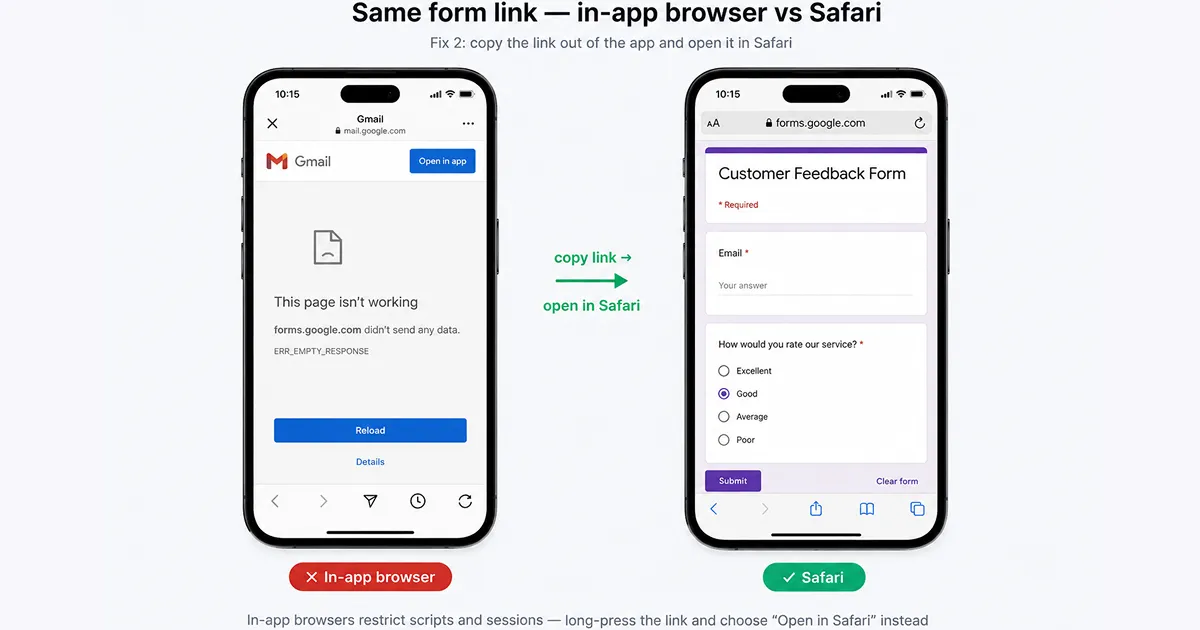
As a habit: never fill in a form that requires sign-in from inside another app’s browser. It works just often enough to seem fine — until a submission silently fails.
Fix 3 — Clear Safari Cache and Cookies for Google
Corrupted cached data is the usual suspect when a form loads slowly, shows stale content, or keeps bouncing you through sign-in loops. You don’t need to nuke your entire browsing history — iOS lets you clear data for Google’s sites alone:
- Open Settings → Apps → Safari → Advanced → Website Data.
- Search for google.
- Swipe to delete the google.com entry.
- Return to Safari, reload the form, and sign in again.
If the targeted clear doesn’t do it, the blunt instrument is Settings → Apps → Safari → Clear History and Website Data — Apple documents the full procedure in its Safari clearing guide. You’ll be signed out of most sites afterward, so keep this as the second resort.
Fix 4 — Disable Content Blockers and Check JavaScript
When form elements are missing, buttons don’t respond to taps, or the page renders half-built, a Safari content blocker or extension is interfering with the scripts Google Forms needs. Ad blockers and privacy extensions (1Blocker, AdGuard and friends) sometimes catch Google’s CDN-hosted scripts in their filters — and the form fails in weird, partial ways rather than cleanly.
- Go to Settings → Apps → Safari → Extensions and temporarily turn off content blockers, then reload the form.
- If the form comes back to life, re-enable the blocker and add an exception (whitelist) for
google.comin the blocker’s own settings. - While you’re in Safari settings, confirm JavaScript is on: Settings → Apps → Safari → Advanced → JavaScript. Google Forms is a JavaScript app; with it off, nothing works.
Google’s own system requirements page makes the baseline explicit: a supported, up-to-date browser with cookies and JavaScript enabled.
Fix 5 — Check Your Connection (Silent Save Failures)
If edits you made to a form simply vanished, the cause is almost always a connection drop during editing — the web editor autosaves silently in the background, and changes made while offline are never written, with only a subtle banner to warn you. There’s no offline mode and no recovery: what didn’t sync didn’t happen.
Three habits prevent the loss:
- Watch the save indicator. Near the form’s title, the editor briefly shows “Saving…” and then a saved state. If you never see it settle, your changes aren’t landing.
- Toggle Airplane Mode on and off to reset a flaky connection, then make a trivial edit and confirm it saves.
- Don’t edit on hostile networks. Subway Wi-Fi and one-bar LTE are where edits go to die. If you regularly need to work away from stable connections, that’s a structural problem the web editor can’t solve — a native app with proper offline handling is the honest answer (see Fix 9).
Fix 6 — The Submit Button Does Nothing
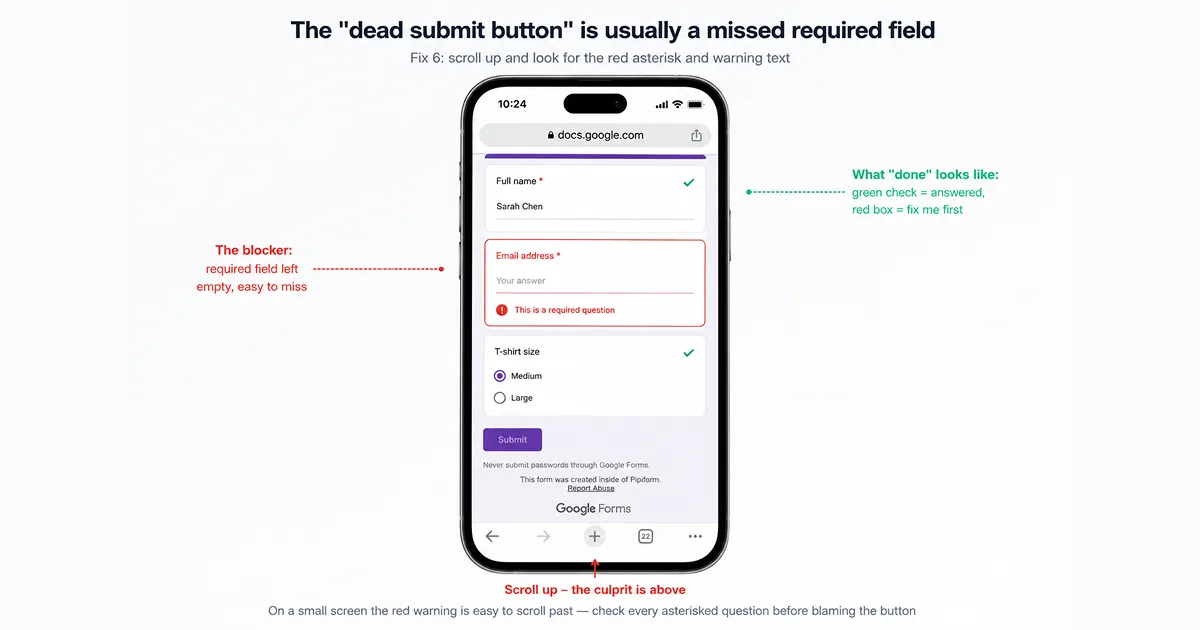
A submit button that ignores your tap is almost never broken — it’s blocked, and the blocker is a required question you haven’t answered or an answer that failed validation. Google Forms marks required questions with a red asterisk and prints a red error under the offending question when you try to submit. On a long form, that error can sit three screens above the button, completely out of view.
- Scroll back to the top of the form and work down, looking for red text or highlighted question cards.
- Check validated fields especially — an email question with a typo (“name@gmailcom”) fails silently except for the small red note.
- On multi-page forms, the error may be on an earlier section — tap Back and check each one.
- Fix every flagged answer, then submit again.
Fix 7 — Date and Time Pickers Won’t Work
If a date or time question won’t open its picker or refuses your input on iPhone, stop troubleshooting — this is a documented limitation, not a bug on your end. Google’s forms support documentation states that date and time field types aren’t supported in Safari on iOS. No cache clear, restart, or update fixes a feature that isn’t there.
Your real options:
- Fill the form from a desktop browser, where the pickers work normally.
- Ask the form owner to change the question to a short-answer text field (“Enter date as MM/DD/YYYY”) — the standard workaround form builders use for mobile audiences.
- Use a native iOS app to fill or build the form — a native app draws its own iOS date controls instead of depending on Safari’s web support.
Fix 8 — Update iOS and Safari
An outdated iOS version means an outdated Safari — the two update together — and Google only commits to supporting current browser versions, so a phone that’s a few major versions behind can hit rendering and script failures that no setting fixes. This is the least common cause on this list, but it’s also the cheapest to rule out:
- Go to Settings → General → Software Update and install anything pending.
- Restart the phone after updating (this also clears wedged Safari processes).
- Reload the form.
If you’re on a device stuck on an old iOS that can no longer update, a current third-party browser from the App Store — or a native app — is the practical way around a Safari that Google no longer targets.
Fix 9 — When Nothing Works: Use a Native iOS App
If you’ve cleared the session conflicts and the cache and the form still fights you, the remaining problems are usually the web editor’s built-in limits on iOS — and the way around those isn’t another Safari setting, it’s not using Safari. Since Google offers no first-party app, third-party native apps fill the gap.
Forms for Google Drive (by Pipiform) connects to your existing forms through Google OAuth and replaces the Safari editor with a native interface. That sidesteps the entire web-stack class of failures in one move: no in-app-browser restrictions, no cache corruption, no content-blocker interference, native iOS date and time controls instead of the unsupported web picker, and more graceful handling of shaky connections than the web editor’s silent autosave. You can create forms and edit existing ones from the same app.
To be clear about what an app does not fix: if your form fails because a Workspace admin restricted it to the organization, or because you opened a view-only link and expected to edit, those are permission problems that follow you to any client. For everything browser-shaped, though, a native app is the root-cause fix rather than another workaround.
Quick Diagnostic Table — Symptom → Likely Cause → Fix
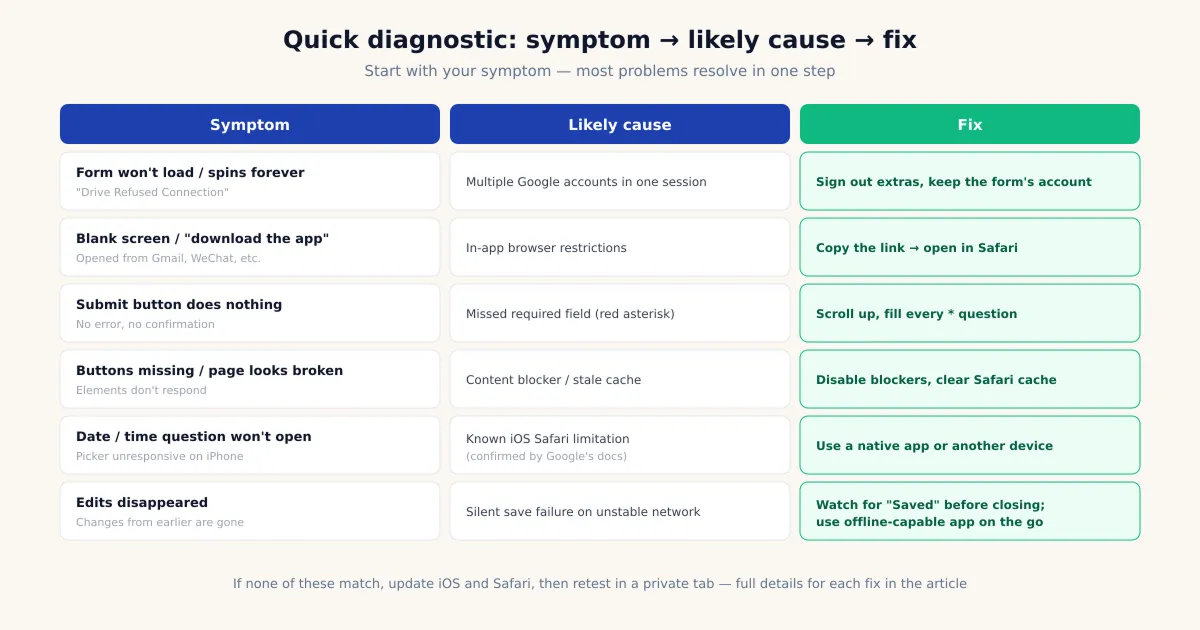
For fast triage, match your symptom to the table — each row points to the fix above with the details. Most symptoms have one overwhelmingly likely cause, so start with the matching row before working the full list.
| Symptom | Likely cause | Fix |
|---|---|---|
| ”Drive Refused Connection” / endless spinner | Multiple accounts in one Safari session | Fix 1 |
| Blank form / “download the app” prompt | In-app browser, not Safari | Fix 2 |
| Slow loading, stale content, sign-in loops | Corrupted cache or cookies | Fix 3 |
| Missing elements, unresponsive buttons | Content blocker / JavaScript off | Fix 4 |
| Edits disappeared | Connection dropped during autosave | Fix 5 |
| Submit button does nothing | Missed required field / failed validation | Fix 6 |
| Date or time picker won’t open | Not supported in iOS Safari (by design) | Fix 7 |
| Random rendering glitches on an old phone | Outdated iOS / Safari | Fix 8 |
| Same problems keep coming back | Web editor’s limits on iOS | Fix 9 |
Summary
When Google Forms misbehaves on iPhone, the cause is almost always the environment, not the form: extra Google accounts colliding in one Safari session, a link that opened in an in-app browser, corrupted cache, an overzealous content blocker, a dropped connection mid-save, or a required field hiding three screens up. Work the fixes in order — the first three resolve most cases in under five minutes. And know which problems aren’t yours to fix: the date picker that won’t open on iOS is a documented gap in the web editor, not user error. If the browser-shaped failures keep recurring, the durable fix is to take the browser out of the loop with a native app rather than re-clearing the cache every week.
Frequently Asked Questions
Why won't my Google Form load on iPhone Safari?
The two most common causes are a session conflict from multiple Google accounts signed into Safari at once, and corrupted cached data for google.com. Start by signing out of every Google account and signing back in with only the account that owns the form; if that doesn't clear it, remove Safari's stored website data for google.com (Settings → Safari → Advanced → Website Data) and reload. Between them, those two fixes resolve the majority of blank screens and endless loading spinners.
Why does the Google Form keep asking me to download an app?
Because the link you tapped opened inside an in-app browser — Gmail's, a messaging app's, or a social app's — rather than in Safari, or because the link itself is a deep link aimed at an app. In-app browsers run with restrictions that can break Google's sign-in and submission flow, and some trigger app-download prompts. The fix is to copy the form's standard URL and paste it into Safari directly, or long-press the link and choose to open it in Safari.
Why is the submit button greyed out or doing nothing?
Almost always, a required question hasn't been answered or an answer failed validation. Google Forms marks required questions with a red asterisk and shows a red error message under the offending question — but on a long form that message can be several screens above the submit button, so it's easy to miss. Scroll back through the whole form looking for red text, fix the flagged answers (a typo in an email field is a classic), and submit again.
Why can't I select a date in a Google Form on iPhone?
This one isn't your fault: Google's own documentation confirms that date and time question types aren't supported in Safari on iOS. The picker may not open or may refuse input, and no amount of cache-clearing changes that — it's a known limitation of the web form in mobile Safari. Workarounds: fill that form from a desktop browser, ask the form owner to switch the question to short text, or use a native iOS app that renders its own date control.
Why did my form edits disappear on iPhone?
The web editor saves silently in the background as you work, and it has no offline mode — if your connection dropped while you were editing, the changes you made during the gap were never written, and there's no warning beyond a brief banner that's easy to miss. Check your signal before long editing sessions, watch for the 'Saving…' indicator near the form title, and if you need to edit reliably away from good Wi-Fi, do it from a native app or wait until you're back on a stable connection.
Does Google Forms work in the Gmail app's browser?
Sometimes, and that's the problem — in-app browsers like Gmail's run a restricted web view where Google's sign-in handoff and script loading can fail unpredictably. A form might display but refuse the submission, or show a blank page outright. Forms that require sign-in are the most likely to break. The reliable pattern is to never fill or edit a form inside an in-app browser: tap the menu or long-press the link and open it in Safari instead.
Why does Google Forms say "Drive Refused Connection"?
That error is the signature of a multiple-account session conflict: Safari is signed into more than one Google account, and the form's embedded Drive connection gets authorized against the wrong one. Sign out of all Google accounts (accounts.google.com → sign out of all), then sign back in with only the account that owns the form, and reload. If you must keep several accounts signed in, open the form in a private Safari tab with just the owning account instead.
Is there an app that avoids these Safari problems?
Google doesn't publish a Forms app for iOS, but third-party apps fill the gap. Forms for Google Drive (by Pipiform) connects to your forms through Google OAuth and replaces the Safari web editor with a native interface — which sidesteps the whole web-stack class of failures: in-app browser restrictions, cache corruption, content-blocker interference, and the unsupported date picker. Web-editor limits that aren't browser bugs (like silent save loss on a dropped connection) are also handled more gracefully by a native app.