
Add a Timer to Google Forms: Desktop Setup and iPhone Test
In this guide
Give each respondent their own time allowance with Form Timer by pipiform. Set the duration in the Google Forms desktop editor, then share the add-on’s timed link. A learner who starts later gets a countdown tied to their own attempt rather than simply seeing the same form-wide closing deadline.
This tutorial is published by pipiform, the maker of Form Timer and Forms for Google Drive.
Install Form Timer · View features and plans
This walkthrough sets up a 30-minute activity and explains the extra checks when respondents use iPhone. The Workspace add-on and the separate pipiform iOS app serve different jobs; the controls below belong to the add-on.
1. Prepare your quiz or assessment
Build the questions in Google Forms first. Preview the form to check its required questions, sections and answer choices. If you need grades, configure the quiz and answer key in Forms as well; adding a timer does not create a marking scheme.
Decide the intended rule: “30 minutes after you start” is a per-person allowance. “Registration closes Friday at 5 p.m.” is a shared deadline. pipiform’s countdown is useful for the first; the closing-date guide covers the second.
2. Open Form Timer and set Allowed time
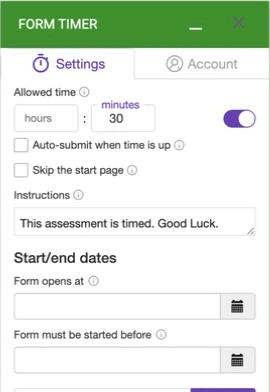
On a computer, install the add-on using the account that edits the form. Choose Add-ons → Form Timer for Google Forms™ → Open. In Settings, enter 30 in minutes under Allowed time and check that timing is enabled.
3. Choose how the attempt should end
Enable Auto-submit when time is up if you want to use that option. Then rehearse expiry with your actual form, including required questions and sections. A visible countdown and automatic submission are distinct settings.
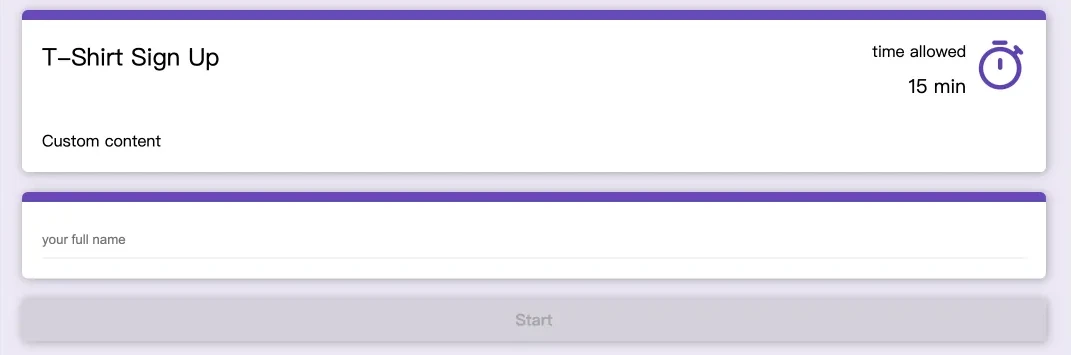
Keep the start page if respondents should read instructions before starting. The Skip the start page option changes that entry experience, so make the choice deliberately.
Write instructions that explain the allowance and what to do if a problem occurs. For example:
You have 30 minutes after starting this practice quiz.
Keep the timed page open while answering.
Submit when you finish. If you encounter a problem, contact the organizer.
Only add a promise about automatic submission after you have enabled and tested it. The auto-submit walkthrough explains the test cases.
4. Add an availability window if needed
The panel includes Form opens at and Form must be started before. These are useful when you want to control when people begin a timed activity. The latter label concerns starting an attempt; do not treat it as a guaranteed forced finish for an attempt already running.
For a simple practice quiz, you can begin with only a duration. Add scheduling when you have a specific availability requirement, then check the result through the respondent link.
5. Share COPY LINK, not the ordinary Forms link
Use PREVIEW to inspect the timed experience and COPY LINK to obtain its respondent link. The ordinary Google Forms responder link does not automatically become pipiform’s timed route.
Put that timed link in your class message, learning platform or invitation. Keep your instructions next to the same link so participants do not accidentally open an older untimed invitation.
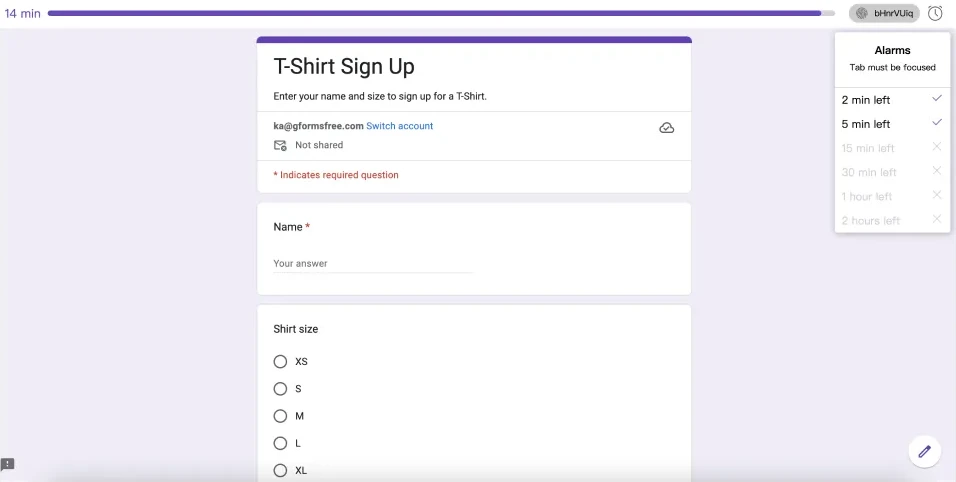
In our earlier test, the timed route displayed a countdown, accepted a manual submission and recorded the response in Forms. That test did not establish automatic expiry behavior; use the separate expiry rehearsal for that setting.
6. Check the experience on an iPhone
Open the exact timed link on the phone and browser your audience will use. Check the start instructions, question readability and countdown before completing a fictional attempt. Confirm the response in the creator’s Responses tab after submitting.
For an activity with auto-submit, repeat the rehearsal with complete answers and let the timer expire. Also try a missing required answer. Required-field validation, sections and connection problems can affect completion, so use the behavior of your actual form to write participant instructions.
Why choose the add-on instead of a closing date?
| Need | Suitable route |
|---|---|
| Everyone’s registration ends at one fixed time | Google Forms closing date |
| Each participant gets 30 minutes after starting | Form Timer |
| A visible remaining-time display | pipiform’s timed respondent page |
| Manage forms or review answers on iPhone/iPad | Separate Forms for Google Drive app |
Google’s closing date is a useful simpler option for a shared cutoff. pipiform adds the per-person timed workflow when that is the actual requirement.
Do respondents install the add-on?
The creator configures the add-on. Respondents use the timed link and must meet your form’s access requirements; they do not use the creator’s Settings panel.
Does the timer prevent cheating?
A time allowance is not identity verification or proctoring. Use it for a clearly defined timing requirement and choose any additional assessment controls separately.
Why is my form not timed?
Check that timing is enabled and that you shared the link from COPY LINK, then open it as a respondent. An editor URL or an old ordinary Forms link is not the timed link.
Try it with your own form
Install Form Timer on a practice form, set a short rehearsal duration and open PREVIEW. Once the respondent journey works, set your real allowance and share COPY LINK.
Install Form Timer · Review the product and pricing
Form Timer is free on one form. Pro is US$80/year (about US$6.67/month billed annually) or US$10/month.
For managing forms and reviewing responses on iPhone or iPad, use the separate Forms for Google Drive app. It complements the desktop add-on workflow; an app subscription does not unlock the add-on. The app is US$59.99/year with a 3-day trial, subject to the offer in your App Store region. View the app on the App Store.