How to Make a QR Code for a Google Form on iPhone (2026)
Does Google Forms Have a Built-In QR Code Generator?
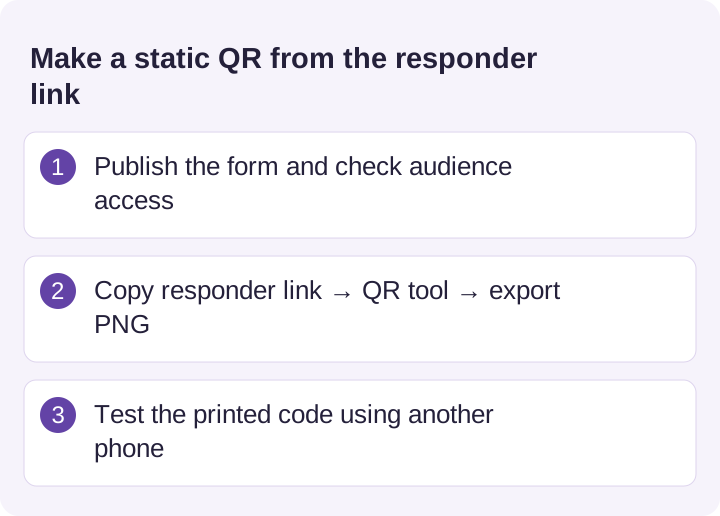
Google’s documented sharing flow provides a responder link, which you can turn into a QR code using another tool. Publish the form, set the intended audience, and use Published or Share → Copy responder link. A QR encodes a destination; it does not grant permission to open it. See Google’s publishing and sharing instructions.
That sounds like a gap, but it barely is, because a QR code is nothing more than a URL encoded as a pattern of squares. A form QR encodes the form’s link directly, which means it’s not inherently time-limited — the pattern has no expiry, but the form must remain published and accessible. Editing questions usually preserves its URL; deleting the form or changing access can break the workflow. The only real decisions are where you make it (a free web generator or an iOS app) and how it looks (plain black-and-white, or styled with your colors and logo). Both are covered below.
One thing a form QR can’t do: track scans or let you repoint it after printing. That’s a separate, paid “dynamic-QR” service — separate from the static Google Forms link — which may be useful if you need to change destinations or measure visits. (If you haven’t built the form yet, start with our guide to creating a Google Form on iPhone.)
Free Method — From the Responder Link on iPhone
A simple free way to make a QR code on iPhone is to copy the form’s share link and paste it into a web generator — choose a service without a required account or watermark. Everything happens in Safari, and you end up with a clean PNG saved to your phone after saving the export.
Step-by-step in Safari
- Open the form at
forms.google.comin Safari (or open it in your iOS form app) and sign in with the account that owns it. - Publish the form if needed and check responder access. Use Published or Share → Copy responder link. After publishing, you can optionally use Shorten URL, then Copy.
- Open a free QR code generator in a new Safari tab and paste the link into its input field. Pick one that exports a plain PNG with no logo overlay or signup wall.
- Tap Generate, then download the PNG and save it to Photos or Files — from there you can AirDrop, print, or drop it into a slide.
A note for the desktop-curious: Chrome on a computer has a built-in “Create QR Code for this page” option in the address bar, but iPhone Safari has no equivalent one-tap feature — which is exactly why the copy-link-then-paste flow above is a straightforward path in Safari.
Test before you trust it
Before you print or post anything, confirm two things:
- The code resolves correctly. Open the Camera app, point it at the code displayed on another device or printed on paper, and tap the banner. It should open your form, not a sign-in loop or an error. Apple’s own guide to scanning a QR code with the iPhone Camera covers the built-in behavior if the banner doesn’t appear.
- The form settings match the audience. If the form is restricted to your organization or requires sign-in, anonymous scanners will hit a wall. Decide whether you want Limit to 1 response and login on or off before the code goes out.
Do You Need a Workspace QR Add-On?
For a single URL, a static QR generator is often enough. A Marketplace add-on may be convenient if it fits an existing workflow, but a Marketplace listing is not proof that Google developed or endorses it. Check the specific developer and product rather than relying on the words “for Google Forms.”
Before installing a tool from the Google Workspace Marketplace, review:
- Permissions and developer identity. Make sure the requested account access fits the feature you need.
- Export terms. Confirm that the downloaded image is usable, whether it has a watermark, and whether it contains the destination URL or a provider redirect.
- Pricing and support. Check current charges and recent support information; a free trial is different from a permanent static export.
Using Google’s authorization screen does not by itself guarantee an add-on’s quality or safety. If all you need is to encode a link, a tool that does not connect to your Google account can be sufficient. Both websites and apps vary, so verify the actual output instead of assuming every free generator behaves the same way.
Plain vs Customized QR Codes — How to Make Yours Look Better
A QR code doesn’t have to be plain black-and-white squares — you can style it with your colors, a center logo, and a chosen shape, as long as it stays scannable. A web tool can produce a functional code and may also offer styling. An iOS form app can put design controls alongside form management. Features vary by tool. Here’s how the two compare.
| Dimension | Plain web generator | Customized in-app QR |
|---|---|---|
| Cost | Free | App (3-day free trial, then paid) |
| Custom colors | Sometimes | ✅ (foreground + background) |
| Center logo / icon | Depends on generator | ✅ (your own icon) |
| Shape & corner style | Depends on generator | ✅ (module, eye, corner radius) |
| Error correction & size | Depends on generator | ✅ (adjustable where supported) |
| Scan tracking | ❌ | ❌ (encodes the link, not a redirect) |
| Best for | A quick, no-frills code | A branded code for print or signage |
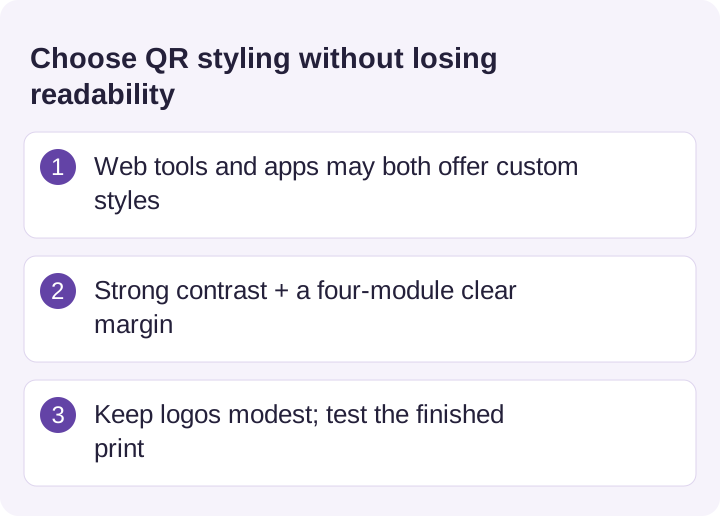
A few design rules improve scan reliability. If you add a center logo, use an appropriate error-correction level. DENSO WAVE describes levels L, M, Q, and H as restoring roughly 7%, 15%, 25%, and 30% of codewords respectively; these percentages are not guaranteed safe logo-area sizes. See the error-correction explanation. Keep strong contrast between foreground and background, and don’t shrink the margin (quiet zone) to nothing. The honest limit, noted in the table: customization changes how the code looks, not what it does — a styled code still just encodes your form’s link, with no scan tracking or editable target.
Generating a QR Code Inside a Native iOS App
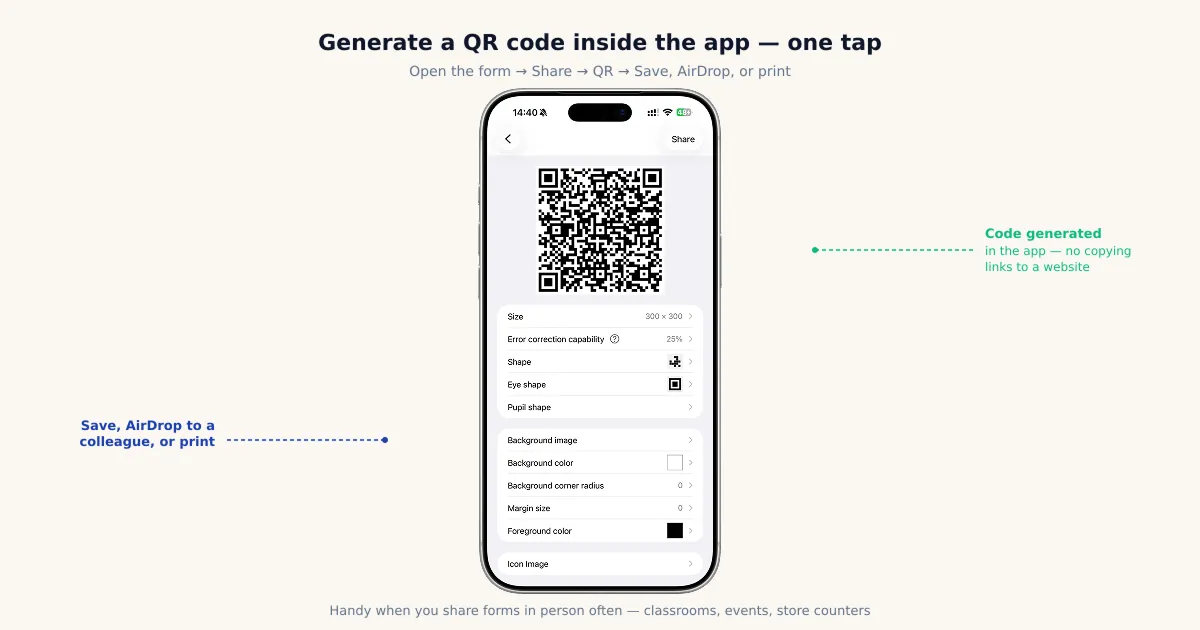
If you hand out forms regularly, a native iOS app can produce a shareable QR or link within the form-management workflow — skipping the copy-link-switch-apps-paste round trip entirely. Instead of bouncing between the Forms editor and a generator website, you stay in one place: open the form, tap to share, and the code is ready to save, AirDrop, or print.
Using a native iOS app
With Forms for Google Drive (by pipiform), the flow collapses to a few taps — its customizable in-app QR code is on a paid plan, which includes a 3-day free trial:
- Open the target form in the app.
- Tap Share, then choose QR / Link.
- Optionally customize the code — size, error-correction level, module and eye shape, foreground/background color, margin, and a center icon.
- Save the code to Photos or Files, AirDrop it to a nearby device, or send it straight to a printer.
This isn’t necessary for a one-time code — the free web method covers that fine. Where an in-app generator pays off is repetition: teachers posting a fresh form each week, event staff printing signage, or a shop owner refreshing a feedback code. When QR generation is a routine part of your week, doing it inside the app you already use to manage forms beats the copy-and-paste dance.
Printing and Sharing Your QR Code Without Breaking It
Most QR failures happen at the print stage, not the generation stage — so a few rules keep a good code scannable. The code itself is almost always fine; what breaks it is how it’s sized, framed, and contrasted on the page. Before anything goes out the door:
- Test-scan the printed copy with the iPhone Camera and an Android phone. A code that scans crisply on screen can still fail once it’s printed small or on glossy stock — confirm the real, physical version works.
- Leave a quiet zone. Keep a clear margin (four code-modules wide) of empty space around all four sides. Crowding the code with text or borders is one of the most common reasons scanners can’t lock on.
- Don’t print it too small. Use 2 × 2 cm only as a starting point for close-range testing; dense codes or low-quality prints may need more space, and scale up for posters or anything read from a distance — a wall code people scan from two meters away needs to be much larger.
- Keep high contrast. A dark code on a light background is the safe choice. Low-contrast color schemes, light-on-dark inversions, and busy backgrounds all hurt scan reliability.
The single biggest reason a printed QR fails to scan isn’t the code — it’s printing it too small with no quiet zone around it. Keep the four-module quiet zone described by DENSO WAVE, and test the final size, contrast, and print quality. These same rules apply whether the code lands on a slide, a poster, a classroom wall, a table tent, or an event check-in sign.
Common QR Code Problems (and Fixes)
When a form QR misbehaves, it’s almost always one of four things — and each has a direct fix.
It won’t scan at all. Low contrast, too small, an insufficient quiet zone, or a blurry print. Bump the contrast to dark-on-light, enlarge the code, add margin, and reprint at higher quality.
It scans but won’t open the form. You probably encoded the edit link instead of the share link, the form requires sign-in that anonymous scanners can’t pass, or the form isn’t accepting responses. Re-copy the link from Published or Share → Copy responder link, and check the form’s sharing and “accepting responses” settings. If forms misbehave more generally on iOS, our guide to Google Forms not working on iPhone covers the common culprits.
The image has a watermark. You used the free tier of a QR add-on or a generator that brands its output. Switch to a plain free web generator that exports a clean PNG.
You need to change the form but already printed the code. A form QR has the link baked in, so it can’t be repointed — you’d reprint. If you expect the destination to change, point the QR at a short link you control (and update its redirect) instead of the raw form URL. That editable-target capability lives outside the static Forms link.
Which Method Should You Choose?
Match the method to how often you’ll do this and how the code needs to look:
- One-off, no-frills code → free web generator. Copy the link, paste it into a QR site, download the PNG. Check the export is free, clean, and static.
- Branded code (logo, colors, shape) → in-app customizer. When the code goes on a poster, menu, or classroom display, an iOS form app gives the color, shape, and logo controls beside form management; compare the chosen tools’ actual features.
- Frequent, on-the-go sharing → native iOS app. If you generate codes weekly, an in-app QR (like in Forms for Google Drive) saves the constant app-switching — and the same app handles creating and exporting responses to PDF too.
Connect the QR code to a follow-up workflow
On iPhone and iPad. Forms for Google Drive includes a mobile QR-sharing workflow for your forms. Test the printed code from another phone and check responder access before placing it on a poster or counter.
With the Workspace add-on. For a QR-linked registration or enquiry form, Form Notifications by pipiform can acknowledge the resulting submission or alert the team. It runs after the form is submitted; scanning a QR code alone does not trigger that email.
View Form Notifications and its features · Install the add-on · Get Forms for Google Drive on the App Store
The app and Workspace add-ons are separate pipiform products. Forms for Google Drive is US$59.99/year with a 3-day trial; check the App Store offer for your region. Form Notifications’ limited free mode allows 20 emails/day; paid features and recipient options depend on the plan. See current product pricing before subscribing.
Summary
Publish your Google Form with the right audience, copy its responder link, and encode that URL with a QR generator. A static QR has no built-in expiry or analytics; access still depends on the destination. Check any generator’s export terms, permissions, and use of redirects. For regular mobile work, an in-app generator can reduce switching between tools. Preserve a four-module quiet zone, strong contrast, and enough size for the viewing distance, then test the printed code with another phone. A logo and higher error correction never replace a real scan test.
Frequently Asked Questions
Does Google Forms have a built-in QR code generator?
Google’s documented Forms sharing workflow provides a responder link, not a built-in QR generator. Publish the form with the intended audience, copy the responder link, and encode it with a QR tool. A static QR containing that URL works as long as the destination remains available and accessible; the pattern itself has no expiry timer.
How do I make a QR code for a Google Form on iPhone for free?
Publish the form and set responder access, then use Published or Share → Copy responder link. Paste that URL into a tool offering a genuinely free static QR export, generate it, and save the PNG to Photos or Files. Check that it encodes your form link directly rather than a trial redirect, and test the image from another device or a printout.
Do I need a Workspace QR add-on?
Usually not for one URL. A Marketplace listing is not necessarily made by Google, and using Google’s permission screen does not guarantee an add-on’s safety or quality. Check the developer, requested permissions, pricing, export watermark, and support before installing. A static QR tool may be sufficient without connecting your Google account.
Can I add my logo or colors to a Google Form QR code?
Yes, if the chosen generator supports it. Web tools and iOS apps vary in their color, logo, shape, size, and margin controls. Use a high-contrast design and preserve the quiet zone. Higher error correction can help tolerate damage, but it does not guarantee that a large logo is readable; test the final code on paper and multiple phones.
Why won't my Google Form QR code scan?
Common causes include low contrast, small modules, a missing quiet zone, and blurry printing. Use a dark code on a light background and a clear four-module margin. Size depends on link density, print quality, and scan distance: 2 × 2 cm can be a starting point for close range, not a universal minimum or guarantee. Test the actual printed copy.
Can I change the form a QR code points to after printing it?
A static QR encoding the form URL cannot change that encoded URL after printing. Editing questions within the same form usually keeps the link, but pointing to a different form requires reprinting. For an editable destination, encode a redirect URL you control or use a dynamic-QR service, and maintain that service. This is separate from Forms itself.
Can I track how many people scanned my form's QR code?
A static code does not count scans by itself, and Google Forms response totals do not measure scans. A tracked redirect or dynamic-QR service can record requests, but counts can include repeats or automated visits and are not necessarily unique people. Features, retention, and pricing depend on the service; consider privacy when enabling analytics.
Can I scan a QR code with the iPhone camera directly?
Yes. On any modern iPhone, open the built-in Camera app and point it at the code — a notification banner appears that you tap to open the form, with no separate scanner app needed. That's exactly why you should test your printed code with the iPhone Camera (and an Android phone) before distributing it: you're confirming the real scanning path your respondents will use actually resolves to the right form.