
The Best Way to Use Google Forms on iPhone (2026)
Why “Best Google Forms App” Is a Confusing Search
The search is confusing because the thing it implies doesn’t exist: there is no official Google Forms app for iPhone, and there never has been — a point we cover in full in our guide on whether a Google Forms iOS app exists. Google ships Docs, Sheets, Slides, and Drive as native iOS apps, but not Forms. So when you search “best Google Forms app for iPhone,” you’re really asking one of two very different questions, and it’s worth separating them.
This guide compares ways to work with existing Google Forms on iPhone. A separate form-building platform may require migration. Even with a Google-connected app, check synchronization, permissions and data handling before switching tools.
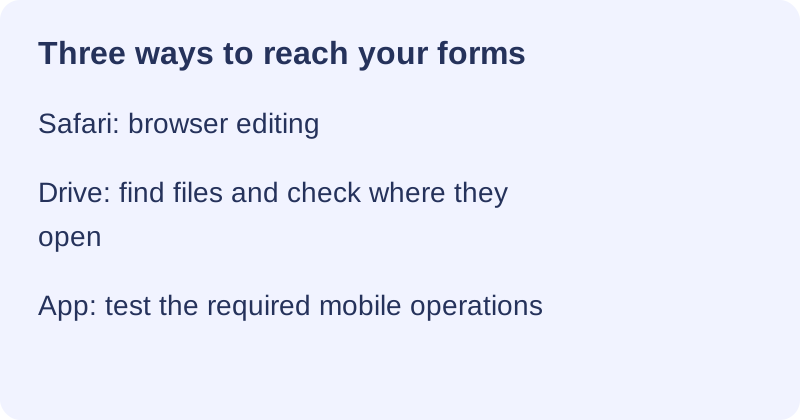
Here are three common starting points. Their suitability depends on the required operation, account and installed software.
Option 1 — Safari’s Mobile Web Editor (Free, Official)
Safari’s mobile web editor is the free, official way to use Google Forms on iPhone, and for a lot of people it’s the end of the story. Open Safari, go to forms.google.com, sign in with your Google account, and you can create a form, edit questions, change settings, send the link, and read responses — the same Google Forms you’d use on a laptop, running in a browser tab. Google documents this mobile-web path in its official help article on using Google Forms on iPhone and iPad.
The honest upside: it’s free, it’s official (nothing between you and Google), there’s zero install, and it’s surprisingly complete — almost every desktop feature is reachable. The honest downsides are real but narrow. The date-and-time picker has a long-standing known issue on iOS that Google itself notes; the editing UI is cramped on a small screen, with menus and drag handles that are fiddly under a thumb; there’s no offline mode, so you need a connection the whole time; and on a weak connection, unsaved edits can be lost — a frustration we break down in our guide on Google Forms not working on iPhone, and one reason people look at offline-capable options in our using Google Forms offline on mobile guide.
Here’s the part most “best app” articles won’t tell you: if you only build a form once or twice a year and stick to basic questions, this is your answer — stop here and don’t install anything. Safari is free and does the job. The rest of this guide is for people whose needs genuinely outgrow it. If you’re building your first form, our how to create a Google Form on iPhone guide walks the whole flow in Safari.
Option 2 — The Google Drive App (Official, but Limited)
The Google Drive app is official and useful, but it is not a form editor — it’s a file manager. The Google Drive app on the App Store is made by Google, and it lets you browse, open, rename, move, and share the Google Forms sitting in your Drive. If your goal is to find a form and send someone the link, Drive does that cleanly from your phone.
Drive helps locate a form. Check whether opening it leads to a preview, an embedded editor or an external browser; the handoff can vary. If necessary, open the editor directly in Safari with an authorized account.
Option 3 — Third-Party iOS Apps (Native, Paid)
Third-party apps can provide a different mobile interface. Check the developer, current listing and actual supported operations instead of assuming every app has the same native features.
App features and prices vary. Offline preparation, push alerts, export and individual timers must each be verified. Google Forms already supports close dates and response-count limits. OAuth permissions do not guarantee that data is never copied elsewhere or that switching is risk-free.
Review the developer, requested permissions, privacy policy and data-retention terms. OAuth lets you authorize specific access without sharing your Google password, but access may include editing or deleting data. Revoking access does not undo changes or necessarily delete copies already retained by the developer.
We make Forms for Google Drive by pipiform. Test the mobile editing and response workflows you need against the current listing and trial terms. Our Workspace add-ons are separate products; do not assume an iOS subscription includes their timers or AI workflows. Offline preparation, where supported, does not allow offline respondent submissions.
How to Judge Any Google Forms iOS App
The way to judge a Google Forms iOS app is to score it against the specific gaps you feel in the web editor — not against a vague sense of “better.” Run any candidate, including ours, through this checklist and the right choice becomes obvious, because most people only care about two or three of these rows.
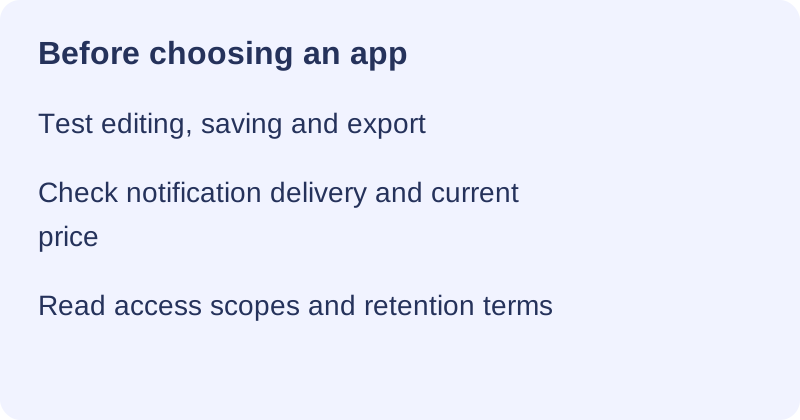
- Native editing — does it feel like an iOS app, or is it a web view in disguise?
- Offline creating — can you build and edit without a connection? (Respondents still submit online.)
- Push notifications — does it push new-response alerts, or is it email-only like the web?
- Timers and closure — distinguish Google’s close-date and response-count controls from a per-person countdown; check the exact product needed.
- Export — one-tap PDF and Excel/CSV, or do you drop back to Sheets?
- AI — form generation and response analysis, and is it free or paid?
- Price — free, free trial, or subscription — and does it match how often you’ll use it?
- Data handling — verify the online form after editing and review access scopes, retention and any copied data before changing apps.
Use a disposable form for a trial. Before uninstalling, verify saved online changes and export anything you need. Revoking Google access prevents future authorized access but does not reverse earlier changes or necessarily erase retained copies.
Three Paths Compared
Compare the operation you need, the current price and the provider’s access to your data. An app is not automatically more capable because it costs more.
| Capability | Safari web editor | Google Drive app | Third-party iOS app |
|---|---|---|---|
| Cost | Basic personal use free | Drive app free | Check current offer |
| Mobile editing | Browser controls | Check opened editor | Test supported operations |
| Offline preparation | Do not rely on offline saving | Check opened editor | Test operations and sync |
| Notifications | Email; device settings | Check alert settings | Test permissions and delivery |
| Closure / individual timer | Close date and count; timer separate | Check opened editor | Check product and controls |
| PDF / Excel export | Print or Sheets workflow | Open appropriate tool | Test formats and output |
| AI drafting | Eligible Gemini on computer | Not a separate Forms AI editor | Check product and plan |
| Provider | Google web editor | Google file manager | Independent developer |
| Data handling | Google account | Google account | Review scopes and retention |
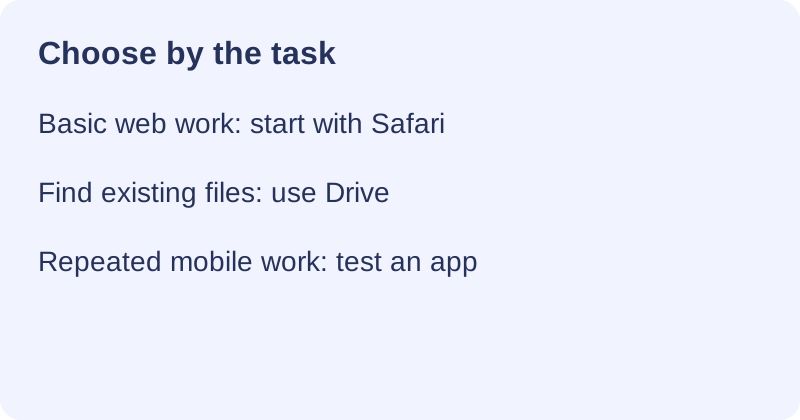
| Typical task | Basic web editing | Find and open files | Test a repeated mobile task |
The storage row describes what to check, not a guarantee that every app stores data only in Drive. Review the developer’s policy and verify the online form before switching.
Which One Should You Actually Pick?
The right pick is set almost entirely by how often you build forms and which specific gaps hurt — so here’s the honest sort.
- A couple of forms a year, basic questions → Safari’s web editor. It’s free and official; a paid app would be money spent on a workflow that barely exists.
- You just need to find and share existing forms → the Google Drive app. It’s the cleanest file manager for that, and it’s free.
- Repeated mobile work may justify an app after testing the specific task. Individual countdowns can require a separate product: see the timer guide. For document output, see the PDF export guide and check its steps on your device.
- Teachers, event organizers and HR teams should test the actual workflow and required account controls. Our teacher guide explains the school-specific checks.
Start with the browser for simple work. A paid app is worthwhile only if its tested functions and terms fit your needs; frequency alone does not establish its value.
Choose an iOS app or a desktop add-on by the task
On iPhone and iPad. Choose our Forms for Google Drive app when your recurring work is creating, editing, and reviewing Google Forms on iPhone or iPad. Try your own form in the app before deciding whether the mobile workflow is worth the subscription.
With the Workspace add-on. If your main task is drafting questions on a computer, our GPT for Google Forms add-on is a separate option. Supply a short topic or source document, generate a draft, and check it before publishing. An iOS app ranking does not answer which desktop add-on you need. See GPT for Google Forms by pipiform for the product workflow.
View GPT for Google Forms and its features · Install the add-on · Get Forms for Google Drive on the App Store
The app and Workspace add-ons are separate pipiform products. Forms for Google Drive is US$59.99/year with a 3-day trial; check the App Store offer for your region. Check the current add-on allowance and plan before generating a larger set of forms. See current product pricing before subscribing.
Summary
Use Safari for the documented Google browser workflow, Drive to find files, and an app only after testing the required operations. Check saving, permissions, data retention and subscription terms. Built-in closure controls are separate from individual timers, and switching tools is not a guarantee against loss. This comparison is published by pipiform, the maker of one app discussed.
Frequently Asked Questions
Is there an official Google Forms app for iPhone?
Google's iPhone/iPad instructions use a browser. For an App Store product, check its developer rather than assuming it is Google's official Forms app. Drive is a Google file-management app; third-party form apps are separate products.
What's the best way to use Google Forms on iPhone?
Start with forms.google.com in Safari and test the task. Drive can help locate the form; an app may provide a useful alternative interface. Verify its functions, price and data handling. Google Forms supports close dates and response-count limits, while individual timers are a separate requirement.
Does the Google Drive app let me edit Google Forms?
Drive helps find and open Forms files. The editor or browser it opens can vary by version and settings. Check the destination and use Safari directly if the required editing controls are missing.
Are third-party Google Forms apps safe to use?
OAuth authorizes access without sharing your Google password, but it is not a safety or privacy guarantee. Review scopes, the developer and retention terms. An authorized app may read, change, delete or copy data, depending on its access. Revocation does not undo prior actions or necessarily remove stored copies.
Do I lose my forms if I stop using a third-party app?
Before stopping, confirm that the online forms and responses contain the saved changes and keep any needed exports. Check for unsynced local drafts and app-specific data. Revoking access does not restore deleted information or necessarily erase developer-held copies.
Is it worth paying for a Google Forms iOS app?
Pay only if the tested workflow and subscription terms fit your needs. Check each feature separately: an individual timer may be a separate add-on, and eligible Gemini generation uses a computer. Do not assume every paid app includes offline preparation, notifications, export or AI.
Can I use Google Forms on iPhone for free?
Basic Google Forms use with a personal account does not require buying an iPhone app. Open it in Safari and check current account limits and required features. Workspace, eligible AI plans and third-party subscriptions have separate terms; avoid treating any service as unlimited or permanently free.
Which iPhone option has a timer, offline editing, or push notifications?
Test the exact app or add-on for the function you need. Offline preparation is not offline respondent submission, and notifications require permission and delivery checks. Individual timers are separate from Google Forms close-date and response-count controls. Verify saving after reconnecting.