
How to Limit Responses in Google Forms (2026 Guide)
Set a total response limit
For a survey with a target sample size or a first batch of registrations, Google Forms has a built-in response cap. Start with that control; you do not need a paid add-on simply to set a total number. pipiform offers complementary workflows for managing the form from your phone and emailing registrants.
- Open the form editor with editing access and publish the form if needed.
- Select Published at the top right.
- Under Accepting responses, open Set close date or response limit.
- Select After a number of responses and enter your target. It must be greater than the number already received.
- Review the closed message, save the rule, and save the published settings.
On iPhone, use the editor in Safari. Request the desktop website or use a computer if the dialog is difficult to reach. This setting is under Published, rather than the Responses tab where you read submissions.
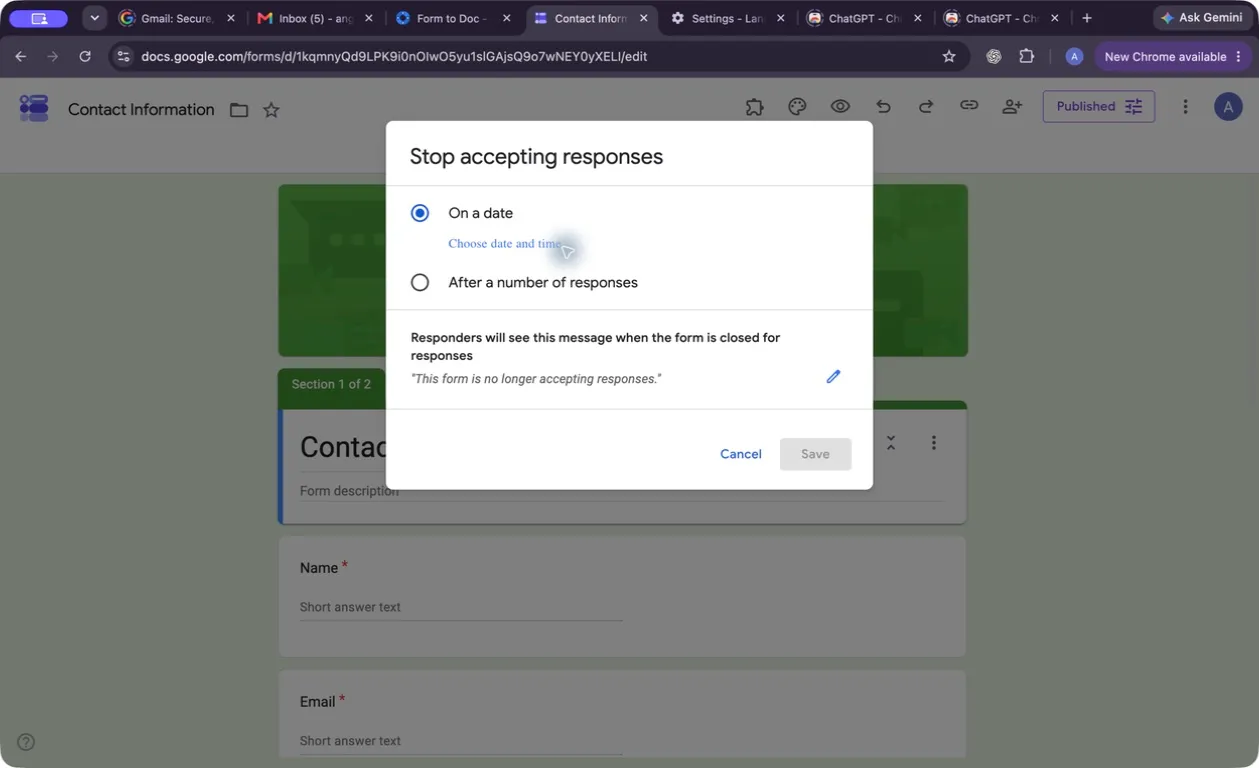
Desktop screenshot from our test form. Select the response-count option for this workflow.
Google’s response-management help documents this flow and warns that simultaneous submissions can exceed the cap. For a workshop with strict capacity, review registrations before confirming places; a response count is not an inventory lock.
Manage registrations from iPhone with pipiform
Forms for Google Drive is our separate iPhone/iPad app for creating forms and reviewing responses. Its paid advanced controls include response-limit workflows. Use the app when you regularly manage signups away from your computer, and verify the responder link after changing availability.
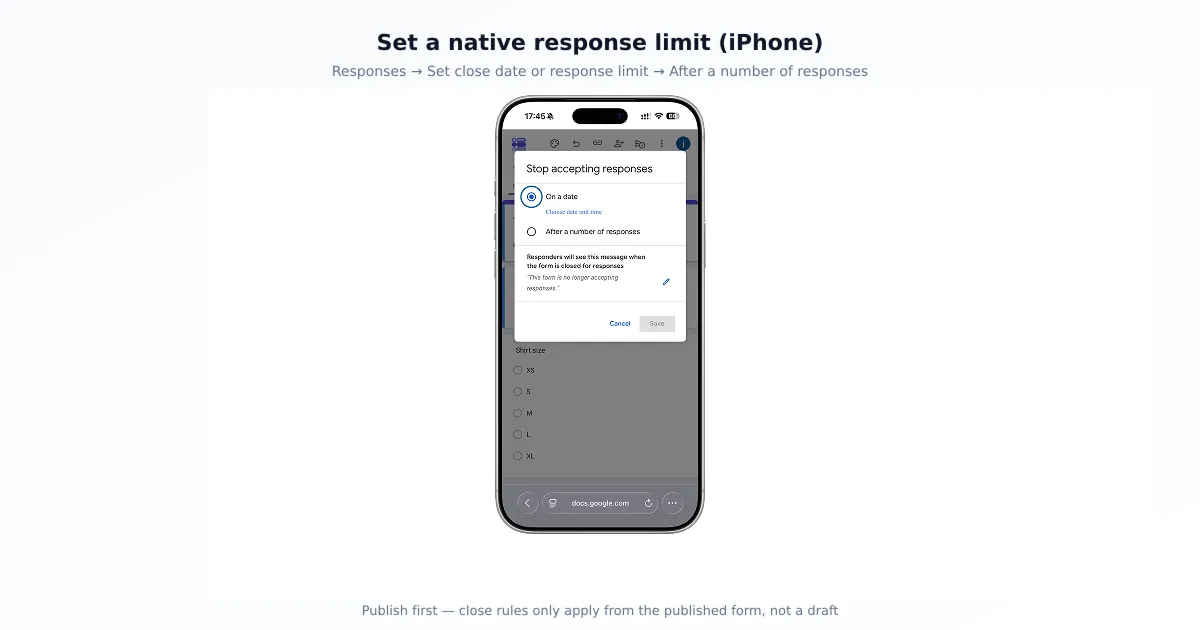
Mobile workflow illustration. Google’s native editor and the pipiform app have separate interfaces; use the steps for the interface you opened.
For a one-off cap, Safari may be enough. For ongoing mobile form management, evaluate the app with your own form during its trial.
Send an acknowledgement with Form Notifications by pipiform
A registration email should say what happened: the request was received. It should not promise a confirmed seat before you have checked capacity.
Use Form Notifications on a computer to configure a submission email, insert the registrant’s answer fields, and add the intended recipient. Submit a test registration and inspect the received message. Follow our confirmation-email tutorial for the full workflow.
The add-on handles submission emails. It does not turn a count limit into a guaranteed booking system, and this workflow does not send a separate alert merely because the form closes.
Choose the right closing rule
| Goal | Workflow |
|---|---|
| Stop around a target submission count | Native response cap |
| Close registration at a shared time | Native closing date |
| Give each quiz participant 30 minutes | Form Timer by pipiform with an individual timed link |
| Manage forms while away from your computer | Forms for Google Drive on iPhone/iPad |
| Email a registration acknowledgement | Form Notifications |
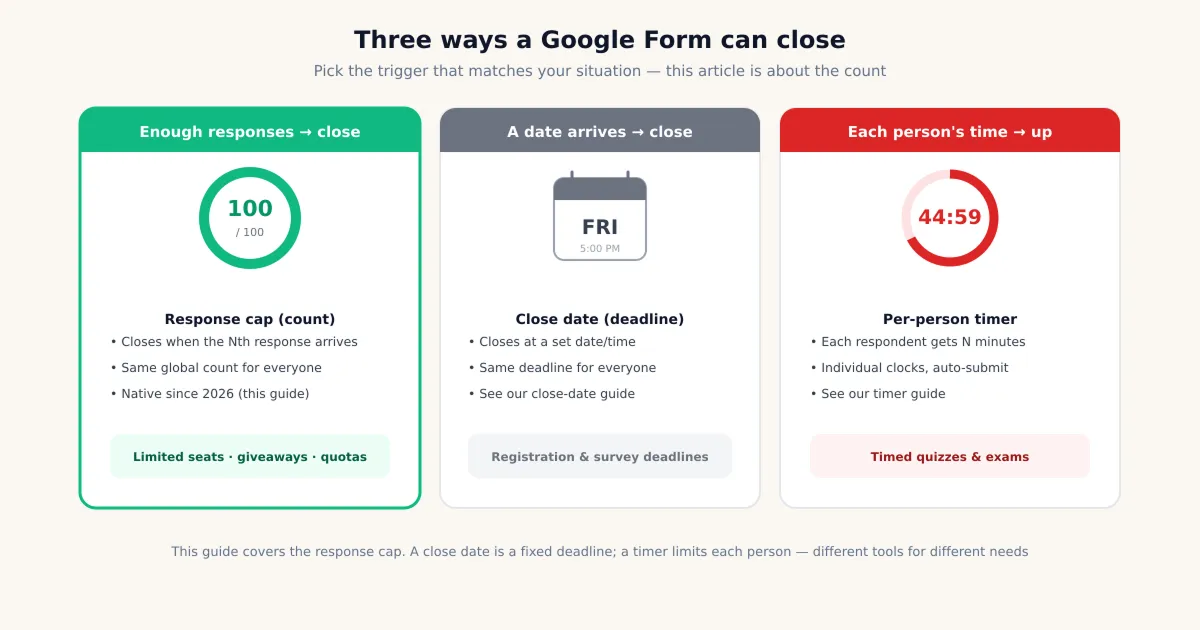
A per-person timer can offer automatic submission, but that option must be enabled and tested. See the timer setup guide. For one shared closing time, use the deadline tutorial.
Turn a capped registration form into a useful record
For a workshop with limited places, distinguish the number of submitted forms from the number of people attending. One submission might request multiple seats, and duplicate submissions may need review. A response-count cap alone is not proof that the attendee list matches your capacity.
Use Form Notifications to acknowledge receipt without promising a confirmed place prematurely. Review the registrations, then use Form to Docs to create a document for the team, or follow the PDF export workflow for a reading copy. Include only the information each recipient needs.
Reopen or troubleshoot a capped form
Open Published and manage the closing rule. Raise or remove the cap, check Accepting responses, save, and open the responder link again. Existing responses do not need to be deleted.
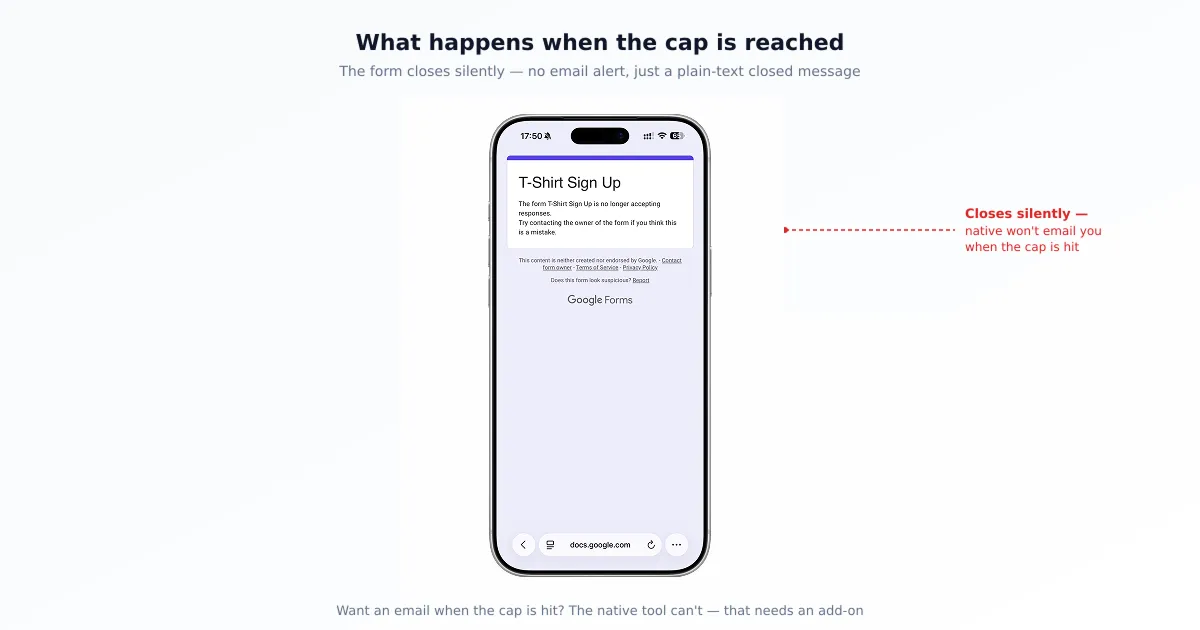
If the form is still closed, confirm that it is published and check whether another automation also controls availability. If the count exceeds your target, review simultaneous submissions rather than assuming the rule was never saved. Per-choice capacities and combined count/date rules require a separately verified workflow.
Manage capped registrations and their acknowledgements
On iPhone and iPad. Forms for Google Drive offers mobile form management and paid advanced controls, including response-limit workflows. Check the configured limit and test the responder link; do not use a form count as a guaranteed seat-reservation system.
With the Workspace add-on. Form Notifications can acknowledge new registrations and notify an organizer. Its submission emails are separate from a limit-reached alert. Closure alerts and guaranteed seat reservations require a separate verified workflow.
View Form Notifications and its features · Install the add-on · Get Forms for Google Drive on the App Store
The app and Workspace add-ons are separate pipiform products. Forms for Google Drive is US$59.99/year with a 3-day trial; check the App Store offer for your region. Form Notifications’ limited free mode allows 20 emails/day; paid features and recipient options depend on the plan. See current product pricing before subscribing.
Summary
Use Google’s published settings for a simple response cap. Add pipiform’s app for mobile management and Form Notifications for acknowledgements. Review capacity before promising a place, and keep response caps, deadlines, and individual timers separate.
Frequently Asked Questions
Can Google Forms close after a number of responses?
Yes. In a published form, open Published, then Set close date or response limit. Choose After a number of responses, enter the cap, and save. Simultaneous submissions can exceed the limit.
Can I set both a count and a close date?
The native dialog offers these as alternative choices. For a combined rule, verify that your chosen automation supports both conditions; do not assume every limiter add-on does.
Can I manage limits on iPhone?
Use the published form editor in Safari, requesting the desktop website if needed. pipiform Forms for Google Drive also offers paid advanced form controls for mobile management.
Does pipiform Form Notifications tell me when the limit is reached?
Its submission workflow sends emails for new responses. A submission acknowledgement is not a limit-reached alert or a guaranteed seat reservation.
Can I reopen a full form?
Review the closing rule under Published, raise or remove the cap, check Accepting responses, save, and test the responder link.