
Can You Use Google Forms Offline on iPhone or iPad?
Does Google Forms Work Offline?
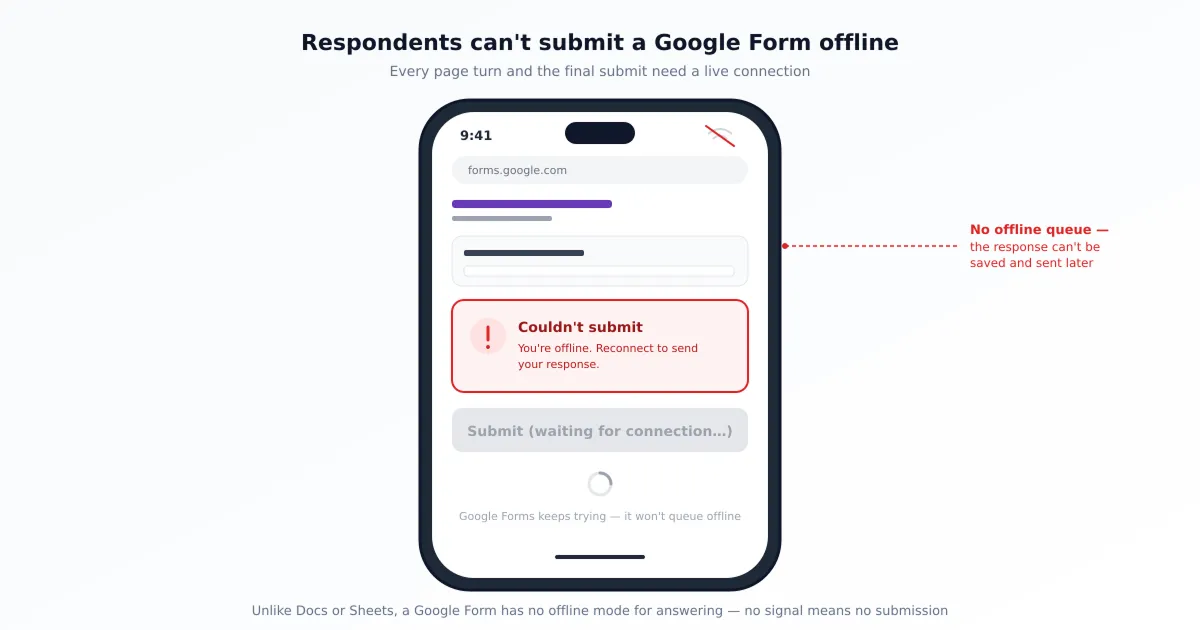
For respondents, no — filling out and submitting a Google Form both require an internet connection; for creators, partly, which is the distinction this whole guide turns on. The two sides behave so differently that “does Google Forms work offline?” has no single yes-or-no answer, and most of the confusion online comes from people answering for one side while asking about the other.
The reason the respondent side is hard-locked to the network is structural. The page a respondent sees is hosted live by Google, and it talks to Google’s servers at every step — loading the form, advancing between pages, validating required questions, and submitting all involve a round trip. There’s no local copy of the form sitting on the phone to fall back on, so the instant the connection is gone, the answering experience has nothing to run on. That’s why no app, setting, or workaround can make a respondent complete a real Google Form fully offline.
Why Forms Has No Offline Mode for Answering (When Docs and Sheets Do)
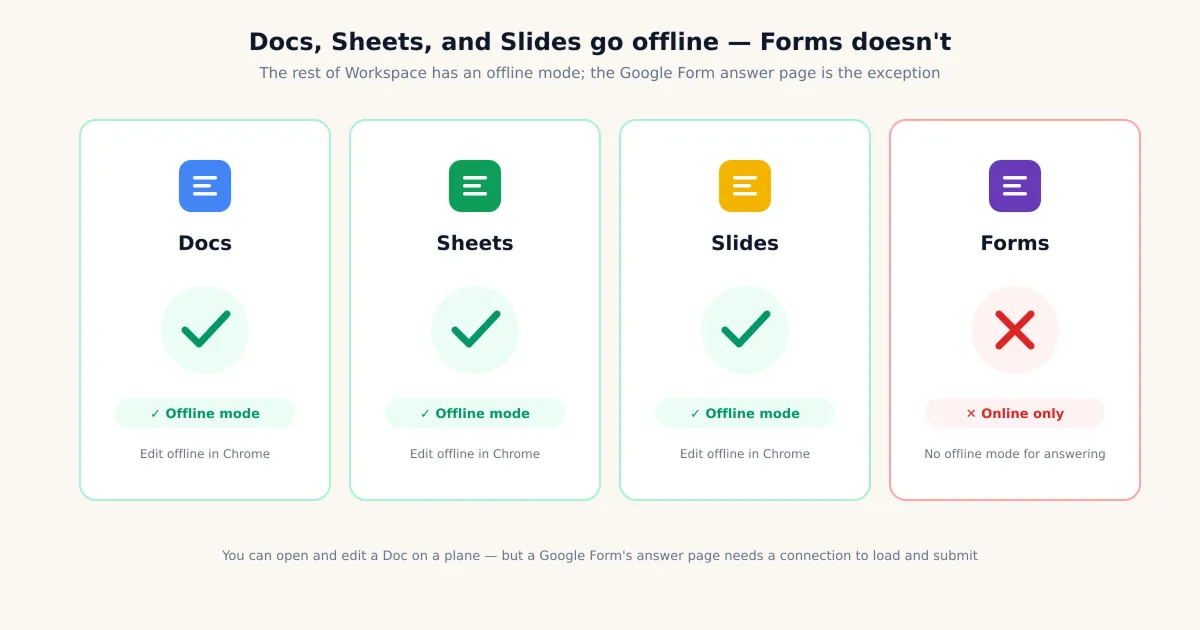
Google Forms is the one Workspace app with no offline mode, even though Docs, Sheets, and Slides all have one. If you’ve turned on offline editing for a Google Doc, you know the pattern: flip a switch, and you keep working on a plane or in a tunnel while changes queue up and sync later. Google documents that capability for the document editors in its work offline support article — and Forms is conspicuously absent from it.
That absence isn’t an oversight you can configure away; it follows from how the answering page is built. The document editors can cache a working copy locally and reconcile edits when you reconnect because a document is essentially a file you’re changing. A form submission is a transaction with Google’s servers — it has to be received, validated, and recorded live — so there’s no equivalent “edit locally, sync later” model for the act of answering. A third-party walkthrough such as Qualtir’s guide to using Google Forms offline reaches the same conclusion: the answering side needs a connection, full stop.
Create and Edit Forms Offline in a Native App
On the creator side, the Forms for Google Drive (by pipiform) app does let you create and edit forms offline on iPhone or iPad — this is the real offline capability Google’s own tools don’t give you on the building side. It’s the hard advantage a native app has over the Safari web editor, and it’s worth being precise about what it does and doesn’t cover.
Here’s how it works. When you build a new form or change an existing one without a connection, the app stores those changes locally on your device. The moment you’re back online, it syncs them up to Google Drive automatically, so the form is current everywhere with nothing to push by hand. Compare that with the Safari route at forms.google.com, where the editor saves in real time to Google’s servers — go offline there and your changes aren’t saved and can simply be lost, the same silent-save failure our Google Forms not working on iPhone guide covers in depth.
In practice this fits the “build now, publish later” rhythm well: draft your questions on a flight, tidy them up with no signal in a basement office, or rough out a form during a commute, then let everything sync the moment you land or reconnect — at which point you publish and share it like any other form. For a full walkthrough of building a form on mobile in the first place, our how to create a Google Form on iPhone guide covers the from-scratch flow.
What Happens on a Weak Connection (Not True Offline)
Most “offline” complaints aren’t about being offline at all — they’re weak-signal problems wearing an offline costume. There’s a real difference between no connection and a bad one, and confusing the two sends people looking for the wrong fix. On a flaky connection the form loads slowly, the submit button spins, and edits in the web editor seem to vanish — symptoms that feel like “it doesn’t work offline” but actually mean “the connection dropped at the wrong moment.”
The “my responses disappeared” reports we get are almost never true offline — they’re a weak connection dropping a submit mid-handshake, so the answer never reaches Google and nothing is recorded. The cure isn’t an offline setting; it’s restoring a stable connection and resubmitting. The same applies on the creator side: when you’re editing a form in Safari on shaky WiFi, a change can fail to save quietly, so watch for the editor’s “Saved” confirmation before you close the tab.
A quick way to tell the two apart before you waste time: if the form loads at all but stalls on submit, you have a weak connection, not a true offline situation — a fully offline device can’t even open the form’s first page. That distinction points you at the right fix. Weak signal calls for a better connection, a switch from WiFi to cellular (or vice versa), or a retry once the bars come back; genuine offline needs the workarounds further down, because no amount of retrying will submit a form with zero connection. For the full set of weak-connection and load failures and how to clear each one, work through our Google Forms not working on iPhone troubleshooting guide rather than assuming the problem is offline mode.
Collecting Responses with No Connection — What Actually Works
If you genuinely need people to answer where there’s no network, Google Forms can’t do it — but two workarounds can, as long as you’re honest about what each gives up. Neither one makes Google Forms itself work offline; they’re different ways to get data when the form’s own answering page is off the table.
- Workaround A — Print or export to PDF and collect on paper. Turn the form into a PDF, hand it out or post it at the no-signal location, collect answers on paper, and key them in afterward. You get genuine zero-connection collection, but you lose Forms’ automatic aggregation and you take on manual data entry. Our guide to converting Google Forms responses to PDF on iPhone covers turning a form into a clean printable document.
- Workaround B — Use a third-party app built for offline data collection. Purpose-built field-data tools store responses on the device and upload them automatically when a connection returns. This is a real offline-answering solution — but be clear that it’s switching tools, not making Google Forms offline. Your data lives in that tool’s ecosystem, not in your Google Form’s response sheet.
The honest summary: there is no method that lets a respondent fill out a true Google Form completely offline and have it sync later. If offline answering is a hard requirement, you’re choosing between paper-then-entry or a different platform — not configuring a hidden Google setting.
Which Option Fits Your Situation?
Match the tool to which side is offline and what you’re trying to do, and the choice gets simple. The table below sorts the common situations to the one approach that actually works for each — note that only the creator-side rows involve real offline capability.
| Your situation | What actually works |
|---|---|
| Creator wants to build a form with no connection | Forms for Google Drive — create/edit offline, syncs to Drive when you reconnect |
| Creator on weak, intermittent signal | Wait for stable signal, or use the native app to keep the building side reliable |
| Respondent needs to answer once, zero network | Print/export to PDF, collect on paper, enter the data afterward |
| Ongoing offline data collection in the field | A dedicated offline form tool (not Google Forms) that stores and auto-uploads |
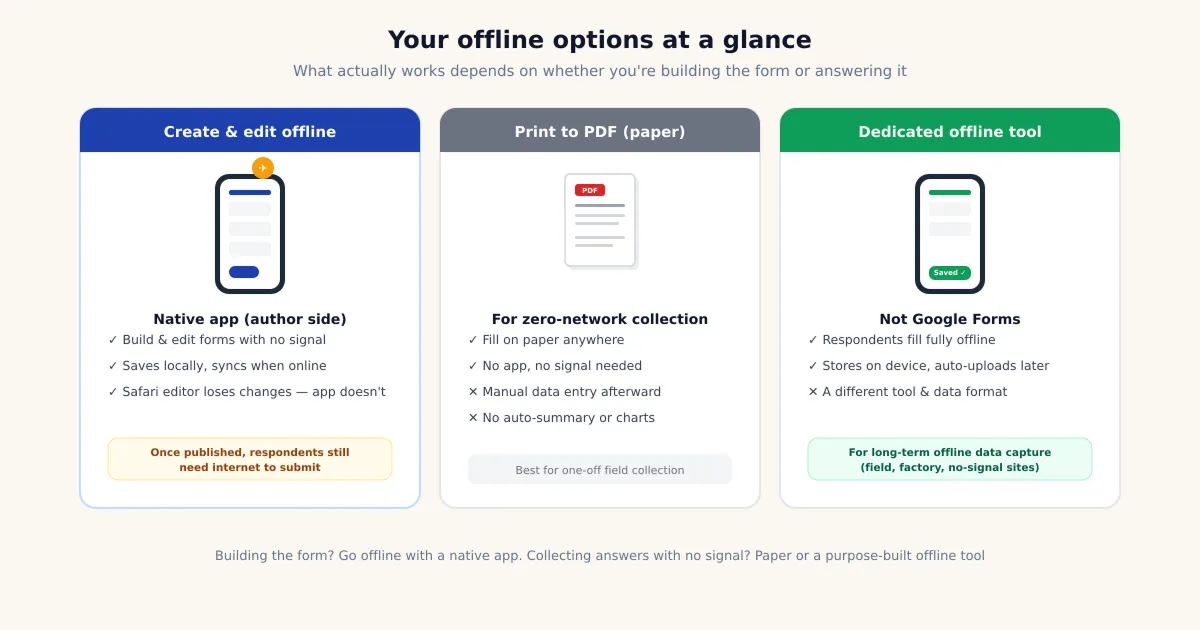
The row people most often get wrong is the last one. If your real need is respondents answering with no connection, no amount of native-app polish on the creator side changes that — the Forms for Google Drive offline feature builds the form, it doesn’t deliver the answering page offline. Pick the paper or dedicated-tool route for true offline collection, and reserve the app’s offline mode for what it genuinely does: letting you author and edit forms anywhere, then sync.
Prepare on mobile, export when connected
On iPhone and iPad. Forms for Google Drive offers an offline creation/editing workflow for supported app operations. Test it with a disposable form and verify synchronization after reconnecting. This does not make a Google Forms respondent link work offline.
With the Workspace add-on. Form to Docs by pipiform is an online desktop add-on for exporting questions or responses. Once you have exported and saved a document for offline use, you can review that copy without a live form session. Changes to that copy do not automatically sync back to Google Forms.
View Form to Docs and its features · Install the add-on · Get Forms for Google Drive on the App Store
The app and Workspace add-ons are separate pipiform products. Forms for Google Drive is US$59.99/year with a 3-day trial; check the App Store offer for your region. For Form to Docs, check the free allowance in your account; Premium is US$49.20/year or US$8/month, with separate one-time bundles. See current product pricing before subscribing.
Summary
Whether Google Forms works offline depends entirely on which side you’re on. Respondents can’t fill out or submit a form without a connection — Forms has no offline answering mode, the one Workspace app that lacks the offline toggle Docs, Sheets, and Slides all have, because the answering page is hosted live by Google. Creators get a real offline option: the Forms for Google Drive app lets you create and edit forms offline and sync to Drive when you reconnect, which the Safari editor can’t — but that benefit ends at publishing, since respondents still need internet to submit. Most “lost response” reports are weak signal, not true offline, and the fix is a stable connection, not a hidden setting. For genuine offline collection, print to PDF or use a dedicated field tool — not Google Forms.
Frequently Asked Questions
Can I fill out a Google Form without internet?
No. Filling out and submitting a Google Form both require an active internet connection — on iPhone, iPad, or desktop. The page respondents see is hosted live by Google, and it talks to Google's servers every time it loads, advances a page, and submits, so there's no point at which it works with no connection. If your signal drops mid-form, recent answers may never reach Google and the submission silently fails. There is no setting, app, or trick that lets a respondent complete a real Google Form fully offline and sync it later.
Does Google Forms have an offline mode like Docs and Sheets?
No, and this is the part that surprises people. Google Docs, Sheets, and Slides all have an official offline mode you can turn on in Chrome, so you keep editing with no connection and changes sync when you reconnect. Google Forms is the exception in the Workspace lineup — it has no offline mode for answering a form, on any platform. The answering experience is too tightly coupled to Google's servers for the offline approach the document editors use, so the offline toggle that exists for Docs and Sheets simply isn't there for Forms.
Can I create or edit a Google Form offline?
As a creator, partly — and this is where the side you're on matters. In Safari at forms.google.com the editor saves in real time to Google's servers, so with no connection your changes aren't saved and can be lost. A native app changes that: the Forms for Google Drive app lets you create and edit forms offline on iPhone or iPad, storing your changes locally and syncing them to Google Drive once you reconnect. Just remember the limit — building the form offline is the creator's side; once it's published, respondents still need internet to submit it.
Why did my form responses disappear?
Almost always weak signal, not true offline. The 'my responses disappeared' reports we get are rarely someone with no connection at all — they're a phone on one or two bars dropping a submit mid-handshake, so the answer never lands on Google's side and nothing gets recorded. It looks like an offline problem but it's a flaky-connection problem, and the fix is different: move to better signal and resubmit, or work through the connection checks in our Google Forms not working on iPhone guide rather than hunting for an offline setting that doesn't exist.
Can respondents submit a Google Form with no signal?
No. Submitting always needs a network connection, with no exceptions. The submit action sends the response to Google's servers in real time; with no signal there's nowhere for it to go, so the form either spins, errors, or appears to submit while nothing is saved. This is true of every method of opening a Google Form — Safari, the Google Drive app, an embedded form, or a QR-code link all lead to the same Google-hosted page that needs internet to accept a submission. If people will be answering with no connection, Google Forms is the wrong tool for that step.
What's the best way to collect data offline instead?
Two honest options, and neither makes Google Forms itself work offline. First, export or print the form to PDF, collect answers on paper at the no-signal location, and key them in afterward — you lose automatic aggregation but you can genuinely collect with zero connection. Second, switch to a third-party form app built specifically for offline data collection, which stores responses on the device and uploads them automatically when a connection returns. That second route is changing tools, not making Google Forms offline — be clear with yourself about which trade-off you're accepting before the day you need it.
Does a native iOS app let me use Google Forms offline?
It lets you create and edit forms offline — not collect responses offline. The Forms for Google Drive app stores the forms you build or change while disconnected and syncs them to Google Drive when you're back online, which the Safari web editor can't do. That's a real advantage for the creator who works on a plane or in a dead zone. But it doesn't and can't change the respondent side: once your form is live, the people answering it are loading a Google-hosted page that still requires internet to submit. The offline benefit is entirely on the building side.
Will my offline edits sync when I reconnect?
Yes — that's the whole point of building forms offline in a native app. When you create or edit a form offline in the Forms for Google Drive app, the changes are held locally on your device, and the moment a connection returns they sync up to Google Drive so the form is current everywhere. You don't have to remember to push anything manually. The only thing to keep straight is scope: syncing applies to the form you authored offline, not to responses — respondents still submit live, online, after the form is published.