
Google Forms Closing Date or Timer? Choose the Right Setup
In this guide
Use a Google Forms closing date when everyone shares one deadline; use Form Timer by pipiform when each person needs their own countdown. Event registration ending Friday at 5 p.m. and a quiz allowing 30 minutes after starting are different requirements.
This tutorial is published by pipiform, the maker of Form Timer and Forms for Google Drive.
Install Form Timer · View features and plans
This guide shows both setups, including the actual pipiform controls. For iPhone and iPad users, it also explains where the separate Forms for Google Drive app fits.
Choose the behavior you need
| Your activity | Suitable setup | Why |
|---|---|---|
| Registration ends Friday at 5 p.m. | Google Forms closing date | Everyone shares one cutoff |
| Each learner gets 30 minutes after starting | Form Timer | The allowance belongs to the attempt |
| Learners need to see time remaining | pipiform timed link | The respondent uses the countdown experience |
| You want a maximum response count | Google Forms response limit | A count-based closing rule, with concurrency limits |
If a shared closing date already solves the problem, you do not need a timer just to add a deadline. If later starters should receive the same allowance as earlier starters, a per-person timer is the relevant workflow.
Set up a per-person countdown with pipiform
1. Open the Timer add-on on a computer
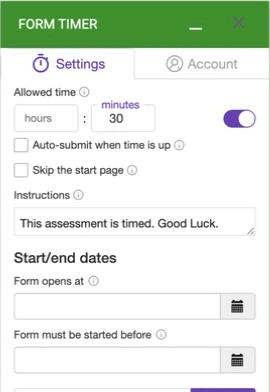
Install Form Timer for Google Forms™ using the account that edits your form. Open Add-ons → Form Timer for Google Forms™ → Open. Set the allowed hours or minutes in Settings.
2. Set duration and instructions
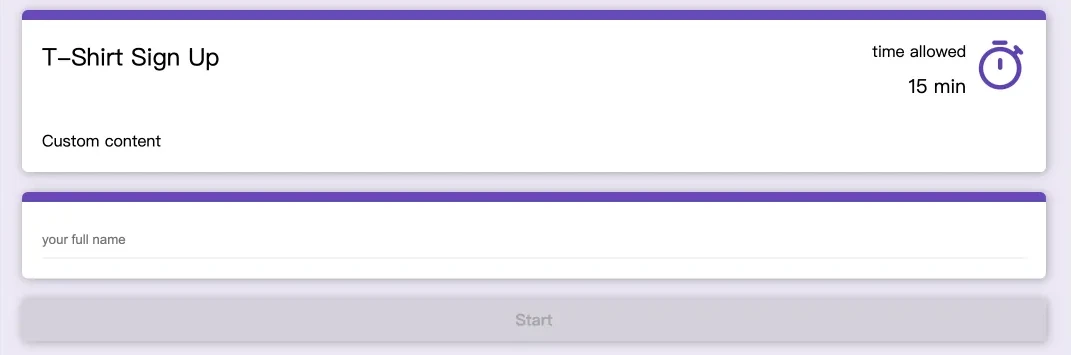
For a 30-minute quiz, enter 30 minutes under Allowed time. Write instructions explaining when the allowance begins and what participants should do if they encounter an error. Keep the start page if you want them to read those instructions before beginning.
The Auto-submit when time is up checkbox is separate. Enable it if you want to use that behavior and rehearse expiry with your required questions before inviting participants. The screenshot shows it unchecked.
3. Review the availability controls
Use Form opens at and Form must be started before if you need an entry window. “Must be started before” describes the latest start; it is not the same promise as forcing every running attempt to finish at that moment.
Start with the rule your activity actually needs. If you combine a timer with a native closing date or another availability rule, rehearse the combined behavior so one rule does not unexpectedly interrupt the other.
4. Share the generated timed link
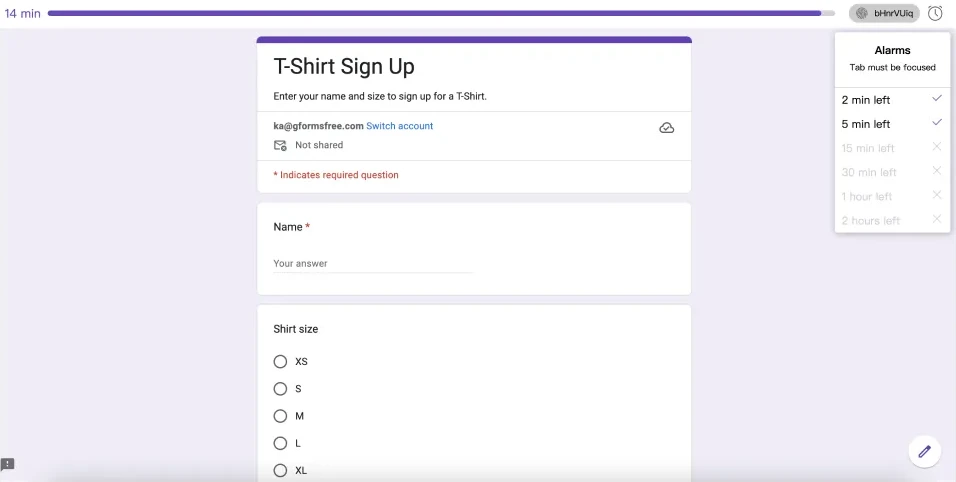
Use PREVIEW to inspect the respondent experience and COPY LINK for your invitation. A previously copied ordinary Forms link does not automatically enable the timer. Complete one fictional attempt and check the saved response in Forms.
Install Form Timer · Follow the full countdown tutorial
Set one shared closing date in Google Forms
Google’s native closing setting is a useful option for registration or surveys with one fixed cutoff. In the form editor:
- Open Published settings.
- Choose Set close date or response limit.
- Select On a date, then enter the intended date and time.
- Save and reopen the setting to confirm the cutoff.
- Check the responder link and the deadline stated in your invitation.
Google’s official response-management instructions cover this setting. Interface wording and availability can vary, so use the controls shown in your editor.
For a response-count cap, choose the count option instead. Google notes that simultaneous submissions can exceed the limit; do not treat it as a guaranteed seat-reservation system.
Can I close registration on a certain date?
For an event registration deadline, define the cutoff and its time zone in the form description, configure the shared closing date above, and test the respondent link. If your team calls this a “suspense date,” the requirement is still a shared deadline. An individual quiz timer serves a different purpose.
After collecting registrations, use Form Notifications to acknowledge each request and Form to Docs to prepare a reviewed Word or PDF record. Keep the acknowledgement accurate: receiving a request does not necessarily confirm a seat. For limited places, also review the response-count guide.
Extend or reopen a form
Return to the Published settings and update or remove the closing rule. If the form is already closed, also review whether it is accepting responses. Save and test the responder link before announcing that the deadline has changed.
Update the deadline in your invitation or form description too. Editing that explanatory text alone does not change the actual closing rule. If another automation controls availability, review it so it does not close the form again.
What should iPhone and iPad users use?
Forms for Google Drive is pipiform’s separate app for mobile form management and response review. Use it when you want to work with your forms away from the desktop. The add-on controls shown above belong to the desktop Workspace product; an app subscription does not unlock Timer Pro.
If a native setting is not exposed in the mobile interface you are using, configure that setting in the desktop Forms editor. For a timed activity, test the generated respondent link on the iPhone browser your audience will use.
Does a closing date give each person 30 minutes?
No. A shared cutoff leaves less time for someone who begins later. Use a per-person timed workflow for an individual allowance.
Does “Form must be started before” mean every attempt ends then?
Do not interpret it that way. It labels a start condition. Check the intended finishing behavior separately.
Can I keep the form and add a timer?
Yes, the add-on workflow is configured from your existing Google Form. Review the timed link, required fields and any helper fields before sharing.
Try it with your own form
For a quiz, begin with a short per-person rehearsal. For a shared registration deadline, use the native closing setting. Choose the tool whose behavior matches the promise you make to participants.
Install Form Timer · Review the product and pricing
Form Timer is free on one form. Pro is US$80/year (about US$6.67/month billed annually) or US$10/month.
For managing forms and reviewing responses on iPhone or iPad, use the separate Forms for Google Drive app. It complements the desktop add-on workflow; an app subscription does not unlock the add-on. The app is US$59.99/year with a 3-day trial, subject to the offer in your App Store region. View the app on the App Store.