
A 10-Minute Google Forms Practice Quiz: Setup and Test Plan
This worked example plans a ten-minute practice quiz for a workshop. It includes sample questions and a test plan; it is not a customer case study or a report of a live classroom trial.
The goal is a small activity whose instructions, score, and time allowance agree with what participants actually experience.
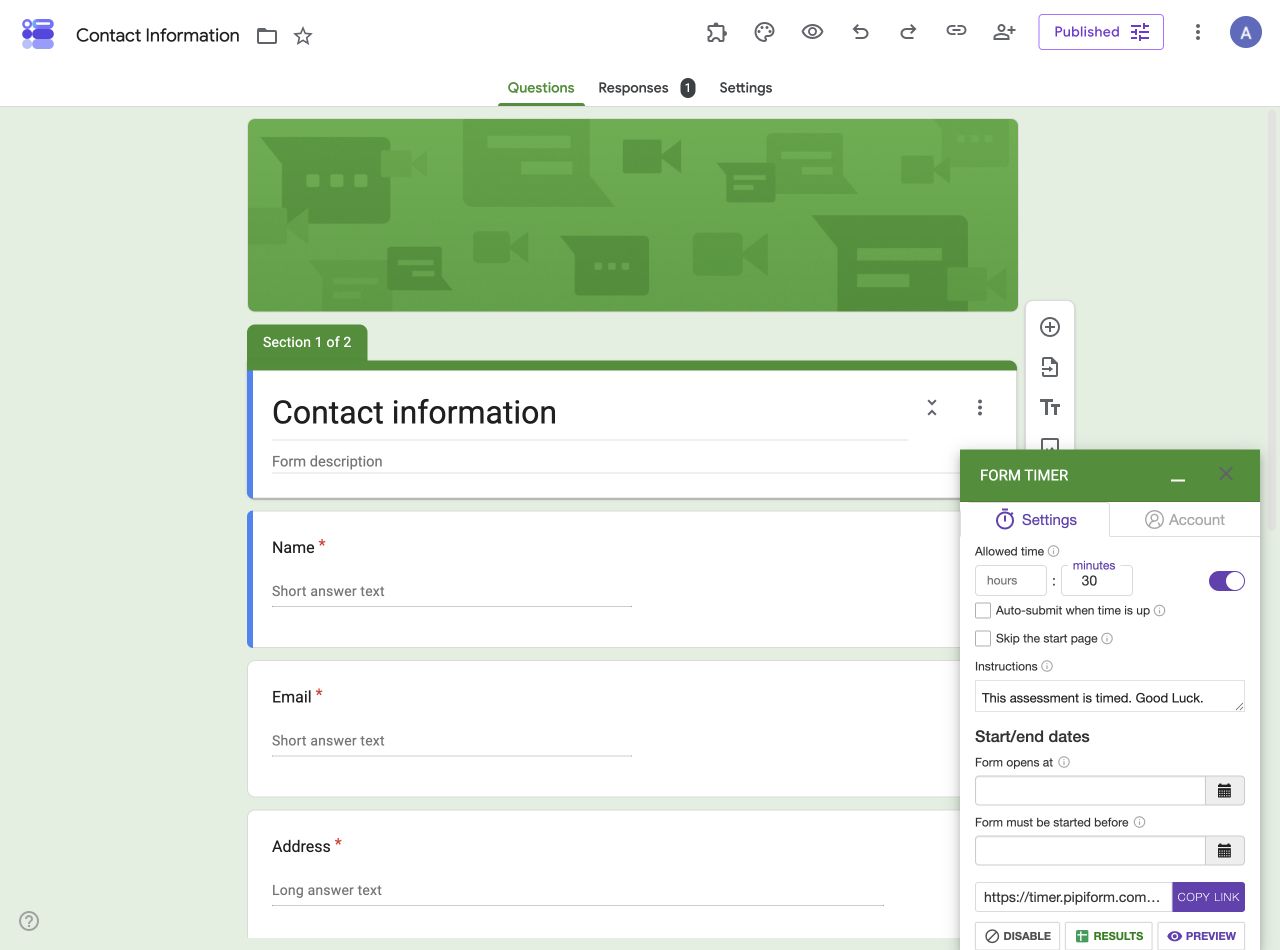 Actual desktop web screenshot. This separate test form uses 30 minutes; the ten-minute quiz below is a worked example.
Define the activity before configuring the timer
Use five multiple-choice questions, worth one point each. The ten-minute allowance is an example setting, not a recommended limit for every audience. Adjust it for reading time, accessibility needs, and the purpose of your session.
Download the five-question sample. The sample covers the form workflow itself:
| Question | Intended correct answer |
|---|---|
| Which link should a participant receive? | The respondent link for the intended workflow |
| What should the owner verify after a test? | That the expected response is recorded |
| What does a per-person countdown describe? | The time allowance for an individual attempt |
| What should you do when an upload requirement is unclear? | Ask the owner to clarify it |
| What does a visible countdown prove? | That a countdown is displayed, not that an answer was saved |
These questions are deliberately simple so the first trial can focus on the workflow. Replace them with your teaching material after the process is understood.
Prepare scoring separately from timing
In Google Forms, enable quiz mode in Settings, assign the answer key and points, and choose when results should be released. Google’s quiz documentation describes those controls. Scoring and timing are separate parts of the activity; configuring one does not demonstrate that the other works.
Decide whether unanswered questions should prevent completion, and test that decision with your timer. Do not mark every question required simply because the activity is a quiz.
A real interface reference
The observed add-on path was Add-ons → Form Timer for Google Forms™ → Open. We opened the generated timed link and saw a running countdown. We also submitted fictional contact details manually before the limit and verified the response in Google Forms; the timed page displayed 9 minutes 52 seconds. This separate desktop-browser test is recorded in the actual test log. The five-question quiz in this article remains a worked example to configure and test; its blank test record has not been filled with unrelated results.
Add the timed workflow
On a computer, open the test form and configure Form Timer for Google Forms using the documented setup. Start with a very short allowance while checking expiry, then use the planned duration for a complete rehearsal.
For this example, the desired outcome is an individual time allowance and a clear completion path. Whether an automatic submission is recorded with unanswered questions must be observed in the actual form; this example does not promise a particular result.
Give participants instructions they can use
Adapt this text after testing:
This is a five-question practice activity. Follow the time allowance shown on the page and keep the page open while answering. Submit when you have finished. If you see an error or lose your connection, contact the organizer and describe what happened. The organizer will explain how interrupted attempts are handled.
Add the actual allowance and interruption policy before the real session. Avoid claiming that closing the page is safe or that all answers are automatically recoverable unless that has been established for your workflow.
Run three rehearsals
First, complete every answer and submit before the limit. Second, leave one answer blank and let time expire. Third, open the intended link on the device participants will use and repeat the normal submission.
For each rehearsal, record the displayed result, whether a response exists, which answers were recorded, and the final score. The test-record sheet has blank fields for observed results; it does not contain invented passes.
Review before using the activity
If the response records match your instructions, the workflow is ready for your own final review. If they do not, adjust the instructions, required fields, timing settings, or fallback process and test again.
Form Timer’s published allowance is one free form, with Pro at $80/year or $10/month. The separate iOS app subscription does not replace that add-on plan. See pricing and the iPhone timer guide for the product distinction.